Atmosphère 1.6.2 officially supports Nintendo Switch firmware 17.0.0. Therefore, a console that crashes after updating is usually experiencing a mismatched payload, outdated Hekate installation, incompatible system module, damaged theme, SD card problem, or unusual system-partition configuration.
Atmosphère 1.6.2 completed support for firmware 17.0.0 by updating several internal modules to match Nintendo’s latest behavior. It also improved an automatic recovery mechanism for certain systems whose SYSTEM partition had previously been rebuilt.
A clean Atmosphère 1.6.2 installation should normally boot firmware 17.0.0. The troubleshooting process should therefore focus on the complete boot environment rather than immediately recreating EmuMMC or formatting the microSD card.
Important: This guide is intended for legally owned Nintendo Switch systems, legitimate homebrew, maintenance, backups, and development. It does not cover unauthorized software copies or bypassing ownership protections.
Introduction: Why Atmosphere 1.6.2 Crashes on Firmware 17.0.0
Atmosphère is only one component of a custom firmware setup. A typical installation may also use Hekate, fusee, EmuMMC, custom themes, overlays, homebrew applications, boot configurations, and background system modules.
When firmware 17.0.0 is installed, every component that interacts with the operating system must remain compatible. Atmosphère itself may work correctly while an old system module crashes during startup.
Common symptoms include:
- A black screen after the Atmosphère logo
- A fatal error with a program ID
- A continuous boot loop
- Hekate loading but Atmosphère failing
- The Home Menu appearing briefly before a crash
- EmuMMC no longer being detected
- Homebrew applications refusing to launch
- Network-related errors after startup
Reports submitted to the official Atmosphère switch issue tracker included systems running firmware 17.0.0 and Atmosphère 1.6.2 that crashed shortly after reaching the Home Menu. This demonstrates that matching version numbers alone do not eliminate configuration-specific problems.
Does Atmosphere 1.6.2 Officially Support Firmware 17.0.0?
Yes. Atmosphère 1.6.2 officially supports Nintendo Switch firmware 17.0.0.
Atmosphère 1.6.1 initially added basic support for firmware 17.0.0. The official changelog stated that the console should boot and Atmosphère should remain functional, although several modules had not yet been completely updated.
Atmosphère 1.6.2 then finished support for firmware 17.0.0 by updating the following internal components:
erptjpegdecpm
The release also included additional stability improvements.
Therefore, you should use Atmosphère 1.6.2 rather than 1.6.1 for a firmware 17.0.0 setup.
A newer compatible Atmosphère release may also run firmware 17.0.0. Users rebuilding an installation today generally do not need to deliberately install the older 1.6.2 package unless they have a specific reason to reproduce that historical setup.
Common Causes of Atmosphere 1.6.2 Crashes
A crash does not automatically mean that firmware 17.0.0 is unsupported.
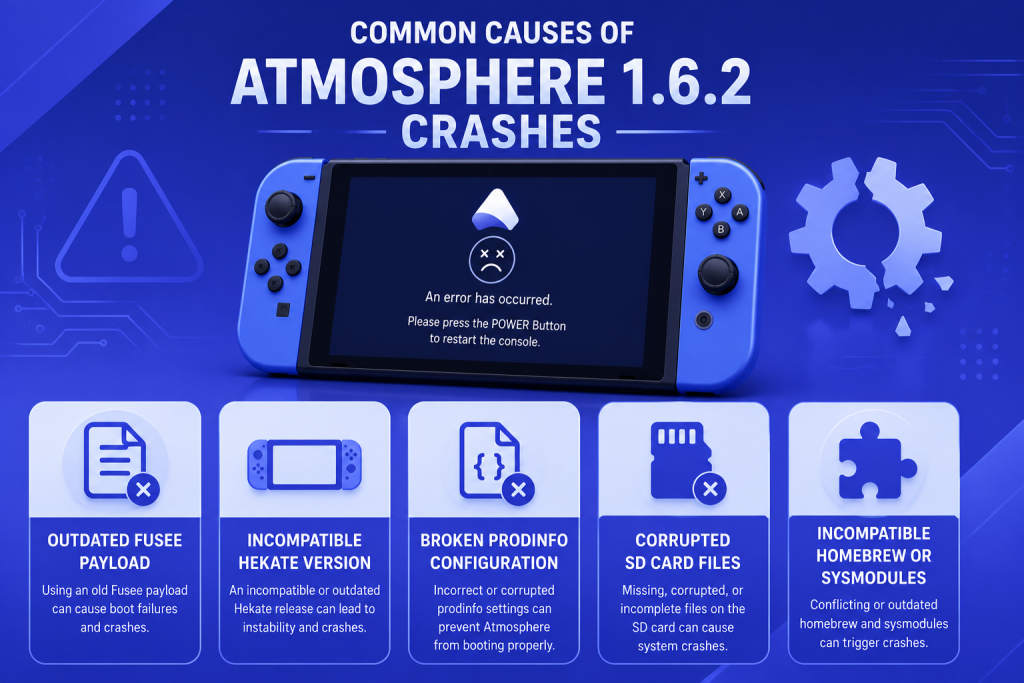
Most failures are caused by files surrounding Atmosphère rather than its core components.
Outdated Fusee Payload
Atmosphère files and fusee.bin must belong to compatible releases.
Users frequently replace the atmosphere folder but continue launching an older fusee payload stored elsewhere. Possible locations include:
SD:/bootloader/payloads/fusee.bin- A payload injector
- A computer
- An Android phone
- A USB dongle
- A chainload configuration
- A modchip boot folder
An outdated payload may produce:
- Package mismatch errors
- Invalid package errors
- A fatal boot screen
- A black screen
- Failure immediately after the Atmosphère logo
Replace every copy of fusee.bin with the payload included alongside the Atmosphère release you are using.
Do not use the obsolete fusee-primary.bin with modern Atmosphère installations.
Incompatible Hekate Version
An outdated Hekate installation may be unable to correctly boot a newer Nintendo firmware or its EmuMMC environment.
Hekate consists of two separate parts:
- The
bootloaderfolder on the microSD card - The Hekate payload used to launch the console
Updating only the SD card folder is not enough when the console is still receiving an old Hekate payload from a computer, phone, dongle, or hardware configuration.
Use a Hekate version whose official release notes list support for firmware 17.0.0 or later. Newer Hekate versions continue to support later Nintendo firmware and include additional boot, EmuMMC, and storage fixes.
Preserve this file before replacing Hekate files:
SD:/bootloader/hekate_ipl.ini
It may contain custom EmuMMC, SysMMC, stock, and payload entries.
Broken PRODINFO Configuration
PRODINFO contains console-specific manufacturing, calibration, identity, and certificate information.
Some users employ Atmosphère configuration options or third-party tools that hide, blank, or alter PRODINFO information inside EmuMMC. Firmware 17.0.0 changed certain system behavior, and incorrectly configured identity-hiding setups could trigger network errors, delayed crashes, or failures shortly after startup.
Signs may include:
- Error
2123-0011 - The Home Menu loading briefly before Atmosphère crashes
- Crashes when Wi-Fi is enabled
- Network functions failing
- Account-related services repeatedly reporting errors
Do not modify or replace PRODINFO without a verified console-specific backup and a clear recovery plan.
For troubleshooting, test with a clean Atmosphère configuration and remove third-party identity-modification tools. Review settings in:
SD:/atmosphere/config/exosphere.ini
If PRODINFO was previously damaged or improperly altered, use only a verified backup from the same console. Never use another console’s PRODINFO.
Corrupted SD Card Files
A corrupted or counterfeit microSD card can create symptoms that look like firmware incompatibility.
Common warning signs include:
- Files disappearing
- Deleted files returning
- Archive extraction errors
- Random fatal errors with different program IDs
- Homebrew applications vanishing
- Slow startup
- Hekate reporting read errors
- Windows asking to format the card
- The Nintendo Switch detecting the card intermittently
A folder merge may also leave old and new files mixed together if the card stopped responding during the copy.
Create a backup and test the full capacity of the microSD card using a reliable verification tool. A quick scan is not always enough to detect a fake-capacity card.
FAT32 is generally preferred for homebrew environments because an interrupted write on exFAT can cause wider filesystem corruption.
Incompatible Homebrew or Sysmodules
System modules run in the background and may load before the Home Menu appears. An incompatible module can therefore prevent Atmosphère from finishing the boot process.
They are commonly stored under:
SD:/atmosphere/contents
Examples may include:
- Tesla-related components
- Overlay loaders
- Controller modules
- Clock-control modules
- Emulation services
- Audio modifications
- USB modules
- Screenshot or video plugins
- FPS and performance tools
Homebrew applications launched manually are less likely to break startup than sysmodules that load automatically.
Temporarily rename:
SD:/atmosphere/contents
to:
SD:/atmosphere/contents-disabled
Then test Atmosphère again.
When the console boots successfully, restore modules one at a time and restart after each change.
How to Fix Atmosphere 1.6.2 Crashes
Use a controlled troubleshooting process. Do not change several unrelated components at the same time.
Start with the payload and clean Atmosphère files, then test optional modules, themes, the SD card, and EmuMMC configuration.
Update Fusee and Boot Files
Fully power off the Nintendo Switch before removing the microSD card.
Then complete the following steps:
- Back up the entire microSD card.
- Download the official Atmosphère 1.6.2 release package.
- Download its matching
fusee.bin. - Extract the Atmosphère package on your computer.
- Copy its files to the SD card root.
- Replace the fusee payload in every location.
- Update the Hekate
bootloaderfolder. - Replace the Hekate payload used to launch the console.
- Safely eject the microSD card.
- Test the clean setup.
The expected core paths include:
SD:/atmosphere/package3
SD:/bootloader/
SD:/bootloader/payloads/fusee.bin
SD:/switch/
SD:/hbmenu.nro
Do not place Atmosphère inside an extra folder such as:
SD:/atmosphere-1.6.2/atmosphere
The active folder must be directly at:
SD:/atmosphere
Verify Atmosphere Installation
Check that the Atmosphère package was completely extracted.
The following should exist:
SD:/atmosphere/
SD:/atmosphere/package3
SD:/switch/
SD:/hbmenu.nro
When updating, avoid mixing files from:
- Atmosphère 1.5.x
- Atmosphère 1.6.1
- Atmosphère 1.6.2
- Unofficial all-in-one packages
- Random troubleshooting archives
A safer diagnostic method is to rename the existing folder:
atmosphere → atmosphere-old
Then copy a fresh official atmosphere folder to the SD card.
Do not delete the old folder until the clean setup works and you have recovered any required configuration.
Remove Conflicting Sysmodules
Rename the active contents folder:
SD:/atmosphere/contents
to:
SD:/atmosphere/contents-disabled
Boot Atmosphère again.
If the console reaches the Home Menu, one of the disabled modules is incompatible.
Create a new empty:
SD:/atmosphere/contents
Then restore each module individually.
Restart after every restoration. When the crash returns, the most recently added module is the likely cause.
Do not copy the entire old contents folder back at once.
Disable Incompatible Themes
Custom themes modify Home Menu files that can change between firmware releases.
A theme made for firmware 16.x may not be compatible with firmware 17.0.0. This can cause:
- A black screen
- A crash after the Nintendo logo
- A fatal qlaunch error
- A boot loop
- Missing Home Menu elements
Remove the installed theme before updating firmware.
When the console already fails to boot, disable the relevant theme folders inside:
SD:/atmosphere/contents
You can also temporarily disable the entire contents folder to determine whether a theme is responsible.
Boot the default Nintendo theme first. Reinstall only a theme confirmed to support firmware 17.0.0.
Check SD Card Integrity
Before formatting the microSD card, attempt to copy all readable data to a computer.
Then:
- Check the filesystem for errors.
- Run a full-capacity read-and-write test.
- Verify that the reported capacity is genuine.
- Inspect Hekate’s SD card information.
- Test another reliable card reader.
- Safely eject the card after every transfer.
- Try a known-good microSD card when available.
Do not trust a card merely because its files are visible. Counterfeit cards often work until the amount of stored data exceeds their true physical capacity.
When the card is reformatted, use FAT32 and restore only clean, verified files.
Fixing Black Screen After Boot
A black screen after the Atmosphère logo has been reported even where both SysMMC and EmuMMC were affected. Such reports show that the symptom can occur after an Atmosphère update without necessarily proving that EmuMMC itself is damaged.
Use this sequence:
- Hold the Power button for about 12–15 seconds.
- Boot into Hekate.
- Confirm the microSD card is detected.
- Confirm EmuMMC is enabled.
- Replace Atmosphère with clean official files.
- Replace
fusee.bin. - Update Hekate and its payload.
- Disable
atmosphere/contents. - Remove custom themes.
- Check
hekate_ipl.ini. - Test fusee directly when appropriate.
- Test a known-good SD card if the screen remains black.
If direct fusee and Hekate boot entries both result in the same black screen, the cause is more likely to be an Atmosphère-side configuration, sysmodule, theme, SD card, or NAND issue than a single Hekate launch entry.
Resolving Fatal Error and Boot Loop Issues
A fatal Atmosphère screen normally shows useful diagnostic information.
Record:
- Error code
- Program ID
- Firmware version
- Atmosphère version
- Whether EmuMMC or SysMMC was used
- Whether the error occurs before or after the Nintendo logo
Check the SD card for:
SD:/atmosphere/fatal_errors
SD:/atmosphere/crash_reports
SD:/atmosphere/erpt_reports
A program ID may correspond to a folder inside:
SD:/atmosphere/contents
When the same program ID appears repeatedly, disable that module first.
Firmware 17.0.0 also exposed an issue on certain consoles whose SYSTEM partition had previously been rebuilt. Atmosphère 1.6.2 included an improved solution that automatically detects and repairs affected systems during boot.
The official issue tracker nevertheless contains reports of error 2002-3005 after updating to firmware 17.0.0, including cases where both stock firmware and Atmosphère were affected. These cases should be treated as possible SYSTEM-partition or NAND problems rather than ordinary sysmodule conflicts.
Do not manually delete NAND files based on an isolated forum post. Preserve backups and obtain expert assistance when both stock firmware and Atmosphère fail.
How to Verify Your Setup Is Working Properly
After the console boots, open:
System Settings → System
The version should look similar to:
17.0.0 | AMS 1.6.2 | E
The sections identify:
17.0.0— Nintendo firmwareAMS 1.6.2— Atmosphère versionE— EmuMMCS— SysMMC
Then perform these checks:
- Leave the console on the Home Menu for several minutes.
- Open System Settings.
- Enable and test Wi-Fi.
- Enter and leave sleep mode.
- Test attached controllers.
- Open the Homebrew Menu.
- Launch one trusted homebrew application.
- Restart into Hekate.
- Confirm EmuMMC remains enabled.
- Boot Atmosphère again.
A system that reaches the Home Menu but crashes a few seconds later may still have a network, PRODINFO, account-service, or background-module issue. One official issue report described firmware 17.0.0 with Atmosphère 1.6.2 and Hekate 6.0.7 crashing shortly after startup with error 2123-0011.
Do not restore themes and sysmodules until the clean setup passes all tests.
Common Mistakes to Avoid
Mixing Old and New Files
Copying new files over a heavily modified installation may leave incompatible components behind.
Avoid combining:
- Old Atmosphère modules
- A newer
package3 - An older fusee payload
- Unofficial patches
- Themes from another firmware
- Configuration files from unrelated packs
Keep the previous installation as a renamed backup and test a clean official Atmosphère folder.
Using Outdated Payloads
There may be several copies of fusee and Hekate across the setup.
Check:
- The computer
- The phone
- The dongle
- The SD card root
bootloader/payloads- Modchip configuration
- Chainload folders
Replacing only one copy may leave the console launching another outdated payload.
Skipping Hekate Updates
Hekate manages boot entries, EmuMMC selection, storage access, and payload chainloading.
An outdated version may produce:
- Unsupported package errors
- Incorrect boot behavior
- EmuMMC detection problems
- Black screens
- Failed stock boot entries
Update both the bootloader folder and the injected Hekate payload.
Ignoring Backup Procedures
Never perform major firmware, EmuMMC, partition, or NAND work without backups.
Preserve:
- Complete SD card contents
- BOOT0
- BOOT1
- RAW GPP
- EmuMMC configuration
- Important save backups
hekate_ipl.iniexosphere.ini- A list of installed modules
Store backups on a computer or external drive rather than keeping the only copy on the Switch microSD card.
Best Practices for a Stable Atmosphere Setup
Follow these practices to reduce future crashes:
- Use official Atmosphère releases.
- Match
fusee.binto Atmosphère. - Keep Hekate and its payload updated.
- Use FAT32 where practical.
- Test the microSD card for genuine capacity.
- Remove themes before firmware updates.
- Disable sysmodules during the first boot.
- Restore modifications one at a time.
- Keep clearly labelled EmuMMC and SysMMC boot entries.
- Confirm the active environment in System Settings.
- Avoid modifying PRODINFO.
- Keep several dated backups.
- Read official release notes before updating firmware.
- Do not mix files from unrelated installation packs.
- Test the current firmware after updating Atmosphère but before changing Nintendo firmware.
A useful version record might look like:
Nintendo firmware: 17.0.0
Atmosphere: 1.6.2
Bootloader: Hekate
Environment: EmuMMC
SD format: FAT32
Backup date: [Date]
Frequently Asked Questions
Why does Atmosphere 1.6.2 crash on firmware 17.0.0?
Atmosphère 1.6.2 officially supports firmware 17.0.0. A crash is therefore more likely to be caused by an outdated payload, incompatible sysmodule, broken theme, corrupted SD card, unusual PRODINFO configuration, incorrect Hekate setup, or damaged system data.
Atmosphère 1.6.2 completed firmware 17.0.0 support and updated several internal modules for the new official behavior.
Do I need to update Fusee?
Yes. Use the fusee.bin provided with the same Atmosphère release installed on the microSD card.
Replace every copy used by your payload launcher, Hekate chainload menu, phone, computer, dongle, or other boot method.
Can outdated themes cause crashes?
Yes. Custom themes created for an earlier Nintendo firmware may modify Home Menu files that changed in firmware 17.0.0.
Disable all themes and test the standard Nintendo interface before troubleshooting more complex causes.
Should I update Hekate too?
Yes. Use a Hekate release compatible with firmware 17.0.0 or later. Update both its SD card bootloader folder and the Hekate payload used to start the console.
Preserve hekate_ipl.ini before replacing files because it may contain custom launch entries.
How do I prevent future Atmosphere crashes?
Before every firmware update:
Read the official Atmosphère and Hekate release notes.
Create SD card, EmuMMC, and NAND backups.
Update Atmosphère and fusee first.
Update Hekate and its payload.
Disable themes and sysmodules.
Test the current firmware.
Update the intended EmuMMC or SysMMC.
Restore compatible modifications individually.
Avoid changing several components at once.
Final Thoughts
Atmosphère 1.6.2 officially supports Nintendo Switch firmware 17.0.0. It completed the firmware support initially introduced in Atmosphère 1.6.1 and updated erpt, jpegdec, and pm to match Nintendo’s newer system behavior.
If Atmosphère crashes, begin with a clean and controlled troubleshooting process:
Back up the SD card → Replace Atmosphère files → Update fusee → Update Hekate → Disable sysmodules → Remove themes → Verify EmuMMC → Test the SD card → Review the fatal error.
Do not immediately recreate EmuMMC, format the SD card, or modify NAND files. Most crashes are caused by mismatched payloads, outdated background modules, incompatible themes, damaged files, or configuration issues.
When both stock firmware and Atmosphère fail, or an error continues after testing a clean SD card setup, the problem may involve the system partition or NAND. Preserve all backups and avoid destructive repair steps until the exact cause has been identified.
Latest Post: