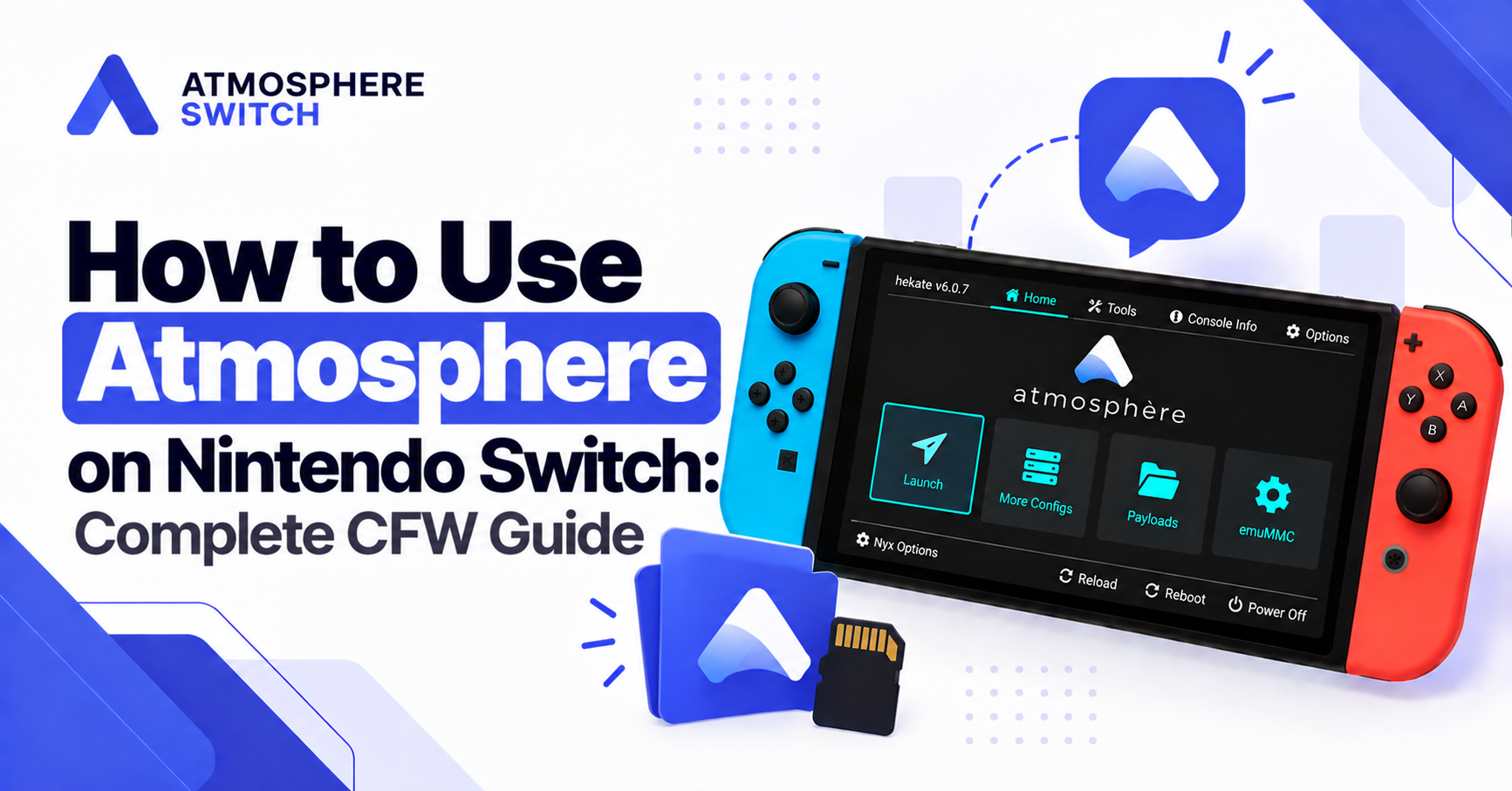
Atmosphère is the best-known custom firmware environment for compatible Nintendo Switch homebrew setups. It allows advanced users to run legitimate homebrew applications, development tools, custom utilities, accessibility-focused software, and other community-made projects that are not available through the standard Nintendo Switch operating system.
However, using Atmosphère responsibly requires more than copying files to a microSD card. You need to understand what Atmosphère does, how its files are organized, how to boot it safely, and why firmware compatibility matters. Most importantly, you should use homebrew only for lawful purposes and avoid activity that violates Nintendo’s rules, puts an account at risk, or involves content you are not authorized to access.
Quick answer: To use Atmosphère on a compatible Nintendo Switch, prepare a correctly formatted microSD card, place the official Atmosphère files on the SD-card root, boot through your established payload or bootloader setup, then open the Homebrew Menu to run trusted
.nroapplications from the/switch/folder. Atmosphère is a custom firmware project made up of several system-level components that extend the Switch operating environment.
Table of Contents
ToggleWhat Is Atmosphère on Nintendo Switch?
Atmosphère is a custom firmware (CFW) project for Nintendo Switch. In simple terms, it is a software environment that modifies or extends parts of the normal Switch operating system to make homebrew features possible.
The project is made up of several components with specialized functions. These include Fusée, Exosphère, Thermosphère, Stratosphère and Troposphère. Together, they support loading, system customization, virtualized storage environments, custom system modules and application-level changes.
For an ordinary user, you do not need to memorize every component. What matters is this:
- Atmosphère is the custom firmware environment.
- Homebrew Menu is where you open compatible homebrew apps.
- Hekate is a popular graphical bootloader often used to launch Atmosphère.
- fusee is Atmosphère’s own boot payload.
- microSD card files provide the software, configurations and applications the setup needs.
Atmosphère is not a standard Nintendo feature and is not supported by Nintendo. It should therefore be approached carefully. Do not assume that every Nintendo Switch model, firmware version or guide is compatible with your device.
What You Need Before Using Atmosphère
Before you try to use Atmosphère switch, make sure that you already have a compatible and lawfully prepared homebrew setup. The startup method depends on the console hardware and its existing configuration, so there is no one-size-fits-all process.
At a minimum, you should have:
- A compatible Nintendo Switch setup.
- A reliable, good-quality microSD card.
- A computer or card reader for managing SD-card files.
- The official Atmosphère release files.
- A compatible and established method for launching your chosen bootloader or payload.
- A fully charged Switch or access to its official charger.
- Backups of important SD-card files and personal data.
Do not mix files from several outdated guides. A common cause of boot errors is combining Atmosphère files, bootloader files and configuration files that were designed for different versions.
Why compatibility matters
Nintendo Switch system software changes over time. When the official firmware changes, Atmosphère and related tools may need updates before they work correctly. The official Atmosphère release notes regularly identify which Switch system versions are supported and may also point out changes that affect homebrew behaviour.
Before updating either Atmosphère or your Switch firmware, always check:
- Whether the latest Atmosphère release supports your Switch firmware.
- Whether your bootloader is current.
- Whether your homebrew apps are compatible.
- Whether you have a backup in case you need to restore your SD-card files.
Understand the Atmosphère File Structure
A clean and organized SD card is essential for using Atmosphère smoothly. After extracting the official Atmosphère release, its folders are usually copied to the root of the microSD card.
Your SD card may include folders similar to these:
/atmosphere/
/bootloader/
/switch/
/emuMMC/
/Nintendo/
Not every setup uses every folder in exactly the same way, but understanding their general purpose helps with troubleshooting.
| Folder | Typical purpose |
|---|---|
/atmosphere/ | Core Atmosphère files, configurations and system modules |
/bootloader/ | Hekate and Nyx files, launch configurations and payload storage |
/switch/ | Homebrew applications, normally stored as .nro files |
/emuMMC/ | Files associated with an emulated NAND setup, if configured |
/Nintendo/ | Standard Nintendo content stored on the SD card |
The /atmosphere/ folder
The /atmosphere/ folder contains the custom firmware files that Atmosphère needs to load. Do not rename it casually or move its contents into another folder. If this directory is missing, incomplete or mixed with outdated files, Atmosphère may fail to start.
The /switch/ folder
The /switch/ folder is where homebrew apps normally belong. Each app should remain in the folder structure supplied by its developer.
For example:
/switch/AppName/AppName.nroThis keeps applications easier to manage and helps the Homebrew Menu recognize them correctly.
The /bootloader/ folder
If you use Hekate, the /bootloader/ folder contains its main files and configuration. Hekate uses bootloader/hekate_ipl.ini for boot entries shown in its Launch menu, while bootloader/payloads is used for payload files you may access through the Payloads menu.
How to Start Atmosphère Safely
The correct way to start Atmosphère depends on the startup method already configured for your particular Switch. Some users launch Atmosphère through Hekate, while others use Atmosphère’s own fusee.bin payload.
Avoid blindly following device-specific instructions that do not match your console. Instead, use the following high-level workflow.
Step 1: Fully power off the Switch
Do not leave the Switch in Sleep Mode. Hold the Power button, choose Power Options, then select Turn Off.
A full shutdown matters because a sleep-mode console usually resumes the standard operating system rather than loading a boot environment.
Step 2: Insert the prepared microSD card
Ensure the microSD card is securely inserted before startup. It should contain the required Atmosphère files and, if you use Hekate, the corresponding bootloader files.
Step 3: Use your established startup method
Use the lawful payload-loading or hardware startup method that is already configured for your compatible device. Then load either:
- The Atmosphère
fusee.binpayload, or - Hekate, followed by an Atmosphère boot entry.
Fusée is Atmosphère’s custom bootloader component and is distributed as a standalone payload in official releases.
Step 4: Select the appropriate boot option
If you boot into Hekate, choose Launch and select the Atmosphère option configured for your environment. A typical Hekate configuration can include different options for an emuMMC environment, a system-memory environment, or stock firmware.
Only choose boot entries you understand. Do not edit configuration files simply because a random online screenshot uses a particular setup.
Step 5: Confirm that Atmosphère loaded
After a successful boot, your Switch may look similar to a normal Nintendo Switch system. That is expected. Atmosphère does not always present a permanent, highly visible dashboard.
The easiest practical way to confirm your setup is working is to open the Homebrew Menu and verify that your trusted .nro apps appear.
How to Use the Homebrew Menu
The Homebrew Menu, often called hbmenu, is the interface used to open compatible homebrew applications. It is separate from the standard Nintendo Switch Home Menu.
Once Atmosphère is running, the normal process is:
- Open the configured Homebrew Menu entry for your setup.
- Browse the list of installed homebrew apps.
- Select a trusted application.
- Read the app’s instructions before making changes.
- Exit the app cleanly when finished.
Atmosphère releases bundle hbmenu and related homebrew components, though exact versions can change with new releases.
Use trusted homebrew apps only
A homebrew application has extensive access compared with a normal game app. Download only from the project’s official repository or a reputable developer source. Avoid reuploaded files, “all-in-one” packs from unknown websites, and apps that ask you to disable protections without a clear explanation.
Before installing an app, check:
- Who created it.
- When it was last updated.
- Whether it supports your Switch firmware.
- Whether its source code or official documentation is available.
- What files it will add to the SD card.
- Whether it needs access to sensitive data or storage functions.
Where Atmosphère Homebrew Apps Go
Atmosphère homebrew apps generally go in the following location:
/switch/Most apps are provided as .nro files. Keep each app in the folder structure supplied by its developer. For example:
/switch/ExampleApp/ExampleApp.nroSome applications include extra folders, configuration files, assets or documentation. Copy those as instructed by the developer instead of moving only the .nro file.
After copying the files:
- Safely eject the microSD card from your computer.
- Insert it into the Switch.
- Boot Atmosphère.
- Open the Homebrew Menu.
- Confirm that the application appears.
If an app does not appear, verify that the .nro file is in the /switch/ folder and that the SD card was safely ejected before use.
Hekate, fusee, sysMMC and emuMMC Explained
These terms are frequently mentioned in Atmosphère guides, and they can feel confusing at first. Here is the simple version.
Hekate
Hekate is a graphical bootloader. It can launch Atmosphère, manage boot entries, handle emuMMC-related functions, load payloads and offer maintenance tools. Its documentation describes support for Switch OS booting, payload launching, backup/restore tools, SD-card partitioning and emuMMC management.
fusee
fusee.bin is Atmosphère’s own boot payload. It can be used to start the Atmosphère environment directly when your setup supports it.
sysMMC
sysMMC refers to the Switch’s real internal storage environment. It is the console’s actual system memory. Modifying anything in this environment requires caution because mistakes can affect the main console setup.
emuMMC
emuMMC is an emulated or redirected storage environment. It is commonly used in advanced setups to separate certain homebrew activities from the main internal environment.
Whether you need emuMMC depends on your goals and existing configuration. Do not create, format or restore an emuMMC without reading a trusted guide that matches your exact setup. Storage operations can be destructive if handled carelessly.
How to Update Atmosphère
Updating Atmosphère is not difficult, but it should never be rushed. The main goal is to avoid version mismatches.
Before updating
Back up these items first:
- The full microSD card, if possible.
- The
/atmosphere/folder. - The
/bootloader/folder, if using Hekate. - Your configuration files.
- Any important homebrew app settings.
- Your existing emuMMC-related files, if applicable.
General Atmosphère update process
- Visit the official Atmosphère GitHub releases page.
- Download the latest release compatible with your Switch firmware.
- Extract the archive on your computer.
- Copy the supplied Atmosphère files to the root of the microSD card.
- Merge and replace files when appropriate.
- Update
fusee.binif the release notes say it is required. - Update Hekate separately if your setup uses it.
- Reinsert the card and test the boot process.
The official Atmosphère release notes specifically warn users to update fusee when upgrading to certain releases, and they note that older payload naming can become unsupported.
Do not update Nintendo firmware first without checking
If your Switch firmware updates before Atmosphère is ready, your custom firmware setup may stop booting temporarily. The safest order is:
- Check official Atmosphère compatibility.
- Update Atmosphère and any required bootloader files.
- Confirm your homebrew apps are compatible.
- Only then consider updating the Switch firmware.
Common Atmosphère Problems and Fixes
Atmosphère will not boot
Possible causes include missing files, an outdated payload, a dead battery, a corrupted SD card or incompatible firmware versions.
Try this:
- Fully charge the Switch.
- Confirm the SD card is inserted.
- Verify that
/atmosphere/exists on the SD-card root. - Replace Atmosphère with a clean official copy.
- Update your bootloader and payload if required.
- Check that your Switch firmware is supported.
“A fatal error occurred when running Atmosphère”
This type of message commonly points to an outdated custom system module, a bad configuration, or incompatible files left behind after an update.
A sensible troubleshooting order is:
- Back up the SD card.
- Temporarily remove non-essential customizations.
- Install a clean official Atmosphère release.
- Update compatible components.
- Add optional tools back one at a time.
This makes it easier to identify the file causing the issue.
Homebrew apps are missing from hbmenu
Check the location and filename. Apps should normally be inside /switch/, with the .nro file included. Also confirm that the card was safely ejected and that the application supports your current Atmosphère and Switch firmware.
Hekate launches but Atmosphère does not
If Hekate opens successfully but an Atmosphère boot entry fails, inspect the configuration rather than reinstalling everything immediately. Hekate boot entries are controlled through hekate_ipl.ini or related configuration files. The official template shows that boot entries can use Atmosphère’s package3 file and can be configured differently for emuMMC or system-memory use.
Safety, Legal Use and Online Considerations
Atmosphère is a powerful tool, and responsible use matters.
Use Atmosphère for legitimate purposes such as:
- Running lawful homebrew applications.
- Learning Switch homebrew development.
- Testing your own software.
- Using accessibility or utility tools.
- Exploring open-source projects.
- Managing personal, authorized data.
Avoid using custom firmware to obtain, copy, distribute or run content you do not have the right to use. Also be aware that modified consoles can create account, warranty, stability and online-service risks.
Good safety habits include:
- Keep backups before major changes.
- Download only from official or trusted sources.
- Avoid random configuration packs.
- Do not interrupt storage operations.
- Do not mix guide files from unrelated versions.
- Review Nintendo’s current rules before connecting a modified console to its services.
- Keep your legitimate games, save data and personal information protected.
Frequently Asked Questions
What is Atmosphère on Nintendo Switch?
Atmosphère is a custom firmware project for compatible Nintendo Switch consoles. It provides a homebrew-capable environment made up of multiple software components that modify or extend parts of the Switch operating system.
Where do Atmosphère homebrew apps go?
Homebrew apps normally go in the /switch/ folder on the root of the microSD card. Keep the .nro file and any related folders in the structure supplied by the app developer.
Do I need Hekate to use Atmosphère?
Not always. Atmosphère can be started through its own fusee payload, while Hekate is a popular alternative bootloader that provides a graphical menu and additional management tools.
Why does Atmosphère stop working after a Switch update?
A new Nintendo firmware version may not yet be supported by your installed Atmosphère version, Hekate version or homebrew apps. Check official compatibility information before updating system software.
Is Atmosphère legal?
Homebrew legality varies by location and by how the software is used. Using homebrew for legitimate development or authorized applications is different from using it to infringe copyright, bypass service rules or access unauthorized content. Review local laws and platform terms.
Can I use Atmosphère online?
Connecting a modified console to online services can involve account and service risks. Check Nintendo’s current terms and understand the consequences before connecting. Never use homebrew to violate platform rules or access content without authorization.
Conclusion
Atmosphère gives compatible Nintendo Switch users a flexible environment for legitimate homebrew, but it works best when you understand the basics. Keep your microSD card organized, use official releases, place homebrew .nro apps in the /switch/ folder, and boot Atmosphère through the compatible method already configured for your device.
For a stable setup, do not rush updates. Back up your files, verify Switch firmware compatibility, update Atmosphère and Hekate carefully, and add optional apps only from trusted developers. Used responsibly, Atmosphère can be a valuable platform for homebrew learning, utilities and open-source creativity without turning a simple setup into an avoidable troubleshooting problem.
Latest post:
- How to Use Atmosphère on Nintendo Switch: Complete CFW Guide for Homebrew Users
- How to Update Switch Firmware With Atmosphere: Complete Step-by-Step Guide
- How to Install XCI on Switch Atmosphere: What You Need to Know
- How to Install Games on Atmosphere Switch: Complete Guide
- How to Install NSP Files on Switch Atmosphere: What You Need to Know