Updating Atmosphère may look like a simple file-replacement process, but using outdated boot files, incompatible system modules, or the wrong firmware version can prevent your Nintendo Switch from booting correctly. The safest approach is to update Atmosphère, fusee, Hekate, homebrew applications, and supporting files before changing the firmware inside EmuMMC. You should also create reliable backups before touching the SD card.
As of July 2026, the official Atmosphère 1.11.2 release provides basic support for Nintendo Switch firmware 22.5.0. The official release notes also state that users must update fusee.bin when upgrading because the older fusee-primary payload is no longer supported.
Important: This guide is intended for maintaining a legally owned Nintendo Switch and legitimate homebrew setup. It does not cover piracy, unauthorized game distribution, or bypassing ownership requirements.
Introduction: Why Updating Atmosphere Requires Care
Atmosphère works between the Nintendo Switch operating system and your custom firmware environment. When Nintendo changes the official firmware, Atmosphère may also need changes to remain compatible.
Problems normally happen when users update only one part of the setup. For example, they may install a new Nintendo firmware but continue using an older Atmosphère release, fusee payload, Hekate version, custom system module, theme, or overlay.
A safe update therefore involves more than copying a single folder. You need to check compatibility, back up your existing setup, update the correct files, and test EmuMMC before making additional changes.
The main rule is simple:
Update the custom firmware environment first. Test it. Then update the firmware inside EmuMMC only when necessary.
Understanding Atmosphere, EmuMMC, and Their Relationship
Atmosphère is custom firmware for the Nintendo Switch. It loads modified system components that enable homebrew applications, development tools, custom configurations, and other supported features.
EmuMMC is a separate copy of the Nintendo Switch internal system memory stored on the microSD card. It may be created as a hidden partition or stored as files, depending on how the setup was originally configured.
These two components are related but separate:
- Atmosphère provides the custom firmware environment.
- EmuMMC contains a separate copy of the Switch operating system, user data, system settings, and installed content.
- Hekate is commonly used as a bootloader to select and launch SysMMC, EmuMMC, tools, backups, and payloads.
Replacing Atmosphère files does not normally erase EmuMMC because EmuMMC data is stored separately. However, deleting the wrong SD card folders, formatting the card, changing partition layouts, or overwriting configuration files can make EmuMMC unavailable.
Before Updating Atmosphere: Essential Preparations
Do not begin by immediately deleting your existing Atmosphère folder. First, inspect the setup and create backups.
Your preparation should include:
- Checking the currently installed Atmosphère version.
- Checking the current EmuMMC firmware version.
- Confirming that the new Atmosphère release supports that firmware.
- Updating Hekate and fusee where required.
- Checking custom system-module compatibility.
- Backing up the SD card and important EmuMMC data.
- Disabling themes, overlays, and unsupported modifications before testing.
Taking a few minutes to complete these steps can prevent hours of troubleshooting.
Check Your Current Atmosphere Version
Boot into Atmosphère and open:
System Settings → System
The version information may appear in a format similar to:
22.5.0 | AMS 1.11.2 | E
The sections generally indicate:
22.5.0— Nintendo Switch firmware versionAMS 1.11.2— Atmosphère versionE— EmuMMC environmentS— SysMMC environment
Confirm that you see the EmuMMC indicator before making firmware changes. Updating the wrong environment could update SysMMC instead of EmuMMC.
You can also inspect the file named:
atmosphere/package3
However, the version displayed in System Settings is usually easier to verify.
Verify Nintendo Switch Firmware Compatibility
Never assume that the newest Nintendo firmware will work with your currently installed Atmosphère version.
Open the official Atmosphère release page and read the release notes carefully. Look for wording such as:
- “Support was added for…”
- “Basic support was added for…”
- “Please update fusee…”
- “Homebrew may need to be recompiled…”
- “Known issue…”
For example, Atmosphère 1.11.2 added basic support for firmware 22.5.0. Earlier releases added support for firmware versions such as 22.1.0, 22.0.0, 21.2.0, and 21.0.0.
“Basic support” means the system should generally boot, but some homebrew applications, overlays, themes, custom modules, or plugins may still require separate updates.
Do not update the Nintendo firmware merely because an official update notification appears. Confirm Atmosphère, Hekate, fusee, homebrew, and system-module compatibility first.
Backup Important Files and EmuMMC Data
Create at least two types of backup before updating.
SD Card Backup
Copy the complete contents of the microSD card to a computer.
At minimum, preserve these folders and files when present:
atmospherebootloaderemuMMCswitchNintendoconfigsepton very old setupshekate_ipl.iniexosphere.ini- DNS or hosts configuration files
- Any custom payloads
A full SD card backup is better than copying only a few folders because it preserves custom settings and homebrew data.
NAND and EmuMMC Backup
Use Hekate’s backup tools to create appropriate NAND backups where needed. Keep the backup files on a computer or external drive rather than leaving the only copy on the same microSD card.
A backup stored on the card cannot help if the card becomes corrupted or accidentally formatted.
Save Important Personal Data
Screenshots, homebrew settings, save backups, configuration files, and application data should also be copied separately.
Do not rely on one backup location. Ideally, keep one copy on your computer and another on an external storage device.
What You Need Before the Update
Prepare all required files before removing the SD card or starting the update.
You will normally need:
- The latest compatible Atmosphère release
- The matching
fusee.binpayload - A current Hekate release
- Updated bootloader files
- Compatible homebrew applications
- Updated overlays and custom system modules
- A microSD card reader or supported USB file-transfer method
- A verified backup of the current setup
Download files from their official project repositories whenever possible.
Avoid random file packs because they may contain outdated configurations, incompatible modules, or files that are difficult to troubleshoot.
Latest Atmosphere Files
Download the official Atmosphère release archive.
The archive normally contains files and folders such as:
atmosphereswitchhbmenu.nro
The release page may also provide:
fusee.bin- Source code archives
- Release notes
- Checksums or asset information
Use the packaged release archive rather than the source-code ZIP. The source-code archive is intended for developers and does not contain the same ready-to-use installation structure.
Atmosphère 1.11.2 is listed as the ninety-second official release and includes HBL 2.4.5 and hbmenu 3.6.1. Its official notes specifically instruct users to update fusee while upgrading.
Updated Hekate Configuration
If you use Hekate to launch EmuMMC, update the bootloader folder using the latest official Hekate package.
Do not automatically overwrite your custom bootloader/hekate_ipl.ini without reviewing it. This file contains launch entries that may specify:
- EmuMMC boot options
- SysMMC boot options
- Payload paths
package3paths- Icon locations
- Stock firmware options
A typical Atmosphère EmuMMC entry may reference:
atmosphere/package3
Older configurations may contain obsolete file names or boot methods. Compare your existing configuration with current Hekate documentation before changing it.
Hekate is a GUI-based Nintendo Switch bootloader that also provides Nyx tools for boot management, SD information, backup functions, partition management, and EmuMMC configuration.
Compatible Payload and Supporting Files
Update the payload used by your preferred boot method.
This may include:
fusee.binhekate_ctcaer_x.x.x.bin- A payload stored in
bootloader/payloads - A payload configured in a modchip
- A payload used by a computer, phone, dongle, or payload injector
A common mistake is updating files on the SD card while continuing to inject an old Hekate or fusee payload.
Atmosphère’s official release notes state that fusee-primary no longer exists and will not work with modern releases. Use the current fusee.bin included with the matching Atmosphère release.
Also check these optional components:
- Tesla Menu
- nx-ovlloader
- MissionControl
- sys-clk
- sys-con
- Emuiibo
- Custom themes
- SaltyNX
- FPS overlays
- USB tools
- Save-management tools
An outdated system module can stop Atmosphère from booting even when the core Atmosphère switch files are correct.
How to Update Atmosphere Safely Step by Step
The following process updates Atmosphère while preserving the existing EmuMMC.
Step 1: Power Off the Nintendo Switch
Fully shut down the console.
Do not simply place it in sleep mode. Confirm that the system is completely powered off before removing the microSD card.
Step 2: Insert the microSD Card Into Your Computer
Use a reliable card reader.
Before copying anything, confirm that the card opens normally and that the expected folders are visible.
Do not format the card if Windows or another operating system suddenly says it must be formatted. That warning may indicate card corruption, a damaged partition, or an unsupported filesystem.
Step 3: Create a Full Backup
Copy all visible files and folders from the microSD card to a dated folder on your computer.
For example:
Switch-Backup-Before-Atmosphere-Update-2026-07-29
Do not continue until the backup has finished successfully.
Step 4: Temporarily Disable Custom Modules
Open:
atmosphere/contents
Custom system modules and modifications are commonly stored in this folder.
Rename it temporarily:
contents-disabled
This allows Atmosphère to boot without automatically loading old modules. After confirming the update works, restore compatible modules individually.
You can follow the same approach with custom themes and overlays.
Step 5: Copy the New Atmosphère Files
Extract the official Atmosphère release archive on your computer.
Copy its contents to the root of the microSD card. Allow the operating system to merge folders and replace matching Atmosphère files.
Do not delete the emuMMC folder.
Do not delete the Nintendo folder.
Do not format or recreate the EmuMMC partition.
Step 6: Update fusee
Copy the new fusee.bin to the location used by your setup.
For a Hekate payload chainload, this may be:
bootloader/payloads/fusee.bin
Replace the old version.
Also update the copy used by any computer, dongle, phone, payload injector, or modchip configuration.
Step 7: Update Hekate
Extract the official Hekate archive.
Copy the new bootloader folder to the SD card root and merge it with the existing folder.
Preserve or back up:
bootloader/hekate_ipl.ini
Replace the old Hekate payload wherever it is injected or chainloaded.
Step 8: Safely Eject the SD Card
Use the operating system’s eject function before removing the card.
Reinsert the microSD card into the Switch and boot into Hekate.
Step 9: Confirm EmuMMC Is Enabled
In Hekate, open:
emuMMC
Confirm that EmuMMC is enabled and that the expected partition or file-based location is detected.
If Hekate says EmuMMC is disabled, do not immediately create a new one. First verify the existing configuration and SD card paths.
Step 10: Launch Atmosphère EmuMMC
Use the launch entry that specifically identifies EmuMMC.
After booting, open:
System Settings → System
Confirm the following:
- The correct Nintendo firmware version appears.
- The new Atmosphère version appears.
- The environment identifier shows EmuMMC.
- The console reaches the Home Menu normally.
Only after these checks should you restore additional homebrew components.
Downloading the Correct Atmosphere Release
Always obtain Atmosphère from the official Atmosphere-NX GitHub releases page.
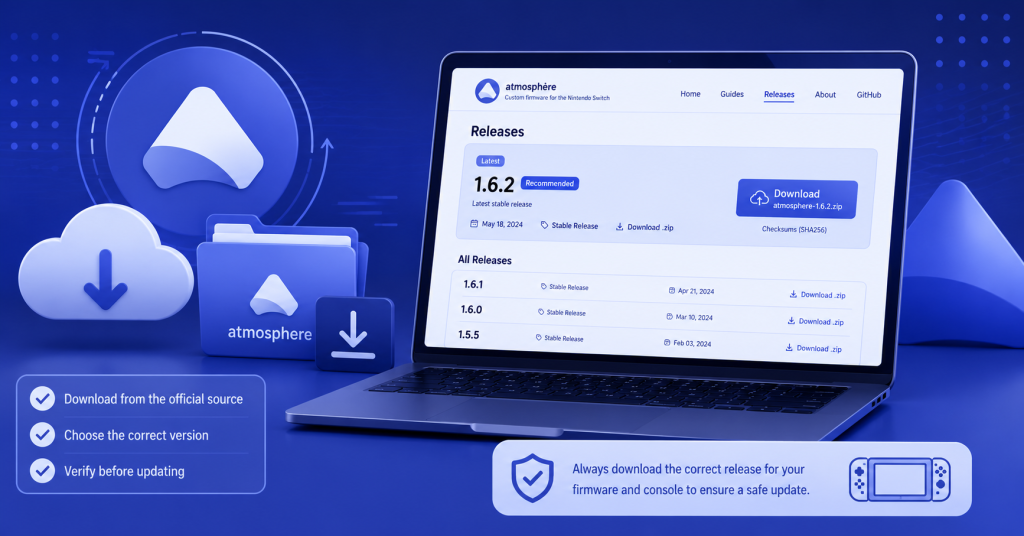
The correct asset is normally the compiled Atmosphère ZIP file. Do not download:
- Random reuploaded packages
- Old all-in-one packs
- Source-code archives
- Unverified “fixed” builds
- Files from video descriptions without an official source
- Payloads from a different Atmosphère release
Read the full release notes because important compatibility warnings may be placed below the download links.
Replacing Files Without Removing EmuMMC
Updating Atmosphère does not require rebuilding EmuMMC.
Your existing EmuMMC may be stored in one of two ways:
Partition-Based EmuMMC
The main EmuMMC data is stored in a hidden SD card partition. The visible emuMMC folder normally includes configuration or related files.
Copying new Atmosphère files to the visible SD card partition does not normally overwrite the hidden EmuMMC partition.
File-Based EmuMMC
The EmuMMC data is stored as files inside the visible emuMMC folder.
Deleting or replacing this folder could remove or damage the file-based EmuMMC.
For both types, leave the emuMMC folder and partition structure unchanged during an Atmosphère-only update.
Updating Required Boot Files
A complete boot-file update may involve four separate locations:
- Atmosphère files on the SD card
- Hekate files on the SD card
- The payload stored on the SD card
- The payload used by your injection device or modchip
Missing any one of these locations can cause version conflicts.
For example, the SD card may contain the latest Atmosphère release, but an old fusee.bin stored in Hekate’s payload folder may still be launched.
Check every copy of the payload and replace outdated versions.
Launching and Testing Your Setup
During the first boot, test the clean Atmosphère environment before re-enabling modifications.
Check that:
- EmuMMC boots successfully.
- System Settings shows the expected versions.
- The Home Menu loads normally.
- Album or title override opens the Homebrew Menu.
- Installed legitimate applications open.
- Wi-Fi and controllers work as expected.
- The system can reboot back into the selected boot environment.
- No fatal error screen appears.
After the clean setup works, restore custom modules one at a time.
Restart after enabling each major module. This makes it easier to identify the exact component causing a failure.
How to Update EmuMMC Without Losing Data
Updating Atmosphère and updating EmuMMC firmware are two different processes.
An Atmosphère update replaces custom firmware files on the SD card. An EmuMMC firmware update changes the Nintendo operating system installed inside EmuMMC.
Before updating EmuMMC firmware:
- Confirm the target firmware is supported by Atmosphère.
- Update Atmosphère.
- Update fusee.
- Update Hekate.
- Update required homebrew applications.
- Disable incompatible modules and themes.
- Boot EmuMMC successfully.
- Create or verify backups.
- Only then perform the firmware update using a trusted, lawful method.
Do not select SysMMC accidentally. Confirm the environment indicator before beginning.
An ordinary firmware update inside EmuMMC should preserve user profiles, settings, applications, and save data. However, a failed update, damaged SD card, incorrect firmware package, or wrong environment selection can still cause data loss.
Common Atmosphere Update Mistakes to Avoid
Most Atmosphère update failures are caused by incomplete file replacement or incompatible extras rather than EmuMMC itself.
Deleting Important SD Card Files
Do not delete folders simply because a tutorial shows a clean SD card.
The following may contain important personal or setup-specific data:
emuMMCNintendoswitchbootloaderatmosphere/contentsconfig- Save backup folders
- Homebrew application folders
Replacing core Atmosphère files is normally safer than deleting the entire setup.
When troubleshooting, rename a folder rather than permanently deleting it. For example:
atmosphere/contents → atmosphere/contents-disabled
Using Incompatible Versions
Atmosphère, firmware, Hekate, fusee, homebrew applications, themes, and system modules must work together.
Common version mismatches include:
- New firmware with old Atmosphère
- New Atmosphère with old fusee
- New Hekate files with an old injected Hekate payload
- New firmware with old system modules
- New Homebrew Menu with outdated homebrew applications
- Updated Atmosphère with an obsolete theme
Atmosphère release notes have previously warned that major Nintendo firmware changes can require homebrew applications to be rebuilt or updated. For example, support notes for firmware 21.0.0 explained that some older homebrew could crash or experience memory corruption until rebuilt against a compatible libnx version.
Updating Firmware Before Checking Compatibility
Do not update Nintendo firmware first and search for Atmosphère support afterward.
The safer order is:
- Check target firmware compatibility.
- Download updated custom firmware files.
- Back up the setup.
- Update Atmosphère, fusee, and Hekate.
- Test EmuMMC.
- Update EmuMMC firmware.
- Test again.
- Restore compatible custom modules.
This order reduces the risk of being left with an EmuMMC version that the installed Atmosphère release cannot boot.
Forgetting Backups
A successful update does not mean backups are unnecessary.
MicroSD cards can fail without warning, and accidental deletion remains possible even when following the correct steps.
Create a new dated backup before every major firmware or custom firmware update. Keep previous working versions rather than replacing the only backup each time.
Fixing Common Problems After an Atmosphere Update
When the system fails after an update, do not immediately rebuild EmuMMC.
First determine whether the problem is caused by:
- Atmosphère files
- Hekate files
- fusee
- Boot configuration
- Custom modules
- Themes
- Homebrew applications
- SD card corruption
- EmuMMC configuration
- Firmware compatibility
Test one change at a time.
Atmosphere Won’t Boot
If Atmosphère does not boot:
- Confirm that the Atmosphère release supports the installed firmware.
- Replace
fusee.binwith the version from the same release. - Update Hekate and its injected payload.
- Rename
atmosphere/contentsto disable system modules. - Remove or disable custom themes.
- Check the Hekate launch configuration.
- Recopy the official Atmosphère files.
- Inspect any displayed fatal-error code.
Do not restore old files randomly. Mixing versions can create additional errors.
Black Screen After Update
A black screen may be caused by an old payload, incompatible system module, bad theme, boot-entry error, or incomplete file replacement.
Try the following sequence:
- Hold the Power button long enough to force a shutdown.
- Boot into Hekate.
- Confirm EmuMMC is enabled.
- Update Hekate and fusee.
- Disable
atmosphere/contents. - Remove custom themes.
- Recopy a clean official Atmosphère release.
- Launch EmuMMC again.
Black-screen reports have occurred after previous Atmosphère upgrades, but the underlying cause can differ between systems. Treat the symptom as a compatibility or boot-path problem rather than proof that EmuMMC has been erased.
Missing Homebrew Applications
If the Homebrew Menu opens but applications are missing, check:
switch
Most homebrew applications use folders or .nro files stored in the switch directory.
Confirm that:
- The folder still exists.
- Applications were not removed during cleanup.
- The SD card is readable.
- The apps support the current firmware and homebrew environment.
- The applications have been updated where required.
- The correct SD card is being used.
Do not assume Atmosphère deleted the applications. They may simply be stored in the wrong folder or incompatible with the updated environment.
EmuMMC Not Detected
Open Hekate and select:
emuMMC
Check whether the status shows enabled.
If it is disabled or missing:
- Do not create a new EmuMMC immediately.
- Check whether the
emuMMCfolder still exists. - Open the EmuMMC configuration file.
- Confirm the partition or file path is correct.
- Verify that the SD card partition layout has not changed.
- Check for SD card errors.
- Restore the original configuration from your backup if necessary.
For partition-based EmuMMC, the hidden partition may still exist even when the configuration file is missing. Reconnecting the existing partition is safer than formatting or recreating it.
Keeping Atmosphere and EmuMMC Stable Long-Term
A stable setup depends on controlled updates and organized file management.
Avoid installing every update immediately. Instead, wait until the required tools and applications confirm compatibility.
Maintain a simple record containing:
- Current Nintendo firmware version
- Current Atmosphère version
- Current Hekate version
- Current fusee version
- Installed system modules
- Installed overlays
- Date of the latest backup
- Location of the working backup
This information makes future troubleshooting much easier.
Safe Update Practices
Follow these habits for future updates:
- Read official release notes first.
- Download files only from official repositories.
- Update Atmosphère before firmware.
- Update fusee with every Atmosphère update.
- Keep Hekate current.
- Disable themes before major updates.
- Test without custom modules first.
- Confirm you are inside EmuMMC.
- Keep multiple dated backups.
- Change only one major component at a time.
Avoid automatic firmware updates when possible because they can install a version before the custom firmware ecosystem is ready.
Managing SD Card Files
Keep the SD card organized.
Do not store several differently named Atmosphère folders at the root unless you understand how they are being used.
Recommended practices include:
- Keep only one active
atmospherefolder. - Store backups on a computer, not on the SD card root.
- Use dated backup folder names.
- Remove outdated payload copies.
- Keep a copy of
hekate_ipl.ini. - Document custom changes.
- Use FAT32 where appropriate for better resilience against corruption.
- Always eject the SD card safely.
Avoid editing SD card files while the console is suspended or while the card is still being accessed.
Maintaining Backups
Create a backup schedule based on how often you change the setup.
A practical backup plan includes:
- A complete SD card backup before major updates
- A fresh configuration backup after a successful update
- Periodic save backups
- A verified NAND backup
- A copy of important keys and recovery information stored securely
- At least one backup on external storage
Label backups clearly with the date, firmware version, Atmosphère version, and whether they came from SysMMC or EmuMMC.
For example:
EmuMMC-22.5.0-AMS-1.11.2-Working-2026-07-29
Frequently Asked Questions
Does updating Atmosphere delete EmuMMC?
No. Updating Atmosphère normally replaces custom firmware files on the visible SD card partition and does not delete EmuMMC.
However, deleting the emuMMC folder, formatting the SD card, repartitioning it, or overwriting important configuration files can make EmuMMC unavailable or cause data loss.
Do I need to recreate EmuMMC after updating Atmosphere?
No. You should not recreate EmuMMC for a normal Atmosphère update.
Continue using the existing EmuMMC after updating Atmosphère, Hekate, fusee, and compatible supporting files.
Only recreate EmuMMC when the existing copy is genuinely damaged and cannot be restored from a backup.
Can I update Atmosphere without updating Switch firmware?
Yes. Atmosphère can be updated while keeping the current Switch firmware version.
This is often the safest approach. Updating Atmosphère first prepares the system for a later firmware update and allows you to test the new custom firmware before changing EmuMMC firmware.
Why is Atmosphere failing after an update?
The most common causes include:
An outdated fusee payload
An outdated Hekate payload
Unsupported Nintendo firmware
An incompatible system module
A broken custom theme
An outdated homebrew application
Incorrect Hekate configuration
Missing or partially copied files
SD card corruption
Start by testing a clean Atmosphère installation with custom modules and themes disabled.
How often should Atmosphere be updated?
Update Atmosphère when:
Your target Nintendo firmware requires a newer version.
A release fixes a problem affecting your setup.
A security, stability, or compatibility improvement is relevant.
A homebrew application requires the newer environment.
You do not need to update immediately every time a release appears. A stable working setup can remain unchanged until there is a clear reason to update.
Final Thoughts: Maintaining a Safe Atmosphere Setup
Updating Atmosphère without breaking EmuMMC mainly involves using the correct order and avoiding unnecessary deletions.
Back up the SD card, confirm firmware compatibility, update Atmosphère and fusee together, keep Hekate current, preserve the existing EmuMMC, and test the system before restoring custom modules.
The safest update sequence is:
Backup → Update Atmosphère → Update fusee → Update Hekate → Disable incompatible extras → Test EmuMMC → Update EmuMMC firmware if required → Restore compatible extras.
Following this process reduces boot errors, black screens, missing homebrew applications, and EmuMMC detection problems while keeping your setup easier to recover and maintain.
Latest Post:
- Does Atmosphere Support 20.1.5? Nintendo Switch Compatibility Guide
- How to Boot Into Hekate on Nintendo Switch: Complete Guide
- How to Update a Modded Switch Safely: Atmosphere, Hekate and Firmware Guide
- How to Update Switch CFW Safely: Atmosphère and Hekate Guide
- How to Change the RCM Loader Payload File to Hekate on Nintendo Switch