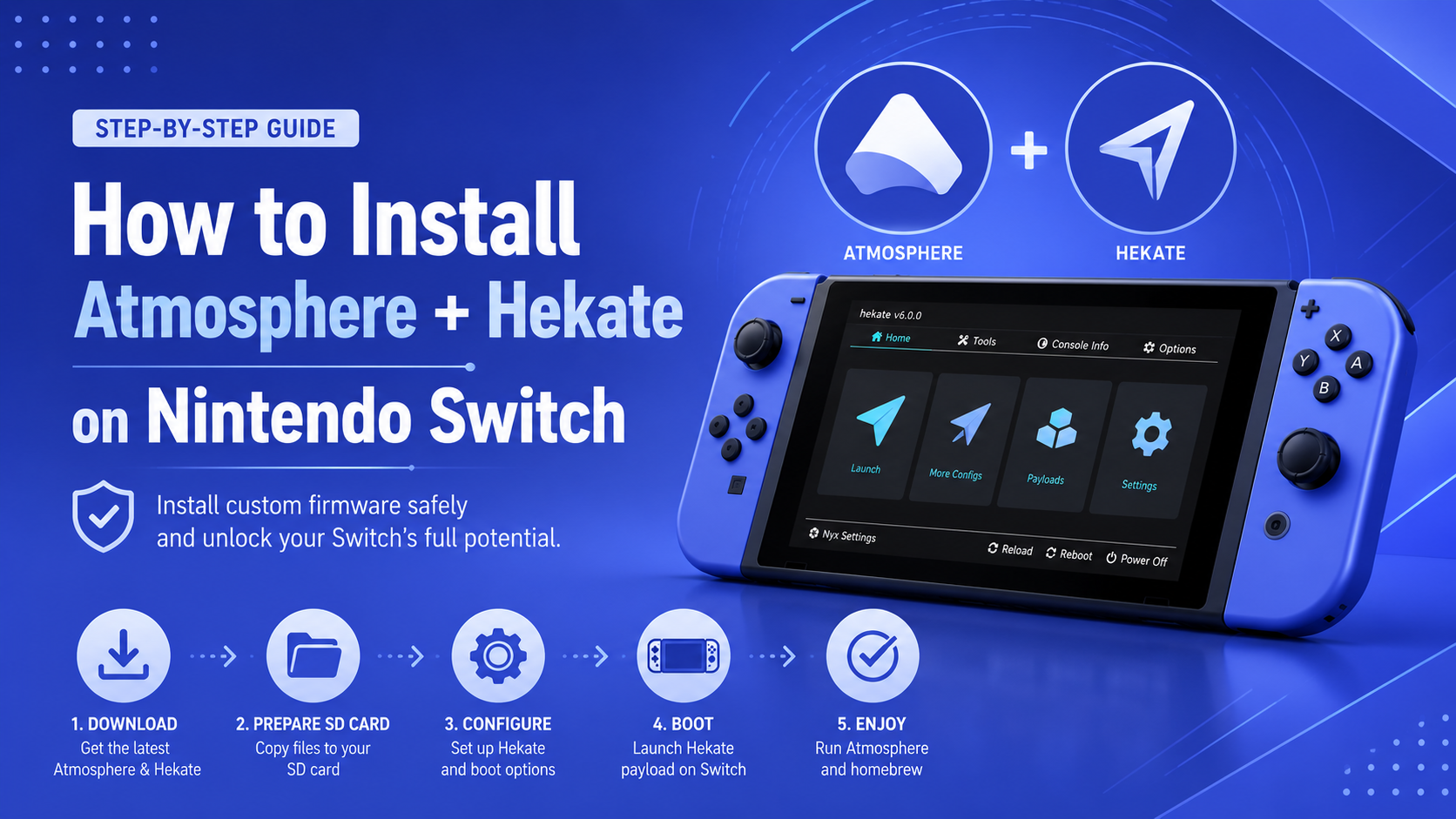
Atmosphère and Hekate are two of the most widely used tools for running custom firmware and homebrew applications on a compatible Nintendo Switch.
Atmosphère provides the custom firmware environment, while Hekate works as a graphical bootloader and recovery toolkit. Together, they allow compatible consoles to launch homebrew, create system backups, manage EmuMMC, inspect storage, and choose between different boot environments.
Installing them requires careful preparation. Using incompatible versions, formatting the wrong storage device, or skipping essential backups can result in boot errors or data loss.
As of July 29, 2026, the latest official Atmosphère release is version 1.11.2, which provides basic support for Nintendo Switch firmware 22.5.0. The current Hekate release is version 6.5.3 with support for firmware 22.5.0. Always verify the latest releases before starting, as compatibility can change after Nintendo firmware updates.
Important: This guide is for legally owned Nintendo Switch consoles, legitimate homebrew, development, customization, and system maintenance. It does not cover piracy, unauthorized game copies, stolen encryption keys, or bypassing software ownership requirements.
Introduction: What Are Atmosphere and Hekate?
Atmosphère is an open-source custom firmware project for the Nintendo Switch. It modifies parts of the Switch operating environment while the console is running, allowing supported homebrew software and additional system functionality to work.
Atmosphère is not permanently installed over the original Nintendo operating system. It must be launched through a compatible entry method whenever the console fully powers off.
Hekate is a custom graphical bootloader. It can launch Atmosphère switch and provide access to several maintenance tools, including:
- SysMMC and EmuMMC boot options
- NAND backup and restoration
- EmuMMC creation and management
- microSD card partitioning
- USB storage access
- Payload launching
- Hardware and storage information
- SD card performance testing
- Android and Linux boot support
Hekate therefore does more than simply start Atmosphère. It acts as the main control panel for a custom Nintendo Switch setup.
Why Use Atmosphere with Hekate?
Atmosphère can be launched directly through its fusee.bin payload, but using Hekate provides more flexibility.
With Hekate, you can choose whether to boot:
- Original stock SysMMC
- Atmosphère on SysMMC
- Atmosphère on EmuMMC
- Another compatible payload
- A supported alternative operating system
Hekate also makes it easier to create backups before changing the console configuration. Its graphical interface gives users access to recovery and diagnostic tools without requiring the Nintendo Switch operating system to boot.
The main advantages of using Atmosphère with Hekate include:
- Easier EmuMMC management
- Multiple boot configurations
- Built-in backup tools
- SD card formatting and partitioning
- Payload chainloading
- Better troubleshooting options
- USB access to storage
- Clear separation between boot environments
For most first-time installations, Hekate provides a safer and more manageable setup than directly launching Atmosphère without a boot manager.
Supported Nintendo Switch Models and Compatibility
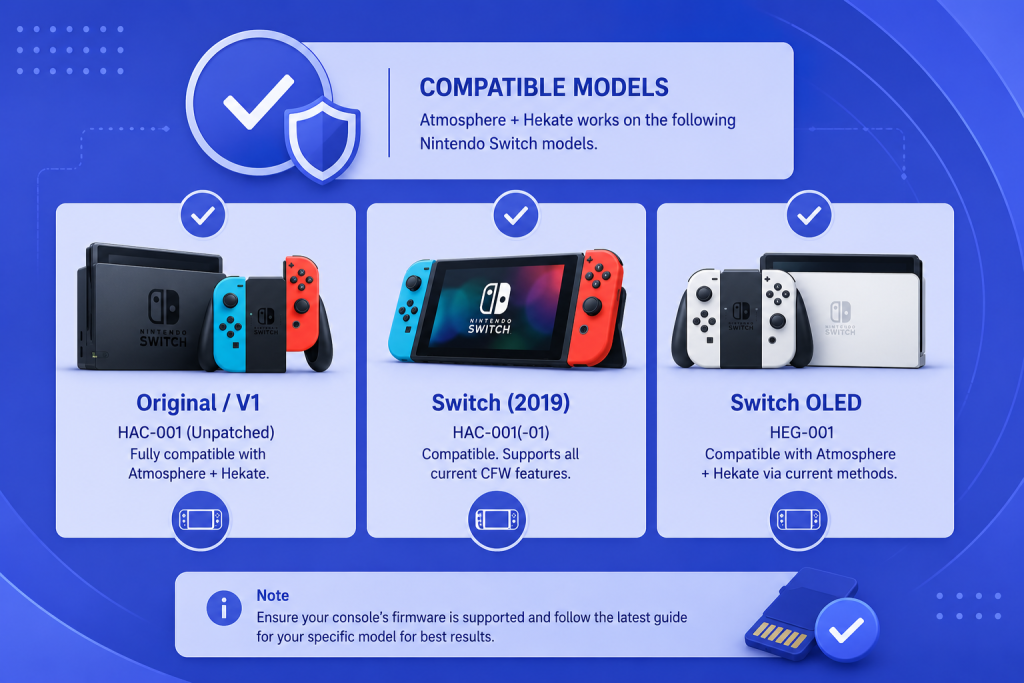
Atmosphère can run on different Nintendo Switch models, but the method used to launch it depends on the console hardware.
Unpatched Original Nintendo Switch
Early HAC-001 Nintendo Switch consoles may contain an unpatched NVIDIA Tegra bootROM vulnerability. These systems can generally launch Hekate through RCM by sending a payload from a computer, phone, or compatible injector.
This vulnerability is hardware-based and cannot be resolved with a standard Nintendo firmware update.
However, not every original HAC-001 console is unpatched. Nintendo introduced patched units during the original model’s production period, so the model name alone is not enough to confirm compatibility.
Patched Original Nintendo Switch
Later HAC-001 consoles have a patched bootROM and cannot use the original payload-injection exploit.
A patched original Switch generally requires an already installed compatible hardware modification before it can launch Hekate.
Nintendo Switch V2
The improved-battery HAC-001(-01), commonly called the Switch V2, uses revised Mariko hardware.
It cannot use the unpatched V1 RCM exploit and normally requires compatible hardware modification to launch custom payloads.
Nintendo Switch Lite
The Nintendo Switch Lite, model HDH-001, does not support the unpatched V1 entry method.
A Lite normally requires a compatible hardware modification that is already correctly installed.
Nintendo Switch OLED
The Nintendo Switch OLED also requires a compatible hardware-based entry method.
Its internal storage layout differs from earlier models, which affects the amount of SD card space required when creating EmuMMC.
Current compatibility guidance distinguishes unpatched V1 systems from patched and Mariko-based consoles. Unpatched V1 units can use the RCM payload method, while patched V1, V2, Lite, and OLED systems generally require compatible hardware modification.
Hardware warning: Installing a hardware modification requires advanced microsoldering and can permanently damage the console. This guide assumes any required hardware work has already been completed correctly.
Requirements Before Installation
Prepare everything before modifying the microSD card.
You will generally need:
- A compatible Nintendo Switch
- A reliable microSD card
- A microSD card reader
- A Windows, macOS, or Linux computer
- A data-capable USB cable
- The latest official Atmosphère release
- The latest official Hekate release
- The correct Hekate payload
- The matching Atmosphère
fusee.bin - A safe method for launching the payload
- Enough computer storage for backups
Do not begin if the microSD card is unreliable, frequently disconnects, or contains important data that has not been backed up.
Compatible Nintendo Switch Model
Before downloading files, determine which Switch model and entry method you have.
Check the model number printed on the back of the console and review the serial number under:
System Settings → System → Serial Information
For an original HAC-001 console, compare the serial against an established compatibility checker or guide.
Serial ranges are commonly grouped into:
- Unpatched
- Potentially patched
- Patched
A potentially patched console cannot be confirmed through its serial number alone. It may need to be tested by attempting to send a harmless payload while the console is in RCM.
Do not assume that every V1 Switch is compatible with the unpatched method.
microSD Card Requirements
A high-quality microSD card is essential because Atmosphère, Hekate, homebrew applications, and EmuMMC data are stored on it.
A minimum of 64GB may be usable for a basic EmuMMC setup on many Switch models, but a 128GB or larger card is more practical.
Consider the following:
- Use a genuine card from a reputable manufacturer.
- Test new cards before relying on them.
- Avoid suspiciously inexpensive high-capacity cards.
- Use FAT32 for better resilience.
- Keep enough free space for backups and EmuMMC.
- Avoid removing the card while the console is running.
A standard partition-based EmuMMC typically reserves approximately 29GB on non-OLED consoles. An OLED setup may reserve approximately 58GB because of its larger internal storage.
Cards of 32GB or less are not recommended for a complete setup because they may not provide enough space for EmuMMC and full NAND backups. FAT32 is the generally recommended filesystem.
Essential Files and Tools
Download the following components from their official project pages.
Atmosphère Release Archive
The Atmosphère archive normally contains:
atmosphereswitchhbmenu.nro
Download the compiled release ZIP, not the automatically generated source-code archive.
Atmosphère fusee Payload
The official release assets also include:
fusee.bin
This payload can launch Atmosphère directly or be chainloaded through Hekate.
Modern Atmosphère releases do not use the old fusee-primary.bin. Always use the current fusee.bin associated with your installed Atmosphère version.
Hekate Release Archive
The Hekate ZIP normally contains:
bootloader- A versioned Hekate
.binpayload - Supporting Nyx files
The bootloader folder belongs on the microSD card root.
Boot Configuration
Hekate uses:
bootloader/hekate_ipl.ini
This file defines the launch entries displayed under Hekate’s Launch menu.
Payload Launcher
An unpatched V1 console needs a supported method of sending the Hekate payload after entering RCM.
A console with an already installed compatible hardware modification usually loads:
payload.bin
from the microSD card root.
PC Preparation
Before working with the SD card, prepare the computer.
Enable File Extensions
On Windows, enable file-name extensions in File Explorer.
This helps prevent mistakes such as creating:
hekate_ipl.ini.txt
instead of:
hekate_ipl.ini
Install an Archive Extractor
Use an application capable of properly opening ZIP archives.
Extract archives before copying their contents. Do not place the unopened Atmosphère or Hekate ZIP file on the SD card and expect it to install automatically.
Check the USB Cable
Not every USB-C cable supports data transfer. Some inexpensive cables provide charging only.
Use a cable that can reliably transfer data between the Switch and computer.
Create a Working Folder
Create a folder on the computer for the installation files.
For example:
Nintendo-Switch-CFW-Setup-2026-07-29
Inside it, keep separate folders for:
- Atmosphère
- Hekate
- Payloads
- Configuration
- Original SD card backup
- NAND backup
This prevents files from different releases from becoming mixed.
Preparing Your microSD Card
The SD card must be prepared before Atmosphère and Hekate can be installed.
If the card already contains Nintendo data, copy everything to the computer before formatting or partitioning it.
Never assume the existing data can be downloaded again. Screenshots, homebrew settings, save backups, and configuration files may be unique.
Formatting the SD Card
FAT32 is generally preferred for Atmosphère and Hekate installations.
Although the Switch can support exFAT through Nintendo’s exFAT driver, FAT32 is usually considered more resistant to corruption, especially when homebrew applications are accessing the card.
For a New or Empty SD Card
You can format the card using:
- Hekate’s SD card tools
- A trusted FAT32 formatting utility
- Disk-management tools that correctly support FAT32
Windows’ standard formatting window may not offer FAT32 for cards larger than 32GB. In that case, use Hekate or an appropriate FAT32 utility.
For an Existing SD Card
Copy all files to the computer before formatting.
Formatting or using Hekate’s partitioning tool removes the contents of the card. The EmuMMC creation guide specifically warns that SD partitioning wipes existing card data.
Recommended Allocation Unit Size
For most general installations, a standard FAT32 allocation size such as 32KB is suitable.
Do not repeatedly reformat the card while troubleshooting. First test it for errors and verify that it is genuine.
Creating a Backup
Create backups before installing or partitioning anything.
SD Card Backup
Copy every visible file and folder from the SD card to your computer.
This may include:
Nintendo- Screenshots
- Save backups
- Existing homebrew files
- Configuration folders
- Previously installed payloads
NAND Backup
After Hekate is working, use its backup tools to create essential NAND backups.
A complete backup commonly includes:
- BOOT0
- BOOT1
- RAW GPP
These files contain console-specific data and should be stored safely outside the SD card.
Hekate can split a NAND backup into smaller parts on FAT32 cards. The completed backup folder should be moved to a computer or external drive rather than kept only on the same microSD card.
Backup Storage
Keep at least two copies where possible:
- One copy on your computer
- One copy on external storage
Label the backup with the console and date.
For example:
Switch-NAND-Backup-2026-07-29
Do not upload private console-specific backup data to public file-sharing services.
Organizing Required Files
After formatting, the root of the SD card should have a clear structure.
A basic setup may resemble:
SD Card Root
├── atmosphere
├── bootloader
│   ├── ini
│   ├── payloads
│   ├── res
│   ├── sys
│   └── hekate_ipl.ini
├── switch
├── hbmenu.nro
└── payload.bin
The exact structure depends on the model and boot method.
For an unpatched V1 console, the versioned Hekate .bin may remain on the computer for payload injection.
For a compatible modchip setup, the Hekate payload is commonly renamed to:
payload.bin
and placed on the microSD card root.
Downloading Atmosphere and Hekate
Download Atmosphère only from the official Atmosphere-NX GitHub repository.
Download Hekate only from the official CTCaer GitHub repository.
Avoid downloading custom firmware packs from random videos, shortened links, reupload websites, or file-sharing folders. Unofficial packs may contain:
- Outdated files
- Modified configuration
- Incompatible system modules
- Unwanted patches
- Unknown executables
- Files from mismatched releases
Using the official releases makes troubleshooting easier because you know which components were installed.
Choosing the Correct Versions
Use versions that support the firmware currently installed on the Nintendo Switch.
At the time of writing:
- Atmosphère 1.11.2 provides basic support for firmware 22.5.0.
- Hekate 6.5.3 supports firmware 22.5.0.
These versions will eventually be replaced, so always read the official release notes instead of relying only on version numbers written in an article.
The Atmosphère and fusee files should come from the same release.
Do not combine:
- New Atmosphère with old fusee
- New firmware with unsupported Atmosphère
- New Hekate files with an old injected payload
- Files from several unofficial packages
Verifying Downloaded Files
Before copying anything, check that you downloaded the correct assets.
Atmosphère
The correct archive name should clearly include the Atmosphère version and usually references the included Homebrew Loader and Homebrew Menu versions.
Do not use:
Source code.zipSource code.tar.gz
Those are developer source archives, not the normal installation package.
Hekate
Use the Hekate release archive, not only the standalone payload.
The ZIP provides the required bootloader folder and Nyx interface files.
File Integrity
Where official hashes or checksums are provided, compare them with the downloaded files.
You should also ensure:
- The archive opens without errors.
- The extracted folders are not empty.
- Antivirus software did not silently remove files.
- The file was downloaded completely.
- The SD card is not write-protected.
Installing Atmosphere on Nintendo Switch
Once the SD card is formatted and backed up, you can copy the Atmosphère files.
This process does not permanently flash Atmosphère to the console. It prepares the SD card so that Atmosphère can be launched by the selected payload method.
Copying Atmosphere Files
Follow these steps:
- Extract the official Atmosphère ZIP on the computer.
- Open the extracted folder.
- Select all files and folders inside it.
- Copy them to the microSD card root.
- Allow folders to merge if prompted.
- Confirm that
atmosphere,switch, andhbmenu.nroare present.
Do not place the extracted folder inside another folder.
Incorrect:
SD:/atmosphere-1.11.2/atmosphere
Correct:
SD:/atmosphere
The package3 file should normally be located at:
SD:/atmosphere/package3
This is the file commonly referenced by a Hekate Atmosphère boot configuration.
Installing Required Boot Files
Download the fusee.bin file from the same Atmosphère release.
Copy it to:
SD:/bootloader/payloads/fusee.bin
This allows it to be launched from Hekate’s Payloads menu when required.
Even when the main boot entry uses package3, keeping the matching fusee payload available can help with testing and troubleshooting.
Never use the retired:
fusee-primary.bin
with a modern Atmosphère release.
Configuring the SD Card
After copying Atmosphère, verify that the essential paths exist:
SD:/atmosphere/package3
SD:/bootloader/
SD:/bootloader/payloads/fusee.bin
SD:/switch/
SD:/hbmenu.nro
The switch folder stores homebrew .nro applications.
Atmosphère settings and optional custom modules may later appear under:
SD:/atmosphere/config
SD:/atmosphere/contents
SD:/atmosphere/hosts
For the first boot, keep the setup as clean as possible. Do not immediately install multiple themes, overlays, plugins, or system modules.
First confirm that basic Atmosphère and Hekate boot correctly.
Installing and Configuring Hekate
Hekate requires both its bootloader files and its payload.
The bootloader files go on the SD card, while the payload is launched through RCM or loaded by a compatible hardware modification.
Copying Hekate Files
Follow these steps:
- Extract the official Hekate release ZIP.
- Copy the
bootloaderfolder to the SD card root. - Merge folders if prompted.
- Locate the versioned Hekate
.binpayload. - Keep a copy on your computer.
- Place or rename the payload according to your console’s boot method.
For a compatible modchip-based setup, the payload is commonly renamed:
payload.bin
and placed on the microSD card root.
For an unpatched V1 setup, the versioned Hekate .bin can be selected through a compatible payload-sending application.
Setting Up Boot Configuration
Create or place the following file:
SD:/bootloader/hekate_ipl.ini
A basic configuration can include separate entries for EmuMMC and SysMMC.
[Atmosphere EmuMMC]
fss0=atmosphere/package3
kip1patch=nosigchk
emummcforce=1
icon=bootloader/res/icon_payload.bmp

[Atmosphere SysMMC]
fss0=atmosphere/package3
emummc_force_disable=1
icon=bootloader/res/icon_payload.bmp

[Stock SysMMC]
fss0=atmosphere/package3
stock=1
emummc_force_disable=1
icon=bootloader/res/icon_switch.bmp
However, configuration options can change over time. Use a current configuration compatible with the latest Hekate documentation.
The important fields include:
fss0=atmosphere/package3tells Hekate which Atmosphère boot file to use.emummcforce=1requires an enabled EmuMMC.emummc_force_disable=1prevents that entry from using EmuMMC.stock=1configures a stock-style boot entry.
Hekate’s documented configuration supports forcing a selected EmuMMC and producing an error when emummcforce=1 is enabled but no valid EmuMMC configuration exists.
Note: Do not use unauthorized ownership-bypass patches. They are not required for legitimate homebrew, system backups, or development.
Launching Hekate Successfully
The launch process depends on the Nintendo Switch model.
Unpatched V1 Console
For an unpatched V1:
- Power the console off completely.
- Enter RCM using a safe and appropriate method.
- Connect the Switch to the computer with a data-capable USB cable.
- Open a compatible payload-sending application.
- Select the current Hekate
.bin. - Send the payload.
- Wait for the Hekate interface to appear.
Use a properly manufactured RCM jig when necessary. Do not insert loose metal, exposed wire, or random conductive objects into the Joy-Con rail because they may damage the console.
Console With Compatible Hardware Modification
For a console with compatible hardware modification:
- Copy the current Hekate payload to the SD root.
- Rename it to
payload.binwhen required by the installed setup. - Insert the SD card.
- Power on the console.
- Wait for Hekate to load.
If the screen displays “No SD Card” or “No Payload,” confirm that the card is inserted and payload.bin exists at the SD card root.
Booting Atmosphere for the First Time
Once Hekate loads:
- Select Launch.
- Choose the appropriate Atmosphère entry.
- Wait for the Atmosphère and Nintendo logos.
- Allow the Home Menu to load.
- Open System Settings.
- Navigate to System.
- Check the version information.
The version may look similar to:
22.5.0 | AMS 1.11.2 | E
The sections indicate:
22.5.0— Nintendo firmware versionAMS 1.11.2— Atmosphère versionE— EmuMMCS— SysMMC
An E confirms Atmosphère is running through EmuMMC. An S indicates Atmosphère is running through SysMMC.
If no EmuMMC has been created, an EmuMMC boot entry may produce an error. That is expected until EmuMMC is configured.
Setting Up EmuMMC (Optional but Recommended)
EmuMMC is a copy of the console’s internal system memory that runs from the microSD card.
It allows the user to maintain a separate custom firmware environment rather than using the original internal system environment for all homebrew activity.
EmuMMC does not make a console immune to mistakes, account enforcement, storage failure, or network-related consequences. It is simply a separate operating environment.
Partition-Based EmuMMC
A partition-based EmuMMC is stored in a dedicated hidden partition on the microSD card.
Advantages include:
- Clear storage separation
- Widely used setup
- Good compatibility
- Less visible clutter on the FAT32 partition
The disadvantage is that moving it to another SD card requires a proper backup and restoration or migration process.
File-Based EmuMMC
A file-based EmuMMC is stored as files on the visible SD card partition.
Advantages include:
- Easier file-level copying
- No hidden EmuMMC partition required
- Simpler migration in some situations
It may have different performance and fragmentation characteristics depending on the SD card.
Creating a Partition-Based EmuMMC
Creating or repartitioning the card erases its contents, so confirm that a full backup exists first.
In Hekate:
- Open Tools.
- Select Partition SD Card.
- Set the EmuMMC RAW partition allocation.
- Use approximately
29 FULLfor a standard Switch. - Use approximately
58 FULLfor an OLED Switch. - Start the partitioning process.
- Restore the SD card files after partitioning.
- Return to Hekate.
- Open emuMMC.
- Select Create emuMMC.
- Choose SD Partition.
- Select the available partition.
- Wait for the process to finish.
- Confirm that EmuMMC shows as enabled.
These values and menu steps are consistent with the current Hekate EmuMMC setup guide.
Do not interrupt the console or remove the SD card while EmuMMC is being created.
Post-Installation Checklist
Before adding themes or system modules, complete the following checks:
- Hekate opens successfully.
- The SD card is detected.
- Atmosphère launches without a fatal error.
- The expected firmware version is displayed.
- The correct SysMMC or EmuMMC indicator appears.
- The Homebrew Menu opens.
- The console can reboot into Hekate.
- A NAND backup has been created.
- The SD card backup is stored on another device.
- No unnecessary modules are installed.
Keep the first working setup backed up before making further changes.
Verify Atmosphere Version
Open:
System Settings → System
Look for AMS in the system version.
For example:
22.5.0 | AMS 1.11.2 | E
If AMS does not appear, the console may have booted into the stock system instead of Atmosphère.
When troubleshooting, record:
- Nintendo firmware version
- Atmosphère version
- Hekate version
- EmuMMC or SysMMC status
- Error code
- Boot method
These details make it much easier to identify compatibility problems.
Confirm Hekate Configuration
Return to Hekate and check:
Launch Entries
Confirm that each entry is clearly named.
Use labels such as:
- Atmosphere EmuMMC
- Atmosphere SysMMC
- Stock SysMMC
Avoid vague names such as “CFW” and “Normal” because they can lead to booting the wrong environment.
EmuMMC Status
Open the EmuMMC menu and confirm that it says enabled.
Check whether it is:
- SD Raw Partition
- SD File
Payloads
Open Hekate’s Payloads menu and verify that the current fusee.bin appears.
SD Card Information
Use Hekate’s SD information and benchmark tools to identify unusually slow, fake, or failing cards.
Test Homebrew Support
The Homebrew Menu can normally be opened through Album or title override, depending on the configuration.
When testing:
- Boot Atmosphère.
- Open the Homebrew Menu.
- Confirm that the menu loads.
- Check that applications in
SD:/switchappear. - Launch one trusted, compatible homebrew application.
- Exit normally.
For full-memory homebrew mode, title override is generally preferable to applet mode.
Do not install many applications before testing the basic environment. Add them gradually so you can identify which application causes a problem.
Common Installation Issues and Fixes
Most installation failures are caused by file placement, old payloads, incompatible versions, or SD card problems.
Do not format the card or recreate EmuMMC immediately. Start with the simplest checks.
Black Screen After Boot
A black screen can happen when:
- The wrong payload was launched.
- Hekate is outdated.
- Atmosphère does not support the firmware.
package3is missing.- A custom system module is incompatible.
- A theme is broken.
- The SD card is corrupted.
- The console did not enter RCM correctly.
Try these steps:
- Hold the Power button for approximately 12–15 seconds.
- Confirm the console is fully powered off.
- Update Atmosphère.
- Update Hekate.
- Replace the injected Hekate payload.
- Replace
fusee.bin. - Confirm
SD:/atmosphere/package3exists. - Temporarily rename
atmosphere/contents. - Remove custom themes.
- Test again with a clean official setup.
If a hardware-modified console shows no sign of loading the SD payload, check whether payload.bin is correctly named and stored at the root.
Hekate Not Loading
If Hekate does not load, check the boot method.
On an Unpatched V1
Confirm that:
- The console is actually in RCM.
- The USB cable supports data.
- The computer detects an RCM device.
- The current Hekate payload was selected.
- The payload application has the required permissions or driver.
- The console serial is genuinely unpatched.
A patched console can enter RCM, but it cannot use the unpatched payload exploit successfully.
On a Hardware-Modified Console
Confirm that:
- The microSD card is inserted.
- The card is formatted correctly.
- The Hekate payload is named
payload.bin. - The payload is at the SD root.
- The
bootloaderfolder is present. - The hardware installation is functioning.
Do not attempt soldering repairs without proper tools and microsoldering experience.
Atmosphere Crashes on Startup
Atmosphère startup crashes may display a program ID or error report.
Common causes include:
- Unsupported firmware
- Old Atmosphère release
- Old fusee payload
- Incompatible system module
- Broken theme
- Damaged configuration
- Incomplete file extraction
- SD card corruption
Temporarily rename:
SD:/atmosphere/contents
to:
SD:/atmosphere/contents-disabled
Then try booting again.
If Atmosphère boots, one of the installed system modules or modifications is likely incompatible.
Restore modules one at a time and restart after each change.
SD Card Not Detected
If Hekate or Atmosphère cannot detect the SD card:
- Power the console off.
- Remove and reinsert the card.
- Check the card on a computer.
- Confirm the FAT32 partition has a drive letter.
- Test the card for errors.
- Clean the card contacts carefully.
- Try a known-good microSD card.
- Confirm the card reader is functioning.
- Check that the card is genuine.
If the computer asks to format a previously working card, do not immediately accept. Attempt to recover or back up the data first.
For Hekate USB access, also confirm that the USB cable carries data and that the operating system has mounted the FAT32 partition correctly.
Keeping Atmosphere and Hekate Updated
Atmosphère and Hekate should be updated before installing a Nintendo firmware version that requires newer support.
Use this order:
- Read the Atmosphère release notes.
- Read the Hekate release notes.
- Confirm support for the target firmware.
- Back up the SD card.
- Update the Atmosphère files.
- Replace
fusee.bin. - Update the Hekate
bootloaderfolder. - Replace the injected or SD-root Hekate payload.
- Disable incompatible themes and modules.
- Test the current firmware.
- Update EmuMMC firmware only when necessary.
- Test again.
Never update only the atmosphere folder while continuing to use an older payload.
The payload stored on a computer, injector, modchip SD root, and bootloader/payloads folder may each need to be replaced.
Best Practices After Installation
Follow these practices to keep the setup stable:
- Use official Atmosphère and Hekate releases.
- Keep Atmosphère and fusee versions matched.
- Back up before major changes.
- Store backups away from the SD card.
- Use clear Hekate launch-entry names.
- Confirm whether you are in EmuMMC or SysMMC.
- Avoid unverified all-in-one packages.
- Add system modules one at a time.
- Remove custom themes before firmware updates.
- Keep the SD card formatted as FAT32.
- Eject the card safely from the computer.
- Never remove the SD card while the console is running.
- Document your installed versions.
- Wait for compatibility confirmation before updating firmware.
- Do not share console-specific NAND data or private keys.
A simple version record can include:
Nintendo firmware: 22.5.0
Atmosphere: 1.11.2
Hekate: 6.5.3
Environment: EmuMMC
Backup date: 2026-07-29
Update this record whenever the setup changes.
Frequently Asked Questions
Can I install Atmosphere without Hekate?
Yes. Atmosphère can be launched directly using its matching fusee.bin payload.
However, Hekate provides useful features such as EmuMMC management, NAND backups, multiple boot entries, SD partitioning, payload chainloading, and recovery tools.
For beginners, using Hekate with Atmosphère usually provides a more manageable setup.
Do I need EmuMMC?
EmuMMC is optional.
Atmosphère can run on SysMMC, but EmuMMC provides a separate custom firmware environment stored on the microSD card. This separation can make testing and maintenance easier.
EmuMMC does not guarantee protection from network enforcement, user error, SD card corruption, or unsafe modifications. You must still maintain backups and understand which environment you are using.
Will installing Atmosphere erase my data?
Simply copying Atmosphère and Hekate files to the SD card does not normally erase console data.
However, formatting or partitioning the SD card will erase the card’s existing contents. Creating EmuMMC also requires significant free space and may involve repartitioning.
Back up the entire SD card before formatting, partitioning, or creating EmuMMC.
Which SD card format should I use?
FAT32 is generally recommended.
It provides better resilience against corruption than exFAT in many homebrew use cases. FAT32 has a 4GB maximum size for individual files, but most compatible tools can split large files where necessary.
Use a genuine, high-quality microSD card and safely eject it from the computer after transferring files.
How do I safely update Atmosphere and Hekate?
Back up the SD card first, then:
Download the latest compatible Atmosphère release.
Copy its contents to the SD root.
Replace the old fusee.bin.
Download the latest Hekate release.
Merge the new bootloader folder.
Replace the Hekate payload used by your boot method.
Disable outdated themes and system modules.
Boot and verify the version.
Update firmware only after confirming compatibility.
Do not delete the emuMMC or Nintendo folders during a normal update.
Final Thoughts: Getting Started with Atmosphere and Hekate
Installing Atmosphère and Hekate successfully depends on three things: hardware compatibility, correct file placement, and reliable backups.
First, confirm whether the Switch is an unpatched V1 or requires an already installed compatible hardware modification. Then prepare a genuine FAT32 microSD card, download Atmosphère and Hekate from their official repositories, and place the files in the correct directories.
Launch Hekate, create essential backups, configure clear boot entries, and consider creating EmuMMC before using the system regularly.
The recommended setup order is:
Check compatibility → Back up the SD card → Format as FAT32 → Copy Atmosphère → Copy Hekate → Configure boot entries → Launch Hekate → Create NAND backups → Set up EmuMMC → Boot Atmosphère → Verify the installation.
Once the clean installation works, create another backup before adding themes, overlays, homebrew applications, or optional system modules. This gives you a known working setup that can be restored if a future change causes a problem.
Latest Post:
- How to Update Switch Firmware With Atmosphere: Complete Step-by-Step Guide
- How to Install XCI on Switch Atmosphere: What You Need to Know
- How to Install Games on Atmosphere Switch: Complete Guide
- How to Install NSP Files on Switch Atmosphere: What You Need to Know
- Where to Download KIP Patches for Atmosphere 1.9.1 on Nintendo Switch