If your Nintendo Switch still uses SX OS, moving to Atmosphère is the practical way to regain support for newer Switch firmware, current homebrew apps, Hekate, and modern emuMMC setups.
SX OS is now a legacy custom firmware, while Atmosphère continues to receive active updates. The current Atmosphère release is 1.11.2, with support through Nintendo Switch firmware 22.5.0.
Quick Answer: To switch from SX OS to Atmosphère, back up your microSD card, install the latest Hekate files, migrate your existing SX OS emuNAND to Hekate emuMMC if you want to keep it, copy Atmosphère to the SD card, configure an Atmosphère boot entry, and boot the migrated emuMMC through Hekate. You can also skip the old SX OS emuNAND and create a fresh emuMMC instead.
Table of Contents
ToggleWhy Switch From SX OS to Atmosphere?
The main reason to move from SX OS to Atmosphère is compatibility.
Older SX OS setups were built around firmware generations that are now far behind current Nintendo Switch system software. Community migration documentation from the SX OS era already described support as stagnant around firmware 11.x, while Atmosphère continues to receive current HOS support.
Atmosphère also works directly with modern tools such as:
- Hekate
- Nyx
- emuMMC
- Homebrew Menu
- Current homebrew apps
- Modern sysmodules
- Current Nintendo Switch firmware releases
If your existing SX OS environment works correctly, you do not necessarily need to delete everything. Hekate includes tools capable of migrating and fixing existing emuMMC configurations.
What Changes When You Move From SX OS to Atmosphere?
The biggest change is the CFW stack.
Your old setup may look roughly like:
SX OS
↓
SX Loader
↓
SX emuNAND
After migration, the setup becomes:
Hekate
↓
Atmosphere
↓
emuMMC
Atmosphère uses its own folder structure and boot files.
A typical SD card after migration may contain:
SD:/
├── atmosphere/
├── bootloader/
├── emuMMC/
├── switch/
└── hbmenu.nro
Your existing SX OS emuNAND can often be reused after Hekate converts its configuration into a form compatible with Atmosphère.
What You Need Before Switching From SX OS to Atmosphere
Before making changes, prepare:
- Your existing SX OS Nintendo Switch
- Current microSD card
- PC or Mac
- Latest Atmosphère release
- Latest Hekate release
- Backup of the entire SD card
- A way to launch Hekate
- Enough storage for temporary backup files
If your Switch uses an SX Core/SX Lite-style hardware setup or another modchip, the hardware itself may still be useful for launching a modern payload even though you are no longer using SX OS.
Back Up Your SX OS SD Card First
Before migrating anything, copy the entire microSD card to your computer.
Back up folders such as:
/Emutendo/
/switch/
/sxos/
along with any configuration files and personal data stored on the card.
If you already have an SX OS emuNAND, do not format or repartition the SD card before deciding whether you want to migrate that environment.
A complete SD backup gives you a way to recover if:
- Hekate does not detect the emuNAND
- Atmosphère switch does not boot
- The migration is configured incorrectly
- Files are overwritten accidentally
How to Switch From SX OS to Atmosphere
The overall migration process is:
- Back up the SX OS SD card.
- Install Hekate.
- Boot into Hekate.
- Migrate the existing SX OS emuNAND if required.
- Install Atmosphère.
- Configure the Atmosphère boot entry.
- Boot the migrated emuMMC.
- Verify Atmosphère is running.
- Update outdated homebrew components.
Step 1: Install Hekate
Download the latest official Hekate release.
As of September 2026, the current release is Hekate 6.5.3 with Nyx 1.9.3, supporting HOS through 22.5.0.
Extract the package.
Copy:
bootloader/
to the root of the microSD card.
You will also get a Hekate payload similar to:
hekate_ctcaer_6.5.3.bin
Hekate provides the tools required to manage, migrate, create, and repair emuMMC configurations.
Step 2: Boot Into Hekate
The exact method depends on your Switch hardware.
For an unpatched Switch, you may inject the Hekate .bin payload through RCM.
For a modchipped Switch, the Hekate payload is commonly configured as the boot payload.
Once successful, you should see the Hekate/Nyx interface.
Do not continue to the migration step until Hekate can access your microSD card correctly.
Step 3: Decide Whether to Keep Your SX OS emuNAND
You have two main options.
Option 1: Migrate Existing SX OS emuNAND
Choose this if you want to preserve your current SX OS emulated NAND environment, including its existing firmware and configuration.
Hekate has historically supported migration of SX OS emuNAND into its emuMMC system. Community migration documentation uses:
Hekate → emuMMC → Migrate emuMMC → emuNAND.
Option 2: Create a Fresh Atmosphere emuMMC
Choose this if you prefer a clean CFW setup and do not need the existing SX OS emuNAND.
A fresh emuMMC avoids carrying old SX OS-specific configuration into the new environment.
Step 4: Migrate SX OS emuNAND to Hekate emuMMC
If you want to keep your existing emuNAND, open Hekate and navigate to:
emuMMC → Migrate emuMMC
Then choose the SX OS emuNAND option detected by Hekate.
A typical migration flow is:
- Open emuMMC.
- Select Migrate emuMMC.
- Select the detected emuNAND.
- Continue the migration.
- Wait for Hekate to finish.
- Return to the emuMMC screen.
- Confirm the migrated emuMMC is enabled.
This process has been documented specifically for migrating SX OS emuNAND into Atmosphère-compatible emuMMC.
Hekate’s current documentation also confirms that its emuMMC manager can migrate and fix existing emuMMC installations.
Step 5: Install Atmosphere on the SD Card
Download the latest official Atmosphère package.
Atmosphère 1.11.2 is currently the latest release and supports HOS 22.5.0.
Extract the archive and copy the files to the root of the microSD card.
Your card should now contain:
SD:/
├── atmosphere/
├── bootloader/
├── emuMMC/
├── switch/
└── hbmenu.nro
If files already exist, merge folders rather than blindly deleting configuration directories.
Step 6: Configure Hekate to Boot Atmosphere
Hekate uses:
SD:/bootloader/hekate_ipl.ini
to define its launch entries.
A typical Atmosphère emuMMC entry uses the Atmosphère package3 file and forces Hekate to boot the configured emuMMC.
Hekate’s current configuration system supports entries using:
pkg3=atmosphere/package3
along with emuMMC configuration options.
After configuration, Hekate’s Launch menu should contain an Atmosphère emuMMC option.
Step 7: Boot Atmosphere emuMMC
From Hekate:
Launch → Atmosphere emuMMC
Atmosphère should boot into the Nintendo Switch HOME Menu using the migrated environment.
Open:
System Settings → System
Your version information should contain:
AMS
For example:
22.5.0 | AMS 1.11.2 | E
AMS identifies Atmosphère, while E indicates an emuMMC environment.
If Hekate boots but Atmosphère does not, check the troubleshooting section before changing the emuMMC again.
Step 8: Verify the Migrated emuMMC
After Atmosphère starts, verify:
- System firmware version
- Atmosphère version
- emuMMC is active
- User profiles are present
- Save data appears normally
- Homebrew Menu launches
- Installed homebrew apps appear
- SD card storage is detected correctly
Hekate supports specific emupath values for emuMMC environments it has created or migrated.
If your version string ends with E, that is a useful confirmation that you are running the emulated environment rather than sysMMC.
Step 9: Remove Old SX OS Files Only After Atmosphere Works
Do not immediately delete all SX OS-related files.
First confirm that:
- Hekate boots
- Atmosphère boots
- emuMMC works
- Important data is present
- Homebrew works correctly
Once the new setup is confirmed, old SX OS boot files that are no longer used can be archived or removed.
Keep your original backup until you are fully satisfied with the Atmosphère migration.
Can You Keep Your Existing SX OS emuNAND?
Yes, in many cases.
Hekate has migration support for existing emuMMC/emuNAND layouts and can convert older SX OS configurations into a form that Atmosphère can use.
However, migration is not mandatory.
If your SX OS setup is very old, heavily modified, or unstable, creating a new Atmosphère emuMMC may be simpler than carrying years of legacy configuration forward.
SX OS emuNAND vs Atmosphere emuMMC
The terminology is different, but both describe an emulated NAND environment stored outside the main sysMMC.
| SX OS | Atmosphère / Hekate |
|---|---|
| emuNAND | emuMMC |
| SX Loader | Hekate |
| SX OS CFW | Atmosphère |
| SX boot menu | Hekate/Nyx |
| Legacy firmware support | Current active firmware support |
Atmosphère and Hekate use the term emuMMC, while SX OS commonly used emuNAND.
Can You Use an SX Pro Dongle With Atmosphere?
The SX Pro dongle is fundamentally a payload-injection device, so legacy hardware can potentially still be useful if it can launch or chainload the payload required by your modern setup.
The important distinction is:
- SX OS = old custom firmware
- SX Pro/SX hardware = boot/injection hardware
You do not need to continue using SX OS simply because the console originally used SX-branded hardware.
Your goal after migration is to make Hekate and Atmosphère the active software stack.
What About SX Core and SX Lite?
If your Switch uses SX Core or SX Lite hardware, the hardware modification and the SX OS software are separate concepts.
The modchip can still provide the low-level boot method, while the software environment can be changed to:
Modchip
↓
Hekate
↓
Atmosphere
Hekate is designed to work across Erista and Mariko hardware and supports CFW booting and emuMMC management.
Should You Update Firmware During the SX OS Migration?
Not immediately.
First migrate from SX OS to Atmosphère successfully on the firmware you already have.
The safer order is:
- Get Hekate working.
- Migrate or create emuMMC.
- Install Atmosphère.
- Confirm Atmosphère boots.
- Update Hekate and Atmosphère to compatible versions.
- Only then consider updating Nintendo firmware.
This makes troubleshooting easier because you are changing one major part of the setup at a time.
Common Problems After Switching From SX OS to Atmosphere
Hekate Does Not Detect the SX OS emuNAND
Open:
Hekate → emuMMC → Migrate emuMMC
and check whether Hekate detects the legacy layout.
If it does not:
- Verify the original SX OS emuNAND still exists.
- Confirm the SD card partitions were not changed.
- Restore your SD backup if necessary.
- Avoid formatting the card before migration.
Hekate’s emuMMC manager includes migration and repair functionality, but the original data still needs to be intact.
Atmosphere Shows a Black Screen
Check:
- Atmosphère version
- Hekate version
- Nintendo firmware compatibility
package3- emuMMC configuration
- Old sysmodules
- Old custom themes
Legacy modifications originally installed for SX OS may not work correctly under modern Atmosphère.
Temporarily disable third-party modifications and test a clean Atmosphère boot.
Hekate Boots but emuMMC Does Not
Confirm that the emuMMC is marked as:
Enabled
in Hekate.
Also inspect:
SD:/emuMMC/emummc.ini
and verify that Hekate is pointing to the migrated emuMMC.
Homebrew Apps Are Missing
Atmosphère normally looks for .nro homebrew apps inside:
SD:/switch/
If your old homebrew files were stored elsewhere, move supported .nro apps into the standard /switch/ directory.
Old SX OS Sysmodules Cause Crashes
Old system modifications may not be compatible with Atmosphère.
Check:
SD:/atmosphere/contents/
and only restore modules that explicitly support your current Atmosphère and Switch firmware versions.
Can You Go Back to SX OS After Migrating?
If you keep a full backup of the original SD card and do not modify or destroy the original SX OS emuNAND layout, reverting may be technically possible.
However, SX OS does not provide current firmware support comparable to Atmosphère.
For a modern Switch CFW environment, maintaining the Atmosphère setup is generally more practical because it continues to receive current firmware updates.
Should You Create a New emuMMC Instead of Migrating?
Create a fresh emuMMC if:
- You do not need the old SX OS environment.
- Your old setup is unstable.
- The emuNAND is several firmware generations old.
- You want a cleaner CFW installation.
- The Hekate migration fails.
Migrate the existing SX OS emuNAND if preserving the environment matters more than starting clean.
Hekate supports both approaches: creating a new emuMMC or migrating an existing one.
Frequently Asked Questions
How Do I Switch From SX OS to Atmosphere?
Back up the microSD card, install Hekate, migrate the existing SX OS emuNAND to emuMMC if required, install Atmosphère, configure a Hekate boot entry, and launch Atmosphère emuMMC.
Can Atmosphere Use My SX OS emuNAND?
Yes. Hekate includes emuMMC migration tools, and SX OS emuNAND-to-Atmosphère migration has been documented using Hekate → emuMMC → Migrate emuMMC.
Do I Need to Delete SX OS Before Installing Atmosphere?
No. Keep the old files until Atmosphère successfully boots and your migrated data has been verified.
Can I Keep My Save Data When Moving From SX OS to Atmosphere?
If you successfully migrate the existing SX OS emuNAND, its user environment and saves should remain part of that migrated NAND environment.
Always create a full backup before attempting the migration.
Do I Need Hekate to Move From SX OS to Atmosphere?
Hekate is strongly useful because it provides the migration, emuMMC management, bootloader, and CFW launch tools required for a clean transition.
What Is the Latest Atmosphere Version?
As of September 2026, the current official release is Atmosphère 1.11.2, supporting Nintendo Switch firmware through 22.5.0.
What Is the Latest Hekate Version?
The current official release is Hekate 6.5.3 with Nyx 1.9.3, supporting HOS 22.5.0.
Is SX OS Still Better for Old Switch Setups?
SX OS may still boot on certain legacy configurations, but Atmosphère is the actively maintained option for current Nintendo Switch firmware and homebrew compatibility.
Can I Use SX Core With Atmosphere?
Yes, the hardware modification and CFW software are separate. A compatible modchip-based Switch can use Hekate and Atmosphère instead of SX OS.
Should I Update Nintendo Firmware Before Migrating?
No. First get Atmosphère working on your current configuration. Update firmware only after confirming that your Atmosphère and Hekate versions support the target firmware.
Conclusion: How to Switch From SX OS to Atmosphere
Learning how to switch from SX OS to Atmosphere mainly involves replacing the old SX OS software stack while preserving your existing Switch environment where possible.
Start by backing up the entire microSD card, install Hekate, and decide whether you want to migrate your current SX OS emuNAND or create a new Atmosphère emuMMC. Hekate can migrate existing emuMMC configurations, making it possible to preserve an older SX OS environment rather than rebuilding everything from scratch.
The clean migration path is:
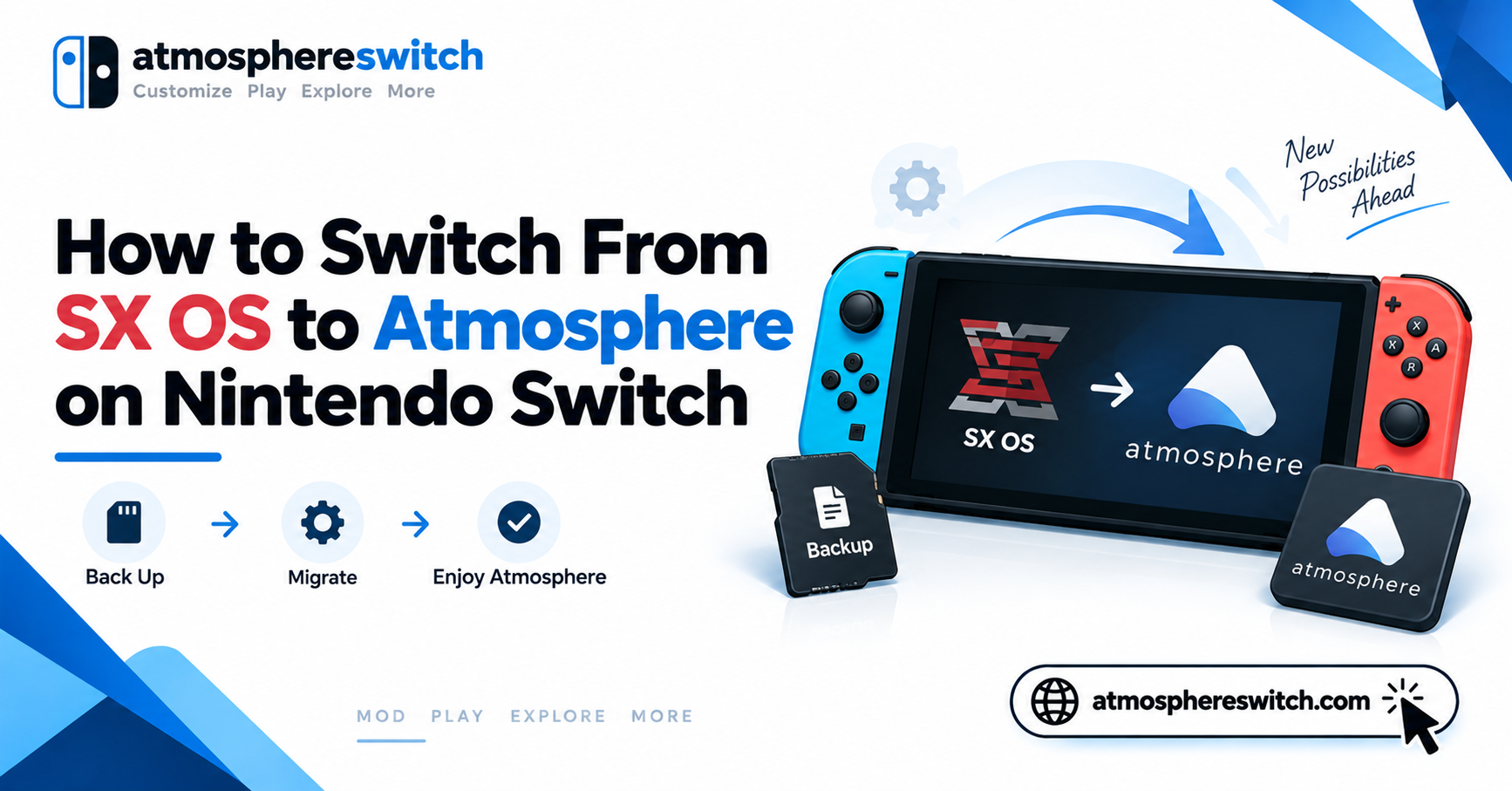
Backup SX OS → install Hekate → migrate SX OS emuNAND → install Atmosphère → configure Hekate → boot Atmosphère emuMMC → verify the environment → remove unused SX OS files.
Do not update Nintendo firmware during the middle of the migration. First confirm that Atmosphère boots correctly, then move to a newer firmware only after verifying Atmosphère and Hekate compatibility.
Latest post: