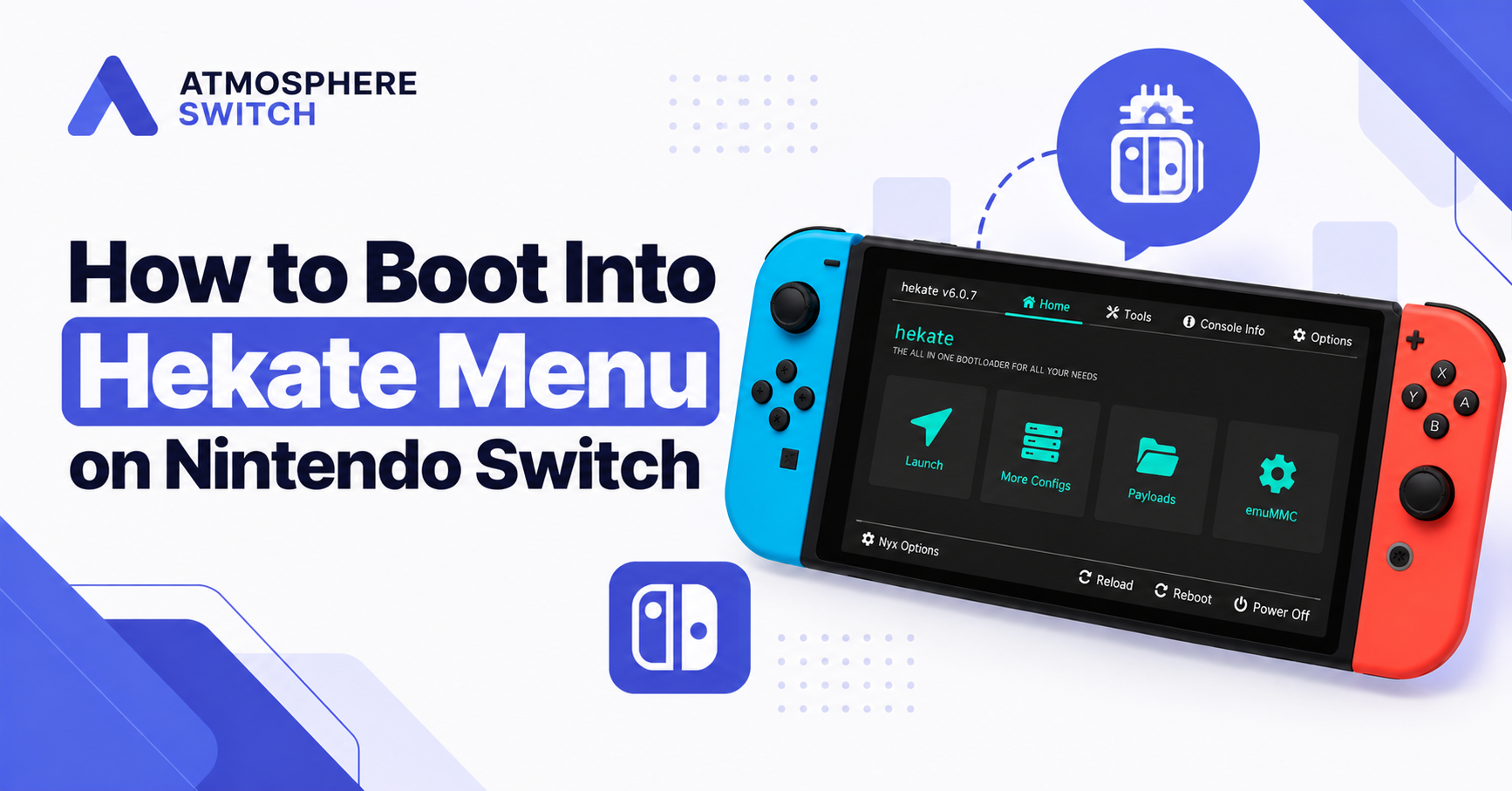
How to boot into Hekate menu depends on how your Nintendo Switch is modified. On an unpatched V1 Switch, you normally enter RCM mode and inject the Hekate payload. On a modchipped Switch, Hekate may load automatically when the console starts. If Hekate is configured to autoboot Atmosphere, holding Volume Down (VOL-) during Hekate startup can interrupt autoboot and open the Hekate menu.
Hekate is a graphical Nintendo Switch bootloader used to launch Atmosphere, emuMMC, sysMMC, stock firmware, payloads, Android, Linux, and maintenance tools.
Table of Contents
ToggleQuick Answer: How to Boot Into Hekate Menu
For most Hekate setups:
- Completely power off your Nintendo Switch.
- Start the console using your normal Hekate boot method.
- On an unpatched V1 Switch, enter RCM and inject the Hekate payload.
- On a modchipped Switch, power on the console and allow the modchip to load Hekate.
- If Atmosphere starts automatically, hold VOL- while Hekate is starting.
- The Hekate/Nyx main menu should appear.
From the Hekate menu, you can access options such as:
- Launch
- More Configs
- Payloads
- emuMMC
- Tools
- Console Info
- Options
What Is the Hekate Menu?
The Hekate menu is the graphical interface provided by Hekate and Nyx.
It gives you control over the Nintendo Switch boot process before Horizon OS or Atmosphere starts.
Hekate can be used to:
- Boot Atmosphere CFW
- Boot emuMMC
- Boot sysMMC
- Boot stock firmware
- Launch additional payloads
- Create and manage emuMMC
- Back up and restore eMMC
- Access SD card tools
- Check hardware information
- Launch Android or Linux configurations
The official Hekate project describes it as a graphical Nintendo Switch bootloader supporting CFW, OFW, Android, Linux, payload tools, emuMMC management, backup tools, and other utilities.
How to Boot Into Hekate Menu on an Unpatched V1 Switch
An unpatched V1 Nintendo Switch commonly boots Hekate through RCM — Recovery Mode.
The typical boot chain is:
Nintendo Switch
      ↓
     RCM
      ↓
Hekate Payload
      ↓
Hekate / Nyx Menu
Step 1: Completely Power Off the Switch
Do not simply put the Switch into sleep mode.
Open:
Power Options > Turn Off
Wait until the console is completely powered down.
Step 2: Enter RCM Mode
Use the RCM method already configured for your unpatched Switch.
A typical RCM setup involves:
- Powering the console off.
- Preparing the right Joy-Con rail for RCM using your existing RCM method.
- Holding Volume Up.
- Pressing the Power button.
When RCM is entered successfully, the screen normally remains black.
A black screen by itself does not prove that RCM is active, but this is the expected visual behavior before a payload is injected.
Step 3: Inject the Hekate Payload
Connect the Switch to your payload injector or computer.
Inject the current Hekate payload, normally named something similar to:
hekate_ctcaer_x.x.x.bin
Once injected successfully, Hekate should start.
The official Hekate release packages provide the Hekate payload as part of the release files.
Step 4: Open the Hekate Menu
If autoboot is disabled, Hekate should normally display its main menu directly.
You may see options such as:
Launch
More Configs
Payloads
emuMMC
Tools
Console Info
Options
You are now inside the Hekate menu.
How to Boot Into Hekate Menu if Atmosphere Switch Starts Automatically
One of the most common problems is:
Hekate loads, but Atmosphere immediately starts before I can access the menu.
This happens when Hekate autoboot is enabled.
Hekate uses settings inside:
/bootloader/hekate_ipl.ini
A configuration may contain something similar to:
[config]
autoboot=1
bootwait=3
The autoboot value tells Hekate which boot entry to start automatically. The bootwait value controls how long Hekate waits before autobooting.
Hold Volume Down During Hekate Startup
To interrupt Hekate autoboot:
- Start Hekate normally.
- Immediately hold VOL-.
- Keep holding it while the Hekate boot logo appears.
- Hekate should stop autobooting.
- The main Hekate/Nyx menu should open.
Hekate’s official code specifically checks for Volume Down during the configured boot-wait period and sends the user to the bootloader menu when detected.
Hekate bootwait Explained
Hekate’s configuration includes:
bootwait=3
This means Hekate waits approximately three seconds before starting the configured autoboot entry.
The official configuration documentation states that bootwait controls the period during which VOL- can be used to enter the menu, with supported values up to 20 seconds.
For example:
[config]
autoboot=1
bootwait=5
would provide a longer opportunity to press VOL- before autoboot starts.
What if bootwait Is Set to 0?
A configuration may contain:
bootwait=0
This removes the normal visual boot-wait period.
However, Hekate still performs a Volume Down check during startup. Its documentation notes that when bootwait=0, holding VOL- from the time of payload injection can force entry into the menu.
In that situation:
- Prepare to inject Hekate.
- Hold VOL-.
- Inject/start Hekate while continuing to hold VOL-.
- Release it after the Hekate menu appears.
How to Boot Into Hekate Menu on a Modchipped Switch
A modchipped Switch usually has a different boot process.
Depending on the modchip and SD card configuration, powering on the console may load:
- Hekate
- Atmosphere
- Another payload
- An autoboot entry
The Hekate project uses:
/bootloader/update.bin
as a Hekate binary that can be loaded during boot, with the documentation noting that this mechanism is commonly relevant to modchip setups.
If Hekate Opens Automatically
Simply power on the console.
If the Hekate menu appears, no additional action is required.
If Atmosphere Starts Automatically
If Hekate briefly appears before Atmosphere:
- Shut down or reboot the console.
- Start it again.
- Hold VOL- during the Hekate startup stage.
- Keep holding it until the main Hekate menu appears.
This interrupts Hekate autoboot when the configuration permits it.
How to Boot Into Hekate From Atmosphere
If Atmosphere is already running, you do not necessarily need to completely power off the Switch.
Many CFW configurations support reboot-to-payload.
If the configured reboot payload points to Hekate, rebooting to payload can return you directly to Hekate.
The general flow is:
Atmosphere
   ↓
Reboot to Payload
   ↓
Hekate
The exact result depends on which payload your Atmosphere setup uses for reboot-to-payload.
If Hekate itself is configured for autoboot, you may still need to hold VOL- while Hekate starts to reach the main menu.
Frequently Asked Questions
How do I boot into the Hekate menu on Nintendo Switch?
Fully power off your compatible Nintendo Switch, then use your established payload-loading method to launch the Hekate payload. Once it loads, the Hekate-Nyx menu should appear on the screen.
Why does my Switch boot straight into Atmosphère instead of Hekate?
Hekate autoboot is probably enabled. This setting automatically launches a selected boot entry after Hekate starts. To access the Hekate menu, hold Volume Down as the Hekate logo appears.
What button opens the Hekate menu?
There is no single button that opens Hekate from the normal Nintendo Switch Home Menu. Hekate must be loaded during startup through your existing compatible homebrew setup. If autoboot is active, holding Volume Down during the Hekate splash screen normally opens the menu.
Why is Hekate showing a black screen?
A black screen can result from a low battery, an incomplete payload load, a missing microSD card, outdated Hekate files, or corrupted files in the bootloader folder. Charge the console, fully power it off, check the SD card, and use a clean copy of the official Hekate files.
Do I need an SD card to use Hekate?
Yes, for normal use. The Hekate interface, configuration files, boot entries, and payloads are typically stored on the microSD card. Ensure that the SD card is inserted and that the bootloader folder is placed at the card’s root.
Where do Hekate payload files go?
Place trusted payload files in the following folder on the SD card:
bootloader/payloadsYou can then access them through the Payloads option in Hekate.
What is the Launch option in Hekate?
The Launch menu displays your configured boot options. These options are controlled by the hekate_ipl.ini configuration file and may include different environments depending on your personal setup.
Can I disable Hekate autoboot?
Yes. Open Options in the Hekate menu, locate the autoboot setting, and disable it or increase the waiting time. This makes it easier to access the Hekate menu on future startups.
Is it safe to update Hekate?
Updating Hekate is generally safe when you download files from the official project source, back up your SD card first, and confirm compatibility with your current Switch firmware and homebrew setup. Avoid updating system software or boot files without checking compatibility.
Can Hekate delete my Switch data?
Hekate itself does not automatically delete data. However, some storage, partition, backup, and restore tools can make significant changes when used incorrectly. Always read each option carefully and keep backups before performing storage-related actions.
Conclusion
Booting into the Hekate menu on Nintendo Switch is easy once your compatible homebrew setup is correctly configured. Fully shut down the console, load your usual Hekate payload, and use the menu to access Launch, Payloads, emuMMC, Tools, and configuration settings.
If Hekate skips straight to another boot option, hold Volume Down during the Hekate logo to bypass autoboot and return to the main menu. Keep your SD card organized, use trusted files, back up important data, and check compatibility before updating your Switch firmware or Hekate files. These simple precautions help keep your setup stable and easier to troubleshoot.
Latest post: