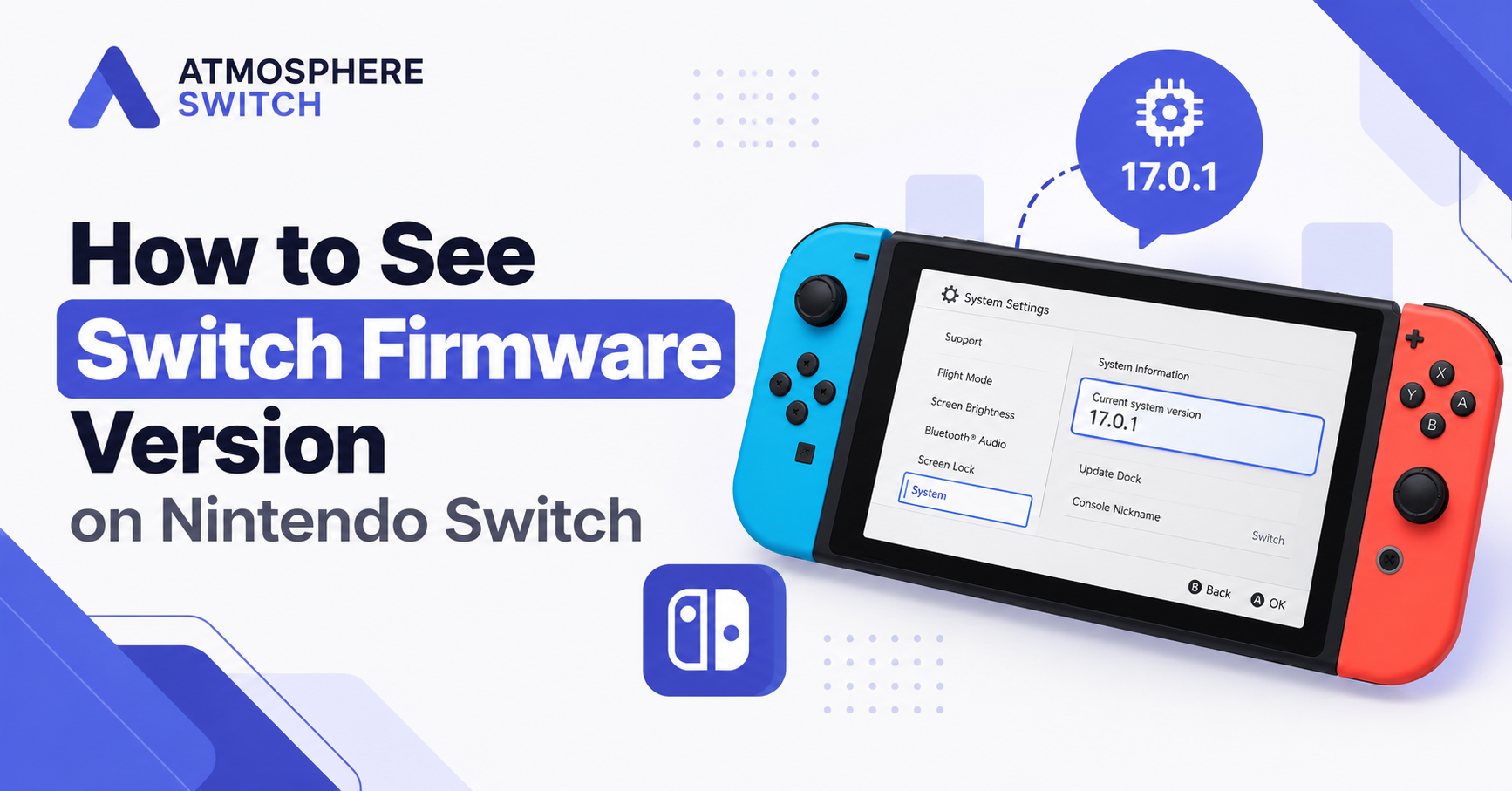
How to see Switch firmware version is simple: open System Settings, scroll down to System, and look at the version displayed under System Update. This works on the standard Nintendo Switch, Nintendo Switch Lite, and Nintendo Switch OLED Model. Nintendo officially identifies this location as the place to check the console’s current system version.
If you use Atmosphere custom firmware, the same screen can also show your Atmosphere version and whether you are running sysMMC or emuMMC.
Quick Answer: How to Check Nintendo Switch Firmware Version
Follow these steps:
- Turn on your Nintendo Switch.
- Open the HOME Menu.
- Select System Settings.
- Scroll down the left menu.
- Select System.
- Look under System Update.
- Your current Nintendo Switch firmware version will be displayed.
The path is:
HOME Menu > System Settings > System > System Update
Nintendo confirms that the current system menu version appears directly under the System Update option.
Table of Contents
ToggleWhat Is the Nintendo Switch Firmware Version?
The Nintendo Switch firmware version is the version of Nintendo’s system software currently installed on the console.
It controls core functions such as:
- HOME Menu
- System Settings
- Nintendo eShop compatibility
- Online services
- Controllers
- Networking
- Game compatibility
- Security
- System features
- Storage management
You may also see Nintendo Switch firmware referred to as:
- Switch system version
- Nintendo Switch system software
- HOS version
- Horizon OS version
- Switch firmware
- System menu version
These terms generally refer to the Nintendo system software running on the console.
How to See Switch Firmware Version Step by Step
Step 1: Open System Settings
Turn on your Nintendo Switch and go to the HOME Menu.
Select the gear icon labeled:
System Settings
Nintendo’s official documentation confirms that System Settings is accessed directly from the HOME Menu.
Step 2: Scroll Down to System
Inside System Settings, use the menu on the left side.
Scroll toward the bottom and select:
System
This section contains options related to:
- System Update
- Console information
- Auto-update settings
- Formatting options
- System-related configuration
Step 3: Look Under System Update
Once you open the System section, look at:
System Update
Your current firmware version is shown directly underneath or next to this option.
For example, you may see:
Current Version: 22.x.x
The exact version depends on the firmware installed on your console.
Nintendo specifically states that the current system menu version is displayed under System Update.
How to Check Firmware Version on Atmosphere Switch
If your Nintendo Switch uses Atmosphere CFW, checking the firmware version is still done through:
System Settings > System
However, Atmosphere switch modifies the displayed version to provide additional information.
You may see something similar to:
22.x.x | AMS 1.x.x | E
or:
22.x.x | AMS 1.x.x | S
Atmosphere’s official documentation states that it modifies the firmware display into a format similar to:
#.#.# | AMS #.#.# | ?
where the final character identifies the active eMMC environment.
Understanding the Atmosphere Firmware Version
Consider this example:
22.x.x | AMS 1.x.x | E
Each section means something different.
22.x.x
This is your Nintendo Switch firmware version.
AMS 1.x.x
This is your installed Atmosphere version.
AMS stands for Atmosphere.
E
This indicates that Atmosphere is running from:
emuMMC / emulated eMMC
Atmosphere officially uses E for an emulated eMMC environment.
What Does S Mean in Atmosphere?
If you see:
22.x.x | AMS 1.x.x | S
the final:
S
means Atmosphere is running using the system eMMC, commonly referred to as:
- sysMMC
- SysNAND
- System NAND
Atmosphere’s official documentation identifies:
S= system eMMCE= emulated eMMC
This makes the System Settings screen useful for checking three things at once:
- Nintendo firmware version
- Atmosphere version
- sysMMC or emuMMC status
How to Check Firmware Version on emuMMC
If your Switch uses an Atmosphere emuMMC, boot into your normal emuMMC environment first.
Then go to:
System Settings > System
Look for something similar to:
22.x.x | AMS 1.x.x | E
The E confirms you are checking the firmware version of the emuMMC environment rather than the system eMMC.
This distinction matters because your emuMMC and sysMMC do not necessarily have to run the same Nintendo firmware version.
For example:
sysMMC: 22.x.x
emuMMC: 21.x.x
The version displayed depends on which environment you booted before opening System Settings.
How to Check Firmware Version on sysMMC
Boot into your sysMMC environment and open:
System Settings > System
If Atmosphere is running on sysMMC, you should see:
22.x.x | AMS 1.x.x | S
The S indicates system eMMC.
If you boot completely stock firmware without Atmosphere, you normally see only Nintendo’s system version rather than the additional AMS information.
How to Tell if You Are Running Atmosphere
Checking the system version is also one of the easiest ways to determine whether Atmosphere is currently running.
Go to:
System Settings > System
If the version contains:
AMS
Atmosphere is active.
For example:
22.x.x | AMS 1.x.x | E
If you only see the normal Nintendo firmware number without AMS, you may be running stock firmware instead.
Atmosphere intentionally modifies the displayed system version so users can identify the Atmosphere version and active eMMC environment.
How to Check Nintendo Switch Firmware Without Updating
You do not need to update your Nintendo Switch simply to check the installed firmware.
Open:
System Settings > System
and read the version shown under:
System Update
You do not need to select or start System Update.
This distinction is particularly important for users running:
- Atmosphere
- Hekate
- emuMMC
- Homebrew
- Custom sysmodules
If you only want to identify your firmware version, read the number currently displayed rather than starting an update.
Does Opening System Update Automatically Update the Switch?
Simply navigating to the System section does not immediately install a firmware update.
However, selecting:
System Update
instructs the console to check whether a newer system update is available.
Nintendo states that when System Update is selected, the console checks for a newer version and begins downloading an available update.
Therefore, if you use Atmosphere and only want to check your Switch firmware version, you normally only need to read the version displayed on the System screen.
How to Check Switch Firmware Before Updating Atmosphere
Before updating Atmosphere, Hekate, or another part of your CFW setup, check your current Nintendo firmware.
Use:
System Settings > System
Record the complete version information.
For example:
21.x.x | AMS 1.x.x | E
This tells you:
- Current Switch firmware
- Current Atmosphere version
- Whether you are using emuMMC
You can then compare your setup against the compatibility information in the Atmosphere and Hekate release notes before changing anything.
Why Your Switch Firmware Version Matters
Knowing the current Nintendo Switch firmware version is especially important when managing a modified console.
The firmware version can affect compatibility with:
- Atmosphere
- Hekate
- Fusee
- Homebrew Menu
- Sysmodules
- Custom themes
- Tesla overlays
- emuMMC
- Game updates
- New games
When Nintendo releases a new system firmware, CFW components may need updates before they can support it.
Checking your current firmware first helps you avoid updating components unnecessarily or installing incompatible versions.
Nintendo Switch Firmware vs Atmosphere Version
These are two separate versions.
For example:
22.x.x | AMS 1.x.x | E
Nintendo Firmware
22.x.x
This is Nintendo’s system software version.
Atmosphere Version
AMS 1.x.x
This is the custom firmware version installed on your SD card.
Atmosphere itself documents this combined display format so users can distinguish the Nintendo firmware from the Atmosphere release.
Do not confuse the two when checking compatibility.
Nintendo Switch Firmware vs Hekate Version
Your Hekate version is also separate from the Nintendo Switch firmware.
For example, your setup could contain:
Nintendo firmware: 22.x.x
Atmosphere: 1.x.x
Hekate: 6.x.x
The Nintendo firmware is checked through:
System Settings > System
Your Hekate version is normally shown inside the Hekate bootloader interface.
When troubleshooting a modded Switch, it is useful to record all three versions.
How to Check Switch Lite Firmware Version
The process is the same on Nintendo Switch Lite.
Go to:
HOME Menu > System Settings > System
The current system menu version will be displayed under System Update.
Nintendo’s official instructions apply to:
- Nintendo Switch
- Nintendo Switch Lite
- Nintendo Switch OLED Model
How to Check Switch OLED Firmware Version
Nintendo Switch OLED Model uses the same process.
- Open System Settings.
- Select System.
- Look under System Update.
- Read the displayed firmware version.
You do not need a separate application or diagnostic tool.
How to See Nintendo Switch 2 Firmware Version
Nintendo Switch 2 uses a similar process.
Go to:
HOME Menu > System Settings > System
The system menu version is displayed under System Update.
Nintendo provides the same basic procedure for Nintendo Switch 2.
Atmosphere-related information in this article applies specifically to compatible original Nintendo Switch CFW environments and should not be assumed to apply to Nintendo Switch 2.
How to Know if Your Switch Firmware Is Up to Date
For a normal stock Nintendo Switch, you can check for a newer firmware through:
System Settings > System > System Update
The console connects to Nintendo and checks whether another version is available.
Nintendo states that:
- The console checks for a newer system update.
- If an update exists, downloading begins.
For an Atmosphere or other CFW setup, check CFW compatibility before intentionally starting a Nintendo system update.
What if the Firmware Version Says Update Pending?
Some Atmosphere users may encounter an Update Pending message instead of the expected firmware information.
This can happen when Nintendo’s update files have already been downloaded and are waiting for installation.
Before performing any firmware update on a CFW system, determine:
- Current firmware
- Atmosphere compatibility
- Hekate compatibility
- Whether you actually want the pending update
Do not assume that a pending firmware update is safe for your current CFW configuration.
How to Check Switch Game Version Instead
The Nintendo Switch firmware version and an individual game version are different.
To check a game version:
- Return to the HOME Menu.
- Highlight the game.
- Press + or –.
- Look at the software information.
Game updates are managed through:
Software Update > Via the Internet
Nintendo documents game/software updates separately from system firmware updates.
If you want the console’s firmware, use:
System Settings > System
instead.
Why Is My Firmware Version Not Showing AMS?
If you expect Atmosphere but do not see AMS, there are several possibilities.
You Booted Stock Firmware
The console may currently be running normal Nintendo firmware instead of Atmosphere.
Atmosphere Did Not Load
Your boot configuration may have launched another environment.
You Selected the Wrong Hekate Entry
You may have selected a stock configuration rather than your Atmosphere emuMMC or sysMMC entry.
To verify, reboot using your expected Atmosphere configuration and check:
System Settings > System
again.
When Atmosphere is running, its official firmware-version modification adds the AMS identifier.
Why Should You Check Firmware Before Updating a Modded Switch?
Updating Nintendo firmware without checking compatibility can cause problems with:
- Atmosphere booting
- Hekate
- Fusee
- Sysmodules
- Homebrew
- Custom themes
- emuMMC
Before making changes, record something like:
Firmware: 21.x.x
Atmosphere: 1.x.x
Environment: E
Then verify that the versions you intend to install support each other.
This gives you a clear baseline if troubleshooting becomes necessary later.
Frequently Asked Questions
How do I see my Nintendo Switch firmware version?
Go to:
System Settings > System
Your current system version appears under System Update.
Where is the firmware version on Nintendo Switch?
It is located under:
HOME Menu > System Settings > System > System Update
You only need to read the displayed version.
How do I check my firmware version on Atmosphere?
Boot Atmosphere and open:
System Settings > System
You should see a format similar to:
#.#.# | AMS #.#.# | E
or:
#.#.# | AMS #.#.# | S
Atmosphere documents this combined version display officially.
What does AMS mean in Switch firmware?
AMS identifies Atmosphere custom firmware.
The number following it is your Atmosphere version.
What does E mean after the Atmosphere version?
E means Atmosphere is running under emulated eMMC, normally called emuMMC.
What does S mean after the Atmosphere version?
S means Atmosphere is running using the system eMMC, commonly called sysMMC or SysNAND.
Can sysMMC and emuMMC have different firmware versions?
Yes. They are separate environments, so the installed firmware can differ depending on how the setup has been maintained.
Always check the version while booted into the environment you actually want to inspect.
Do I need internet to check my Switch firmware?
No. You can view the currently installed firmware version offline through System Settings > System.
Internet access is only needed when the console checks Nintendo’s servers for a newer system update.
Does checking the firmware update my Switch?
No. Simply opening System Settings > System lets you read the installed version.
Selecting System Update, however, tells the console to check Nintendo’s servers for an available update.
How do I check Hekate version?
Boot into the Hekate menu. Its version information is displayed within the Hekate interface. This is separate from the Nintendo firmware version shown in System Settings.
How do I check the firmware on Switch Lite or Switch OLED?
The method is identical:
System Settings > System
Nintendo’s official procedure covers the standard Switch, Switch Lite, and OLED Model.
Conclusion
To see Switch firmware version, open:
HOME Menu > System Settings > System
and look under System Update. Nintendo displays the currently installed system menu version there.
If you use Atmosphere, the same screen gives you additional information. A version such as:
22.x.x | AMS 1.x.x | E
shows the Nintendo firmware version, Atmosphere version, and active NAND environment. E represents emuMMC, while S represents system eMMC.
For an Atmosphere or Hekate setup, checking this inform
Latest post: