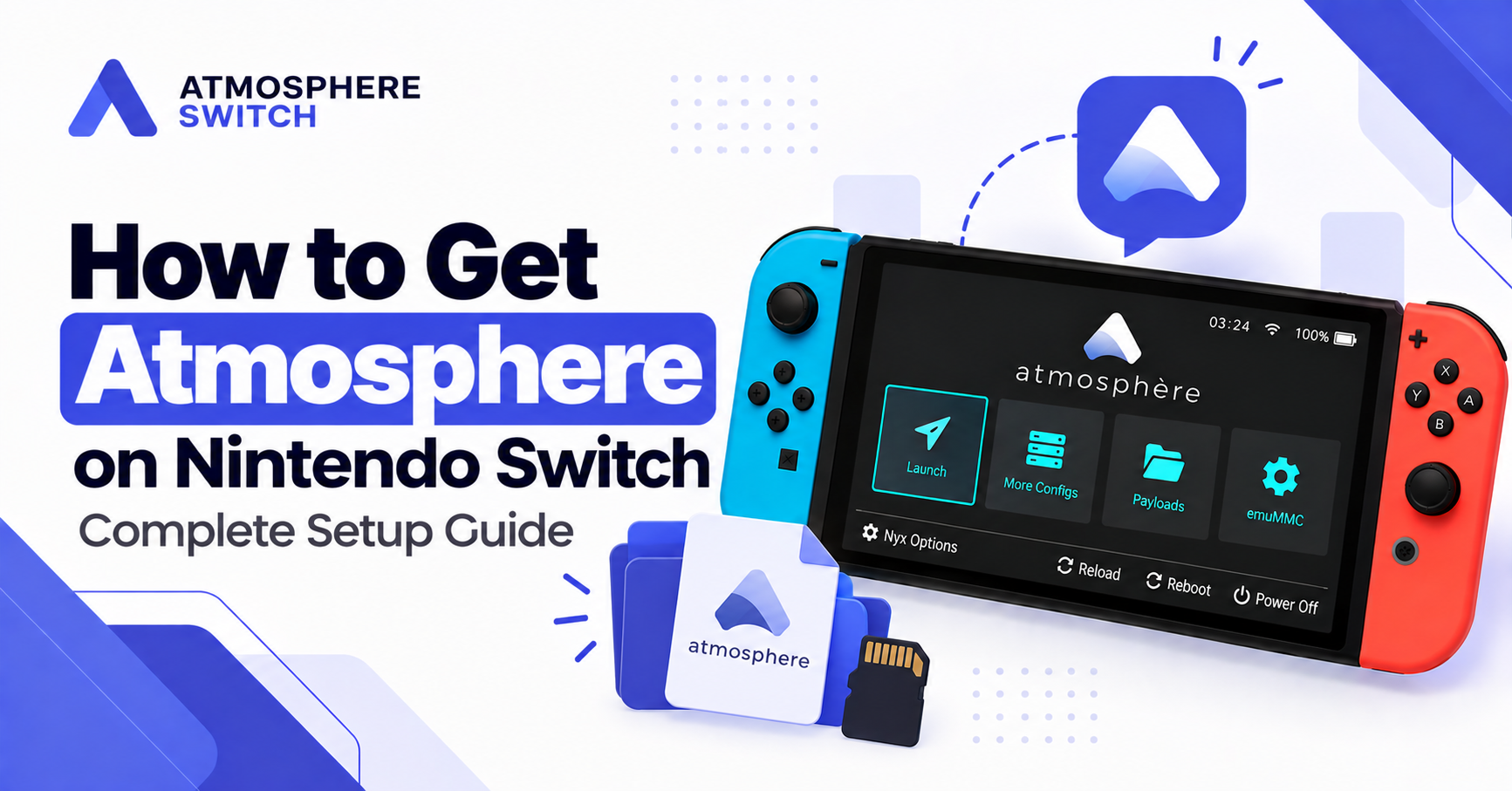
Atmosphère is the most widely used custom firmware environment for compatible Nintendo Switch homebrew setups. It gives users access to legitimate homebrew applications, original community-made games, development tools, media utilities, customization projects, and other open-source software that does not run through the standard Nintendo Switch system.
Getting Atmosphère on Nintendo Switch is not just about downloading a file and copying it to a microSD card. You need a compatible console, a clean SD-card structure, an established startup method that matches your hardware, and up-to-date files. You also need to understand the risks of custom firmware, especially when it comes to official firmware updates, online services, and untrusted downloads.
This guide explains how to get Atmosphère safely and responsibly. It focuses on lawful homebrew use and does not cover obtaining unauthorized games, bypassing online restrictions, or using pirated content.
Quick answer: To get Atmosphère on a compatible Nintendo Switch, verify your console’s homebrew path, prepare a reliable FAT32 microSD card, download official Atmosphère files, copy them to the SD-card root, then boot Atmosphère using your established Hekate or fusee startup method. Homebrew apps are normally stored in the
/switch/folder as.nrofiles.
Table of Contents
ToggleWhat Is Atmosphère on Nintendo Switch?
Atmosphère is a custom firmware, often called CFW, developed for Nintendo Switch homebrew. It modifies or extends elements of the standard Switch operating environment, known as Horizon, so compatible systems can run unofficial homebrew applications.
The project includes multiple technical components, such as Fusée, Exosphère, Thermosphère, Stratosphère and Troposphère. Each component performs a different role in the custom firmware environment, from booting to system-module support.
For beginners, the important point is that the Atmosphère switch provides the environment that makes most Switch homebrew possible.
Atmosphère can be used for legitimate activities such as:
- Running open-source Switch applications
- Trying original homebrew games
- Learning console homebrew development
- Using media and utility apps
- Exploring legally obtained emulation projects
- Using accessibility-focused tools
- Applying permitted modifications to games you own
Atmosphère is not an official Nintendo product. Nintendo does not provide support for it, so users should proceed carefully and only use trusted information.
Can Every Nintendo Switch Run Atmosphère?
No. Nintendo Switch consoles do not all have the same homebrew compatibility.
Some original first-generation, or V1, consoles can use a software-based CFW path. Other hardware revisions, including patched V1 units and later Switch models, do not support the same approach and may require specialized hardware installation before custom firmware is possible.
That means you should never assume a guide is compatible with your console just because it says “Nintendo Switch Atmosphère setup.”
Check compatibility before doing anything
Before preparing an SD card or downloading files:
- Identify your exact Switch model.
- Check its serial number using a reputable, current compatibility resource.
- Determine whether your console follows a software-based or hardware-specific path.
- Follow a maintained written guide for that exact path.
- Stop if you are unsure.
The NH Switch Guide advises users to rely on updated written documentation rather than old video tutorials, because videos often remain online after their instructions become outdated.
Using the wrong process for your hardware can leave you with a confusing setup, wasted time, or an avoidable technical problem.
What You Need Before Installing Atmosphère
A clean Atmosphère setup begins with the right tools and files.
Basic requirements
You will usually need:
- A compatible Nintendo Switch.
- A genuine microSD card.
- A microSD-card reader or adapter.
- A computer running Windows, macOS, Linux or ChromeOS.
- A data-capable USB cable where your setup requires one.
- Official Atmosphère files.
- A compatible bootloader or payload-loading method.
- Time to read and follow current instructions carefully.
- A charged console or official charger.
The community-maintained NH Switch Guide recommends setting aside at least an hour for the overall process and notes that backups can take additional time depending on the system and microSD card.
Choose the right microSD card
The SD card stores the Atmosphère files, homebrew applications, optional Hekate files, configurations, screenshots and potentially emuMMC data.
For this reason, do not use an untested or suspiciously cheap card. Counterfeit cards can report a larger capacity than they truly have, then corrupt files once they fill up.
A FAT32-formatted card is often preferred for homebrew use. Community guidance commonly recommends 128GB or more for users who want adequate room for backups or emuMMC, while warning that exFAT may be more prone to corruption in this context.
Important Safety and Legal Information
Before you install Atmosphère, understand the potential risks.
Technical risks
A CFW setup can be affected by:
- Outdated firmware files
- Incorrect SD-card folder placement
- Corrupted microSD-card data
- Interrupted file transfers
- Incompatible homebrew apps or system modules
- Accidental formatting or storage errors
- Updating Nintendo firmware before CFW support is ready
Warranty and online-service risks
Nintendo warns that unauthorized products that circumvent its security measures may damage a device, and that damage from such products is not covered by Nintendo’s warranty.
Using a modified console can also create online-service and account risks. Check Nintendo’s current terms before connecting a modified system to official services.
Responsible use matters
Use Atmosphère for legitimate homebrew projects and software you are allowed to use. Do not use custom firmware to obtain, copy, distribute, install or play unauthorized commercial content.
Good homebrew habits include:
- Downloading only from official project pages.
- Backing up your SD card before major changes.
- Avoiding unknown “preconfigured packs.”
- Reading app documentation before launching it.
- Keeping personal data and authorized content protected.
- Waiting for compatibility confirmation before updating.
Atmosphère, Hekate and fusee Explained
These terms are closely related, but they do different jobs.
| Tool or term | Main purpose |
|---|---|
| Atmosphère | The custom firmware environment |
| Hekate | A graphical bootloader and system-management tool |
| fusee | Atmosphère’s custom boot payload |
| Homebrew Menu | The launcher for .nro homebrew apps |
| sysMMC | The Switch’s actual internal storage |
| emuMMC | An emulated or redirected storage environment |
Atmosphère
Atmosphère is the CFW environment itself. It provides the foundation for homebrew and custom system functionality.
Hekate
Hekate is a popular bootloader that can launch Atmosphère through configured entries. It also includes features such as payload launching, emuMMC management, storage tools, hardware information and boot configuration options.
fusee
fusee.bin is Atmosphère’s own boot payload. It is used in setups that launch Atmosphère directly rather than through a Hekate Launch entry.
Fusée is the first Atmosphère component that runs during the custom boot process.
How to Prepare a microSD Card for Atmosphère
A correctly structured SD card prevents many common Atmosphère errors.
Step 1: Back up existing SD-card data
If your microSD card already contains Switch files, screenshots or other data, copy everything to your computer first.
Do not skip this step. A backup can save time if something is overwritten, corrupted or configured incorrectly.
Step 2: Format the card
Use FAT32 if it is appropriate for your selected setup. After formatting, give the card a clear volume label, such as:
SWITCHSDThis is optional, but it helps you identify the right drive when working with multiple storage devices.
Step 3: Download official Atmosphère files
Download Atmosphère only from the official Atmosphère GitHub releases page. Avoid download sites that bundle extra files, claim to be “pre-cracked,” or include commercial content.
Extract the ZIP archive on your computer. Do not put the compressed ZIP file directly on the Switch SD card.
Step 4: Copy files to the SD-card root
Copy the extracted Atmosphère files to the root of the microSD card. The card should contain folders similar to:
/atmosphere/
/switch/
/Nintendo/
If you use Hekate, you may also have:
/bootloader/Do not place all files inside an extra folder. This is wrong:
/AtmosphereSetup/atmosphere/This is correct:
/atmosphere/Step 5: Safely eject the microSD card
Use your computer’s safe-eject option before removing the card. This helps prevent interrupted writes and damaged files.
How to Get Atmosphère on Nintendo Switch
The exact installation and startup path depends on the Switch hardware. For that reason, the safe method is to follow a compatible, current written guide for your device rather than copying a generic video process.
The general Atmosphère setup workflow is:
- Confirm your Switch compatibility path.
- Prepare a genuine FAT32 microSD card.
- Download official Atmosphère files.
- Copy the files to the SD-card root.
- Add official Hekate files if your setup uses Hekate.
- Create required backups.
- Use your established payload or boot method.
- Launch Atmosphère.
- Open the Homebrew Menu.
- Install only trusted homebrew apps.
This process avoids the biggest beginner mistake: mixing hardware-specific startup instructions with unrelated SD-card files.
Keep core files separate from optional add-ons
The core Atmosphère setup should work before you add themes, overlays, custom system modules or optional tools.
After the first successful boot:
- Confirm Atmosphère starts.
- Confirm the Homebrew Menu opens.
- Add one trusted homebrew app.
- Test it.
- Add optional tools gradually.
That approach makes troubleshooting much easier if something later stops working.
How to Boot Atmosphère With Hekate
If your setup uses Hekate, the Hekate menu is normally the place where you choose how to boot.
Hekate stores its main files in the /bootloader/ folder. Its boot entries are typically controlled by:
/bootloader/hekate_ipl.iniThe Hekate documentation explains that hekate_ipl.ini controls boot entries, while the bootloader/payloads folder is used for payload files that appear in the Payloads menu.
General Hekate boot process
Once you enter the Hekate menu:
- Select Launch.
- Choose the Atmosphère boot entry configured for your setup.
- Allow the console to boot.
- Confirm that the Switch reaches the expected home screen.
- Open Homebrew Menu using your configured launch method.
If Hekate skips directly to a boot entry, autoboot may be enabled. Holding Volume Down as Hekate starts can open the menu instead.
How to Use the Homebrew Menu
The Homebrew Menu, often called hbmenu, displays compatible .nro applications stored on the SD card.
Once Atmosphère has booted:
- Open your configured Homebrew Menu launch point.
- Browse the list of installed apps.
- Select an app only if you trust its source.
- Read the app instructions before confirming storage or system actions.
- Exit homebrew apps cleanly when finished.
The Homebrew Menu is not the same as the ordinary Nintendo Switch Home Menu. It is a separate environment used for community-made applications.
Atmosphère releases commonly bundle hbmenu components, but versions change over time, so always check current release notes.
Where to Put Atmosphère Homebrew Apps
Most Switch homebrew applications use the .nro format and belong in the /switch/ directory.
A standard layout looks like this:
/switch/AppName/AppName.nroSwitchbrew states that homebrew apps are installed by copying the necessary files directly to the /switch/ folder or an appropriate subfolder. The Homebrew Menu scans the SD card for .nro files.
Install apps carefully
When adding an app:
- Keep the developer’s supplied folder structure.
- Copy all required assets and configuration files.
- Do not rename files unless the developer says it is safe.
- Safely eject the SD card afterward.
- Test one app at a time.
If an app does not appear, check that its .nro file is actually inside /switch/ and that the SD card is working correctly.
How to Update Atmosphère Safely
Atmosphère should be updated carefully whenever you plan to update Nintendo firmware or when the official project releases a compatibility fix.
Safe update order
- Back up the full SD card.
- Read official Atmosphère release notes.
- Confirm support for your target Switch firmware.
- Download the new Atmosphère release.
- Copy core files to the SD-card root.
- Update
fusee.binif your boot method uses it. - Update Hekate if relevant.
- Disable or update incompatible modules.
- Test booting before updating Nintendo firmware.
Atmosphère release notes specifically warn users to update fusee during certain upgrades and note that older payload formats may no longer work.
Never update Nintendo system firmware first and hope the rest will work afterward. Check CFW support first.
Common Atmosphère Setup Problems
Atmosphère does not boot
Possible causes include:
- Missing or incorrectly placed
/atmosphere/files - An outdated payload
- An incompatible Switch firmware version
- A low battery
- A corrupted microSD card
- Outdated optional modules
Start by charging the Switch, powering it off fully, checking the SD card and reinstalling clean core files from official sources.
Hekate opens but Atmosphère does not
This often points to a configuration issue. Check the Hekate boot entry and ensure it references the correct current Atmosphère files.
Do not download another person’s hekate_ipl.ini without understanding what it does. Configuration files are not universal.
A fatal error appears
A fatal error after an update is frequently caused by outdated optional software, such as themes, overlays or custom sysmodules.
A reliable fix is:
- Back up your SD card.
- Install clean current Atmosphère files.
- Temporarily remove optional modules.
- Test the core setup.
- Restore extras one by one.
Homebrew apps are missing
Confirm that the apps are in the /switch/ folder and have the .nro extension. If the SD card was edited on a computer and apps still do not appear, check for SD-card errors or archive-bit issues.
Frequently Asked Questions
Is Atmosphère free?
Atmosphère is an open-source custom firmware project. Download it only from its official project source and avoid third-party packages that include unknown or unauthorized files.
Can every Nintendo Switch run Atmosphère?
No. Compatibility depends on the hardware revision. Some V1 Switch consoles can use a software-based path, while patched and newer systems follow different requirements.
Do I need Hekate to get Atmosphère?
Not always. Atmosphère can use its own fusee.bin payload, while Hekate is a popular alternative bootloader with a graphical menu and additional management features.
Where do Atmosphère homebrew apps go?
Place homebrew .nro apps in the /switch/ folder on the root of the microSD card.
Why is Atmosphère not working after a Switch update?
Your current Atmosphère, Hekate, fusee payload or optional modules may not support the updated Nintendo firmware. Check official release notes and update components in the correct order.
Is it safe to use Atmosphère online?
A modified Switch can involve account and online-service risks. Read Nintendo’s current policies before connecting, and do not use custom firmware to violate platform rules or access unauthorized content.
Conclusion
Getting Atmosphère on Nintendo Switch is easiest when you take a careful, organized approach. First, confirm that your specific Switch hardware supports the right homebrew path. Then use a reliable FAT32 microSD card, download official Atmosphère files, copy them to the SD-card root, and boot through the method configured for your console.
Once Atmosphère is running, keep your setup clean. Store homebrew apps in /switch/, add only trusted tools, make regular backups and verify compatibility before updating Nintendo firmware. By focusing on legitimate homebrew use and following current documentation, you can build a more stable and manageable Nintendo Switch homebrew environment.
Latest post:
- How to Get Atmosphère on Nintendo Switch: Complete Setup Guide
- How to Update a Nintendo Switch: Complete System and Game Update Guide
- How to Update Switch CFW Safely: Atmosphere and Hekate Guide
- How to Update Nintendo Switch: Complete Step-by-Step Guide
- How to Homebrew a Nintendo Switch: Complete 2026 Guide