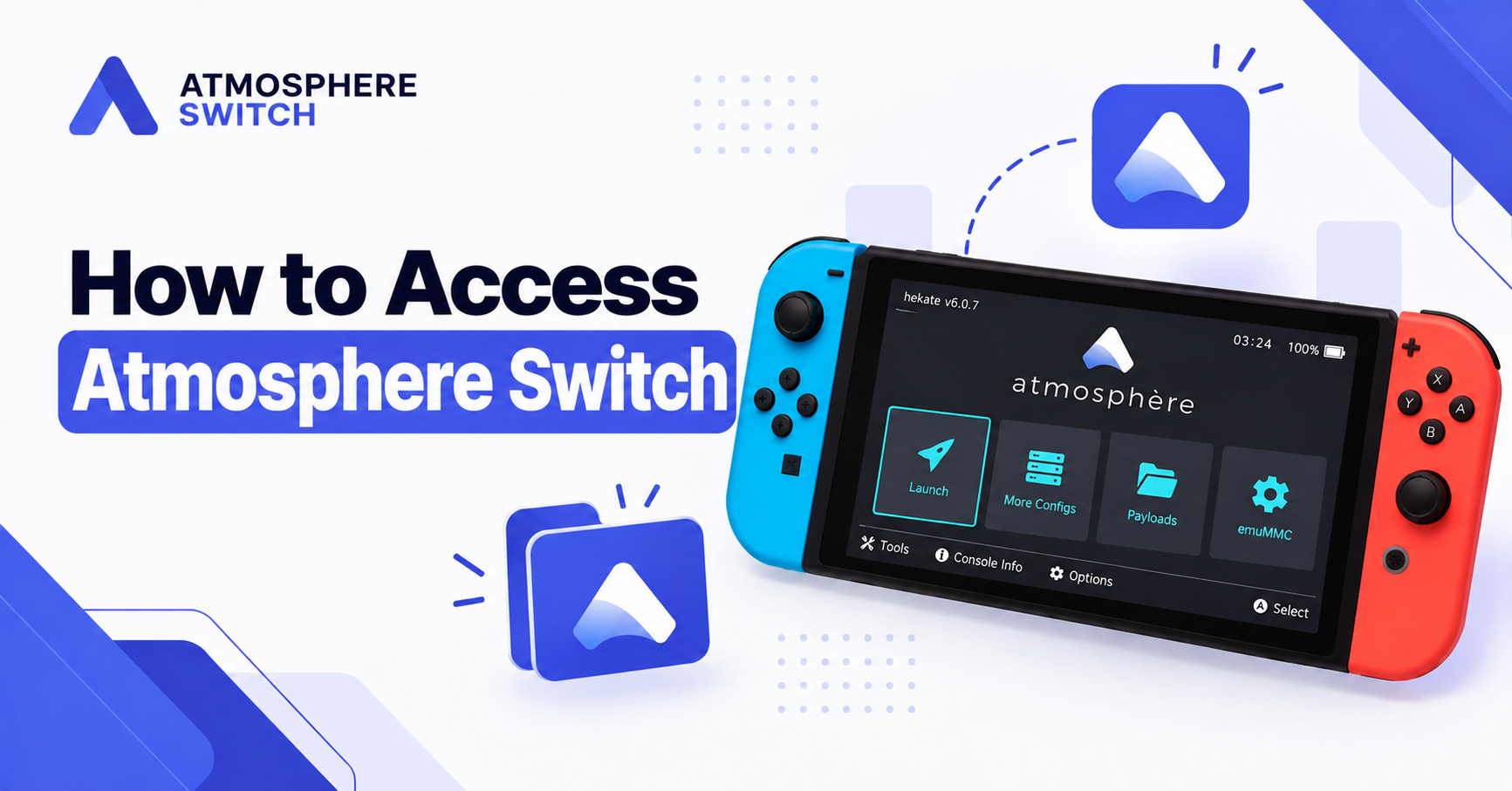
How to access Atmosphere Switch depends on how your Nintendo Switch custom firmware setup is configured. In most setups, you boot the console into Hekate, select the Atmosphere CFW entry, and then launch either emuMMC or sysMMC. You can also boot Atmosphere directly by injecting the fusee.bin payload.
Atmosphere is not a normal application that you open from the Nintendo Switch Home Menu. It is custom firmware (CFW) that loads during the Switch boot process and then runs alongside the Nintendo operating system.
Table of Contents
ToggleQuick Answer: How to Access Atmosphere on Switch
To access Atmosphere on Nintendo Switch:
- Make sure Atmosphereswitch is installed on your microSD card.
- Boot your Nintendo Switch into your configured payload environment.
- Open Hekate if your setup uses it.
- Select Launch.
- Choose your Atmosphere emuMMC or Atmosphere sysMMC entry.
- Wait for the Switch Home Menu to load.
- Open System Settings > System.
- Check whether
AMSappears next to the firmware version.
If you see AMS, Atmosphere is running.
What Is Atmosphere on Nintendo Switch?
Atmosphere is an open-source custom firmware environment for Nintendo Switch. It modifies the standard Horizon OS environment during boot and provides additional functionality used by homebrew applications, system modules, debugging tools, emuMMC setups, and other Switch modifications.
The main Atmosphere files are normally stored inside:
/atmosphere/
on the Nintendo Switch microSD card.
A typical setup may also contain:
/bootloader/
/emuMMC/
/switch/
The bootloader folder is commonly associated with Hekate, while the switch folder is normally used for .nro homebrew applications.
How to Access Atmosphere Switch Using Hekate
Hekate is one of the most common ways to launch Atmosphere because it provides a graphical boot menu and lets you choose between different boot environments.
Step 1: Boot Into Hekate
Start your Nintendo Switch using the boot method configured for your console.
Depending on the hardware, this may involve:
- Entering RCM and injecting the Hekate payload
- Using a payload injector
- Booting through a configured modchip
- Automatically loading Hekate when the console starts
Once Hekate loads, you should see its main graphical interface.
Step 2: Select Launch
From the Hekate home screen, tap:
Launch
Hekate reads boot entries from:
/bootloader/hekate_ipl.ini
and displays those entries in the Launch menu.
Step 3: Select Atmosphere
Your configuration may show an entry such as:
- Atmosphere
- CFW
- CFW emuMMC
- CFW sysMMC
- Atmosphere emuMMC
- Atmosphere sysMMC
Choose the Atmosphere configuration you normally use.
Modern Hekate configurations can load Atmosphere using:
pkg3=atmosphere/package3
Hekate’s current template uses this configuration for Atmosphere boot entries.
Step 4: Wait for the Switch to Boot
After selecting Atmosphere, the Nintendo Switch will continue through the custom firmware boot process.
When the Home Menu appears, Atmosphere should be running in the background.
How to Access Atmosphere Through emuMMC
Many modified Nintendo Switch setups use emuMMC, also known as emuNAND.
emuMMC creates an emulated version of the Nintendo Switch system storage and runs it from the microSD card.
To access Atmosphere emuMMC:
- Boot into Hekate.
- Select Launch.
- Choose Atmosphere emuMMC or CFW emuMMC.
- Wait for Atmosphere to load.
- Open System Settings > System.
- Check the displayed system version.
A Hekate Atmosphere emuMMC configuration commonly uses:
pkg3=atmosphere/package3
emummcforce=1
The emummcforce=1 option forces that boot entry to use emuMMC and produces an error if a valid emuMMC configuration cannot be found.
How to Access Atmosphere Through sysMMC
You can also run Atmosphere using the Nintendo Switch’s physical system NAND, known as sysMMC.
To access Atmosphere sysMMC:
- Start Hekate.
- Open Launch.
- Select your Atmosphere sysMMC or CFW sysMMC entry.
- Wait for the Switch Home Menu to load.
- Verify Atmosphere through System Settings.
A typical Hekate sysMMC entry can use:
pkg3=atmosphere/package3
emummc_force_disable=1
The emummc_force_disable=1 option disables emuMMC for that boot entry, allowing Atmosphere to boot against the system eMMC instead.
How to Check If Atmosphere Is Running
The easiest way to check whether Atmosphere is active is through Nintendo Switch System Settings.
Go to:
System Settings > System
Then check the system version.
When Atmosphere is running, the version normally includes:
AMS
For example:
21.x.x | AMS 1.x.x | E
or:
21.x.x | AMS 1.x.x | S
The important part is AMS, which identifies Atmosphere.
Depending on the environment:
Egenerally indicates emuMMCSgenerally indicates sysMMC
This is one of the fastest ways to confirm that the console successfully booted into Atmosphere.
How to Access Atmosphere Without Hekate
Hekate is useful, but Atmosphere can also be launched directly using its Fusee payload.
The basic boot process is:
RCM → fusee.bin → Atmosphere
Instead of loading Hekate first, you inject the current Atmosphere fusee.bin payload directly.
This can be useful when you do not need Hekate’s boot menu or multiple boot configurations.
The current Atmosphere project continues to provide Atmosphere releases through its official GitHub repository. The latest release listed at the time of writing is Atmosphere 1.11.2.
How to Access Atmosphere on an Unpatched V1 Switch
An unpatched original Nintendo Switch can commonly boot Atmosphere through RCM.
The normal process is:
- Power off the Nintendo Switch.
- Enter RCM using your existing setup.
- Connect the console to your payload injector or computer.
- Inject Hekate or
fusee.bin. - If using Hekate, open Launch.
- Select the Atmosphere entry.
- Wait for CFW to load.
The typical boot chain looks like:
Switch → RCM → Payload → Hekate/Fusee → Atmosphere
If you completely shut down the console, you normally need to repeat the payload boot process the next time you want to access Atmosphere.
How to Access Atmosphere on a Modchipped Switch
Modchipped Nintendo Switch systems use a different early boot process.
Depending on how the modchip and SD card files are configured, powering on the console may:
- Automatically open Hekate
- Load a payload
- Boot Atmosphere directly
If Hekate opens automatically, use:
Launch > Atmosphere
and select your preferred emuMMC or sysMMC configuration.
Some Hekate files are specifically designed to support bootloader updates and payload loading on modchip-based systems.
How to Access Homebrew Menu in Atmosphere
Once Atmosphere is running, you can access the Homebrew Menu.
A common configuration is to hold a controller button while opening an application.
For example:
- Highlight a game.
- Hold R.
- Open the game while continuing to hold R.
- The Homebrew Menu should load instead.
Atmosphere allows these override buttons to be configured through:
/atmosphere/config/override_config.ini
Atmosphere’s configuration system supports configurable application and Homebrew Menu overrides rather than requiring one fixed button setup.
Because configurations can be changed, the exact button may differ on your Switch.
How to Access Atmosphere Files
Atmosphere files are stored on the Nintendo Switch microSD card.
To access them from a PC:
- Completely shut down the Nintendo Switch.
- Remove the microSD card.
- Insert it into your computer.
- Open the SD card.
- Open the
atmospherefolder.
The main directory is:
/atmosphere/
You may also see:
/atmosphere/config/
/atmosphere/config_templates/
/atmosphere/contents/
Atmosphere configuration files are primarily stored under /atmosphere/config/, while default templates can be found under /atmosphere/config_templates/.
Why Atmosphere Does Not Appear in Hekate
If you open Hekate but cannot find an Atmosphere option under Launch, check:
/bootloader/hekate_ipl.ini
The file must contain a valid Atmosphere boot entry.
A simplified modern example is:
[Atmosphere]
pkg3=atmosphere/package3
For emuMMC:
[Atmosphere emuMMC]
pkg3=atmosphere/package3
emummcforce=1
For sysMMC:
[Atmosphere sysMMC]
pkg3=atmosphere/package3
emummc_force_disable=1
These patterns are consistent with Hekate’s current official configuration template.
Why Atmosphere Is Not Booting
If you cannot access Atmosphere, check these common causes.
Outdated Atmosphere Files
New Nintendo Switch firmware versions may require a compatible Atmosphere release.
Check that your Atmosphere installation matches your current firmware.
Outdated Hekate
If your setup uses Hekate, update it when necessary so it remains compatible with your boot configuration and Atmosphere package files.
Wrong Payload
An outdated fusee.bin may cause boot problems after updating Atmosphere.
Use the payload included with the Atmosphere version you installed.
Missing package3
Hekate commonly expects:
/atmosphere/package3
If this file is missing or damaged, Atmosphere may fail to launch through a pkg3 configuration. Hekate’s current configuration documentation uses atmosphere/package3 for Atmosphere entries.
Incorrect Hekate Configuration
A wrong path or invalid setting inside:
/bootloader/hekate_ipl.ini
can prevent the Atmosphere option from working.
emuMMC Is Missing or Disabled
If your Hekate entry uses:
emummcforce=1
Hekate expects a valid enabled emuMMC configuration. If it cannot find one, the boot process can stop with an error.
Can You Open Atmosphere From the Switch Home Menu?
No. Atmosphere itself is not normally opened as a Home Menu application.
Atmosphere loads before the Nintendo Switch operating environment starts.
Once the Switch reaches the Home Menu, Atmosphere is already active in the background.
You can then access Atmosphere-related functionality such as:
- Homebrew Menu
- Homebrew applications
- System modules
- Atmosphere configuration
- emuMMC
- Custom system components
Does Atmosphere Stay Active in Sleep Mode?
Yes. If you put the Nintendo Switch into normal sleep mode, Atmosphere remains loaded.
You do not normally need to inject the payload again after waking the Switch.
However, after a complete shutdown, Atmosphere must be loaded again using the boot method configured for your console.
Frequently Asked Questions
How do I access Atmosphere Switch?
Boot the Nintendo Switch through Hekate or Fusee. In Hekate, select Launch and choose your Atmosphere CFW entry.
How do I know if Atmosphere is active?
Open System Settings > System and look for AMS in the firmware version.
Where is Atmosphere stored?
The primary Atmosphere files are stored in:
/atmosphere/
on the microSD card.
Do I need Hekate to access Atmosphere?
No. Atmosphere can also be booted directly using fusee.bin. Hekate is mainly used as a bootloader and boot manager.
How do I access Atmosphere emuMMC?
Open Hekate > Launch and select your Atmosphere emuMMC configuration.
How do I access Homebrew after booting Atmosphere?
Use the Homebrew Menu override configured in Atmosphere. A common setup launches an application while holding R, although the button can be customized.
Why can’t I find Atmosphere in Hekate?
Check /bootloader/hekate_ipl.ini and confirm it contains a valid Atmosphere boot entry pointing to atmosphere/package3.
Conclusion
To access Atmosphere Switch, you normally boot the Nintendo Switch into Hekate, select Launch, and choose your Atmosphere emuMMC or sysMMC configuration. A direct fusee.bin boot can also launch Atmosphere without using the Hekate menu.
After the Home Menu loads, open System Settings > System and look for AMS in the system version. If AMS appears, Atmosphere is active and you can access Homebrew Menu, system modules, emuMMC features, and other Atmosphere functionality.
Latest post