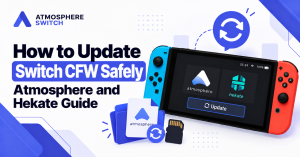
Updating Nintendo Switch custom firmware is an essential part of maintaining a stable homebrew setup. Whether you use Atmosphère directly or boot it through Hekate, every update must be handled carefully. Updating one component while leaving another outdated can lead to black screens, boot loops, fatal errors, missing Homebrew Menu apps, or a Switch that no longer starts into CFW.
The safest approach is to update slowly, verify compatibility, and create a complete microSD-card backup before changing anything. This guide explains how to update Atmosphère, Hekate, Nyx, boot payloads, homebrew apps, and Nintendo Switch firmware in the correct order.
This article is intended for legitimate homebrew users. It does not cover piracy, unauthorized game files, or bypassing Nintendo online-service rules.
Quick answer: To update Switch CFW safely, first back up your entire SD card, verify that the latest Atmosphère and Hekate releases support the Nintendo firmware you plan to use, update Atmosphère and
fusee.bin, update Hekate’sbootloaderfiles, disable outdated modules, test the CFW boot, and only then update Nintendo Switch system firmware.
Table of Contents
ToggleWhy You Should Update Switch CFW Carefully
A Nintendo Switch CFW setup is made up of several connected parts. It is not enough to update only one file or one folder.
A typical setup can include:
- Nintendo Switch system firmware
- Atmosphère custom firmware
- Hekate bootloader
- Nyx graphical interface
fusee.binboot payload- Homebrew Menu
- Custom sysmodules
- Overlays and themes
- Hekate boot entries
- emuMMC files
- Homebrew applications
When one part becomes outdated, the whole setup can become unstable. For example, an outdated custom sysmodule can trigger a fatal Atmosphère error even if Atmosphère itself is fully updated. Likewise, a new Nintendo firmware version may not boot if Hekate or Atmosphère does not yet support it.
Atmosphère’s official changelog tracks support for specific Horizon OS versions and notes that major Nintendo system changes can affect the homebrew ecosystem.
The key lesson is simple: never update your Switch firmware first just because Nintendo offers an update. Check CFW compatibility before making any changes.
The Correct Atmosphère and Hekate Update Order
The safest update sequence is:
- Back up your microSD card.
- Check the current Nintendo firmware version.
- Read the official Atmosphère release notes.
- Read the official Hekate release notes.
- Update Atmosphère files.
- Update
fusee.binif your setup uses it. - Update Hekate and Nyx.
- Check Hekate boot configurations.
- Disable or update outdated sysmodules.
- Test Atmosphère.
- Update Nintendo firmware only when support is confirmed.
- Test homebrew apps after the update.
This order prevents most common CFW problems.
| Update item | Why it matters |
|---|---|
| SD-card backup | Lets you restore a working setup |
| Atmosphère | Core custom firmware files |
| fusee.bin | Required for direct Atmosphère boot setups |
| Hekate/Nyx | Controls booting, payloads and configurations |
| Sysmodules | Old modules often cause fatal errors |
| Homebrew apps | Apps can break after firmware changes |
| Nintendo firmware | Should be updated last |
What to Back Up Before Updating
Before updating Atmosphère or Hekate, make a full copy of your microSD card to your computer.
Back up these folders:
/atmosphere/
/bootloader/
/switch/
/emuMMC/
/Nintendo/
Also preserve:
hekate_ipl.ini- Custom themes
- Overlay settings
- Homebrew app data
- Screenshots and videos
- Personal configuration files
- Any authorized save-data backups
Create a clear backup folder name, such as:
Switch-CFW-Backup-2026-10-03For better protection, save another copy to an external hard drive or trusted cloud storage.
Why a full backup is important
A full SD-card backup helps you recover from:
- Corrupted updates
- Broken Hekate launch entries
- Missing homebrew apps
- Bad theme or sysmodule files
- Accidental overwrites
- SD-card failure
- Incorrect folder placement
Do not delete your old files until the new setup boots successfully and your essential apps work.
How to Check Firmware Compatibility
Before you update anything, identify:
- Your current Nintendo Switch firmware version
- The firmware version you plan to install
- Your current Atmosphère version
- Your current Hekate version
- Whether your setup uses
fusee.bin - Whether you use custom modules or overlays
Check official Atmosphère releases
The official Atmosphère GitHub release notes explain which Nintendo Switch firmware versions are supported. They may also mention changes that affect homebrew applications, system modules or payload requirements.
Check official Hekate releases
Hekate’s release notes identify supported Switch system versions and include fixes for the bootloader, emuMMC and Nyx interface. Hekate should be checked alongside Atmosphère switch whenever you plan a major update.
Avoid outdated tutorials
Old video guides often become inaccurate after Nintendo, Atmosphère or Hekate releases an update. Use official release notes and maintained written documentation rather than relying on a tutorial uploaded months or years ago.
How to Update Atmosphère
Atmosphère is the main CFW component. It should always come from the official Atmosphère GitHub releases page.
Step 1: Download the latest compatible release
Download the official Atmosphère ZIP archive that supports the Switch firmware you are using or plan to install.
Do not download “preconfigured” CFW packs from unknown websites. These packages can include outdated files, hidden modifications or unauthorized content.
Step 2: Extract the archive
Extract the Atmosphère ZIP file on your computer. You should see files and folders intended to be copied to the root of the microSD card.
Step 3: Copy core files to the SD-card root
Open your SD card and copy the extracted Atmosphère files to its root directory.
When your computer asks, choose merge and replace for the official core files.
The folder should be located like this:
/atmosphere/Avoid creating a nested folder like this:
/AtmosphereUpdate/atmosphere/Step 4: Do not restore optional files immediately
First test the updated core Atmosphère files without adding old themes, overlays or optional modules back. If the Switch boots cleanly, you can then restore compatible add-ons one at a time.
This is the easiest way to find the source of a fatal error.
How to Update fusee.bin
fusee.bin is Atmosphère’s boot payload. It is especially important for users who launch Atmosphère directly rather than through a Hekate configuration.
Atmosphère’s official release notes instruct users to update fusee when upgrading and warn that older fusee-primary payloads are no longer supported.
If you boot Atmosphère directly
Replace the old fusee.bin in the location used by your normal payload-launching method.
If you boot through Hekate
Some Hekate setups boot Atmosphère with a package3 entry instead of direct fusee booting. Even in that case, keep your files organized and update any payload file that your current startup method requires.
Hekate can use an Atmosphère package3 file to load the required CFW components.
How to Update Hekate and Nyx
Hekate is a graphical bootloader that can launch Atmosphère, manage emuMMC, load payloads and provide diagnostic or storage tools. Nyx is its graphical user interface.
Step 1: Download Hekate from the official source
Go to the official CTCaer Hekate GitHub release page and download the current compatible release.
Step 2: Extract the release package
Extract the archive on your computer. It generally includes:
- The
bootloaderfolder - A current Hekate payload file
- Updated Nyx files
Step 3: Merge the bootloader folder
Copy the new bootloader folder to the root of your SD card. Choose merge and replace when asked.
The official Hekate release instructions recommend merging the new bootloader folder into the SD-card root and state that deleting the old folder first is not necessary.
Step 4: Back up and verify your boot configuration
The most important Hekate configuration file is usually:
/bootloader/hekate_ipl.iniThis file controls boot entries in Hekate’s Launch menu. Back it up before updating, then confirm that your preferred entries are still present after the update.
Hekate can also use additional configuration files inside:
/bootloader/ini/Step 5: Update the Hekate payload if required
If you use a PC injector, dongle or another startup method that loads a Hekate .bin payload, update that payload file as well. Updating only the SD-card folder can leave the boot process partly outdated.
How to Update Nintendo Switch Firmware Safely
Updating Nintendo firmware should be the final part of the process, not the first.
Before updating official firmware
Make sure that:
- Atmosphère officially supports the target firmware.
- Hekate supports the target firmware.
- Your custom modules are compatible or disabled.
- You have updated the core CFW files.
- You have tested CFW booting successfully.
- You have a complete SD-card backup.
Why waiting is safer
A new Nintendo update can change system behaviour in ways that affect CFW and homebrew applications. The official Atmosphère changelog has noted cases where system changes affected how homebrew apps and applets behave.
If your setup is already working, there is rarely a reason to update immediately. Waiting for official compatibility confirmation is usually the best decision.
Updating Homebrew Apps, Sysmodules and Themes
Many users update Atmosphère and Hekate correctly, but forget about optional add-ons. This is a major source of errors.
Custom sysmodules
Custom sysmodules run in the background and can extend functionality. After a firmware or CFW update, an outdated sysmodule may trigger a crash during startup.
Before testing the updated setup:
- Back up optional modules.
- Temporarily disable them.
- Boot Atmosphère with only core files.
- Confirm that the Switch works.
- Restore updated modules one by one.
Homebrew apps
Homebrew apps are separate from Atmosphère. Updating CFW does not automatically update every app.
Most apps are stored in:
/switch/and use the .nro format.
Visit each app developer’s official page, check compatibility notes and update apps individually when necessary.
Themes and overlays
Themes and overlays are optional. They are convenient, but they can also be incompatible after a major update. If your Switch fails to boot after updating, temporarily remove these extras before assuming the core CFW files are broken.
Common CFW Update Errors
Atmosphère fatal error after updating
This commonly happens because of an outdated sysmodule, theme, overlay or configuration file.
Try this method:
- Fully power off the Switch.
- Back up the SD card.
- Install fresh official Atmosphère files.
- Remove optional add-ons temporarily.
- Update Hekate and fusee.
- Boot again.
- Restore optional files gradually.
Hekate opens, but Atmosphère will not launch
This can indicate:
- An incorrect
hekate_ipl.inientry - Missing Atmosphère files
- An outdated bootloader
- An incompatible Switch firmware version
- A bad
package3path
Review the configuration instead of downloading random files. Hekate boot entries depend on your own setup.
Black screen after launching a payload
A black screen can result from:
- A low battery
- An outdated payload
- An incomplete file transfer
- A damaged SD card
- A firmware mismatch
Charge the console, shut it down fully, check the SD card and replace the core files with clean official copies.
Homebrew Menu apps are missing
Check that your .nro files remain inside the /switch/ folder. If apps disappear after editing the SD card on a computer, inspect the card for corruption and verify the folder structure.
Safe CFW Update Checklist
Use this checklist every time you update your Nintendo Switch CFW:
- Back up the entire microSD card.
- Check the current Switch firmware version.
- Read the official Atmosphère release notes.
- Read the official Hekate release notes.
- Confirm compatibility before updating Nintendo firmware.
- Update Atmosphère core files.
- Update
fusee.binif your boot method uses it. - Update the Hekate
bootloaderfolder. - Update the Hekate payload if necessary.
- Back up and verify
hekate_ipl.ini. - Disable outdated sysmodules, overlays and themes.
- Boot-test Atmosphère before updating official firmware.
- Update homebrew apps from trusted sources.
- Safely eject the SD card after file transfers.
Frequently Asked Questions
Should I update Atmosphère before Nintendo Switch firmware?
Yes. First verify that the latest Atmosphère version supports the firmware you want to install. Update CFW files first, test the setup, and only then update Nintendo firmware.
Do I need to update Hekate with Atmosphère?
You should always check Hekate compatibility when updating Atmosphère or Switch firmware. Updating Hekate is especially important when its release notes add support for your target system version.
Do I have to update fusee.bin?
Yes, if your setup uses fusee. Atmosphère release notes may require a new fusee payload when you update.
Can I update Atmosphère without deleting my SD-card files?
Usually, yes. After creating a full backup, merge and replace the official core folders. Avoid deleting files unless official instructions for your exact situation specifically require it.
Why does Atmosphère crash after an update?
The cause is often an outdated sysmodule, theme, overlay or configuration file. Test the updated core setup without optional add-ons, then restore compatible extras gradually.
Is updating Switch CFW safe?
It can be safe when you use official sources, keep backups, confirm compatibility and update in the correct order. Rushing an update or mixing outdated files is what creates most problems.
Conclusion
Updating Switch CFW safely comes down to preparation and order. Back up your SD card first, check official compatibility notes, update Atmosphère and fusee.bin, update Hekate and Nyx, review your configuration, and temporarily disable outdated optional modules.
Do not rush to install a new Nintendo firmware update. A working CFW setup is worth protecting. By updating one component at a time and testing after each stage, you can avoid common Atmosphère crashes, Hekate boot issues and missing homebrew apps—while keeping your legitimate Switch homebrew environment stable and easy to maintain.
Latest post:
- How to Update Switch CFW Safely: Atmosphère and Hekate Guide
- How to Change the RCM Loader Payload File to Hekate on Nintendo Switch
- How to Get Atmosphère on Nintendo Switch: Complete Setup Guide
- How to Update a Nintendo Switch: Complete System and Game Update Guide
- How to Update Switch CFW Safely: Atmosphere and Hekate Guide