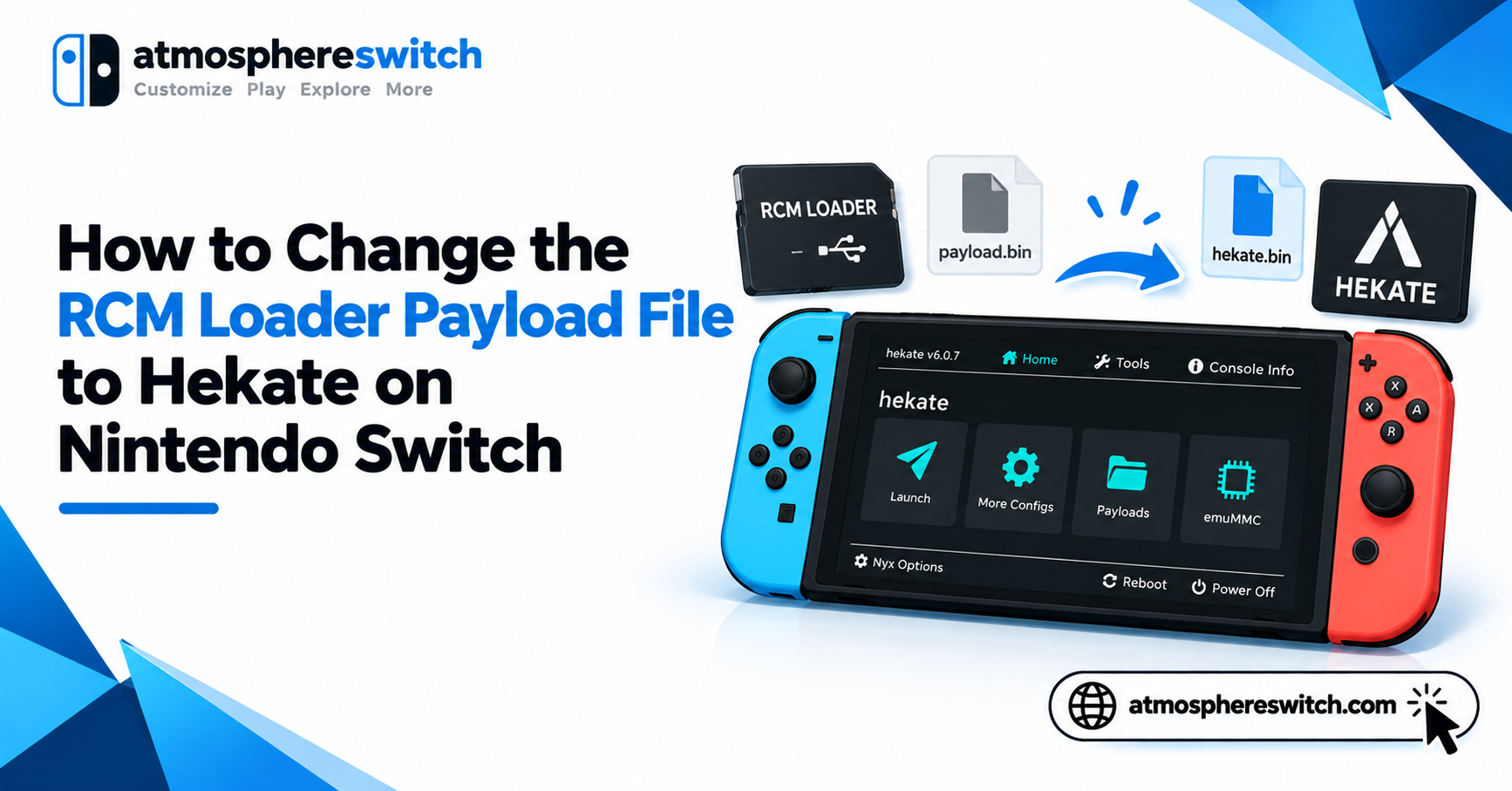
If you want to change the RCM Loader payload file to Hekate, the process is simple: connect your RCM Loader dongle to a PC, download the latest Hekate .bin payload, rename it to payload.bin if your loader requires that filename, replace the old payload file, and then use the RCM jig to put your Nintendo Switch into RCM mode.
One important distinction: an RCM jig does not store Hekate or any payload file. The jig only helps an unpatched Nintendo Switch enter Recovery Mode. The actual Hekate .bin file is stored on an RCM Loader/dongle, PC, phone, or another payload injector.
Quick Answer: Download the latest
hekate_ctcaer_x.x.x.bin, connect your RCM Loader to your computer, rename the Hekate file topayload.binif required, and replace the existing payload inside the correct loader folder. Then insert the RCM jig, enter RCM mode with Volume Up + Power, connect the loader, and Hekate should launch.
Table of Contents
ToggleWhat Is an RCM Jig and Hekate Payload?
An RCM jig is a small physical tool inserted into the right Joy-Con rail of compatible Nintendo Switch consoles. It helps trigger RCM mode, but it contains no software or payload files.
Hekate, on the other hand, is a Nintendo Switch bootloader. It is distributed as a .bin payload such as:
hekate_ctcaer_6.5.3.bin
That payload can be injected into an RCM-enabled Switch using:
- RCM Loader dongle
- Windows PC
- Android device
- Compatible payload injector
- WebUSB-based injector
As of September 2026, the latest official Hekate release is Hekate 6.5.3 with Nyx 1.9.3. It supports Horizon OS up to 22.5.0.
How to Change the RCM Loader Payload File to Hekate
If your RCM Loader currently launches an old Hekate version, Fusee, or another payload, you can replace its stored payload with the latest Hekate file.
Step 1: Download the Latest Hekate Payload
Download Hekate from the official CTCaer GitHub releases page.
The downloaded archive normally contains a payload named similar to:
hekate_ctcaer_6.5.3.bin
It also includes the bootloader folder required on your Nintendo Switch microSD card.
The current Hekate release is 6.5.3, paired with Nyx 1.9.3.
Step 2: Connect the RCM Loader to Your PC
Connect the RCM Loader dongle itself to your computer using its USB cable.
Do not connect the RCM jig. The jig is only a physical contact tool and has no storage.
A typical RCM Loader appears in Windows as a removable USB drive.
Depending on the model, you may see folders such as:
ATMOSPHERE_HEKATE
USER1
USER2
USER3
REINX
SXOS
Folder names vary between RCM Loader versions and clones.
Step 3: Find the Current Payload File
Open the folder corresponding to the payload profile you want to use.
Inside it, you may find:
payload.bin
This is the file your RCM Loader injects when that profile is selected.
Older RCM Loader setups commonly use payload.bin as the required filename. Community documentation for RCM Loader devices also describes replacing a profile’s existing payload with a newer file using this filename.
Step 4: Rename the Hekate File to payload.bin
Take the downloaded Hekate payload:
hekate_ctcaer_6.5.3.bin
and rename it to:
payload.bin
Your resulting file should therefore look like:
payload.bin
Be careful on Windows if file extensions are hidden. You do not want to accidentally create:
payload.bin.bin
Enable File name extensions in File Explorer if necessary.
Step 5: Replace the Old Payload
Copy your new:
payload.bin
into the correct RCM Loader folder.
When Windows asks whether you want to replace the existing file, select Replace.
A typical configuration could look like:
RCMLOADER
└── ATMOSPHERE_HEKATE
    └── payload.bin
Some loaders use a USER1 folder instead:
RCMLOADER
└── USER1
    └── payload.bin
The exact folder is determined by your loader model and selected profile.
Update Hekate Files on the Nintendo Switch SD Card
Changing the payload on the RCM Loader is only part of the Hekate update.
You should also update the Hekate files on your Nintendo Switch microSD card.
Open the Hekate ZIP and copy:
bootloader
to the root of the Switch SD card.
The structure should resemble:
SD Card
├── atmosphere
├── bootloader
├── switch
└── hbmenu.nro
Choose merge/replace if your operating system asks.
Do not automatically delete the existing bootloader folder. The official Hekate update instructions recommend merging the new folder so existing configurations and payloads are preserved.
Do You Need to Change the RCM Loader Hekate File Every Time?
Not necessarily.
Modern Hekate includes:
/bootloader/update.bin
When Hekate starts, it can check whether update.bin on the microSD card is newer than the initially injected Hekate payload. If it is newer, Hekate can load the newer version.
The official Hekate documentation therefore states that updating the payload on your RCM injection device or PC is optional in many normal updates, provided the newer bootloader/update.bin exists on the SD card.
For example, you could have:
RCM Loader:
payload.bin → older Hekate
while your SD card contains:
/bootloader/update.bin → newer Hekate
Hekate can then transition to the newer version.
However, replacing the RCM Loader payload periodically is still useful because it keeps the initial injected payload current.
How to Boot Hekate With an RCM Jig and Loader
After changing the Hekate payload file, you can test it.
1. Fully Power Off the Switch
Do not leave the console in sleep mode.
Use:
Power → Power Options → Turn Off
2. Insert the RCM Jig
Remove the right Joy-Con and insert the RCM jig into the right Joy-Con rail.
Make sure it is seated correctly.
3. Enter RCM Mode
Hold:
Volume Up
and briefly press:
Power
The Switch screen should remain completely black.
A black screen is expected in RCM mode; Hekate does not appear until a payload is injected.
4. Connect the RCM Loader
Insert the RCM Loader into the Switch USB-C port.
The loader should inject the selected:
payload.bin
If everything is configured correctly, the Hekate/Nyx interface should appear.
How to Select the Hekate Payload on an RCM Loader
Many RCM Loader devices support multiple payload profiles.
The selected profile is normally indicated by an LED color.
The exact colors depend on the manufacturer and firmware, but common RCM Loader configurations historically used separate profiles for Atmosphère switch, Hekate, ReiNX, SX OS, or custom user payloads.
Some devices allow you to switch profiles by holding the + button until the LED color changes.
If you placed Hekate inside:
USER1/payload.bin
make sure the loader is actually switched to the USER1 profile before attempting injection.
Why the New Hekate Payload Is Not Loading
If you replaced the RCM Loader file but still see an older Hekate version or nothing launches, check the following.
Wrong Payload Folder
Your Hekate file may be correct, but the loader could be using another profile.
For example:
USER1/payload.bin
may contain Hekate while your loader is currently injecting:
ATMOSPHERE_HEKATE/payload.bin
Switch the active loader profile or replace the payload in the correct folder.
Incorrect Filename
Some RCM Loader models require the payload to be named exactly:
payload.bin
If you leave the filename as:
hekate_ctcaer_6.5.3.bin
the loader may not detect it.
File Became payload.bin.bin
Windows sometimes hides known file extensions.
If you manually rename the file while extensions are hidden, you can accidentally create:
payload.bin.bin
Enable visible extensions and verify the filename.
Hekate Bootloader Folder Is Outdated
Updating only the RCM Loader payload is not enough.
Also update:
/bootloader/
on your microSD card.
Current Hekate releases include Nyx and supporting files inside the bootloader directory.
Switch Is Not Actually in RCM Mode
When entering RCM mode:
- Fully turn off the console.
- Insert the jig.
- Hold Volume Up.
- Tap Power.
- Release the buttons.
The screen should remain black.
If the Nintendo logo appears, the console entered normal boot instead of RCM.
RCM Jig vs RCM Loader: What Actually Holds the File?
This distinction is important for the keyword how to change file RCM jig Hekate.
| Component | Purpose | Stores Hekate File? |
|---|---|---|
| RCM Jig | Helps enter RCM mode | No |
| RCM Loader | Injects .bin payload | Yes |
| microSD Card | Stores Hekate bootloader/Nyx files | Yes |
| PC | Can inject Hekate using software | Yes |
| Android Device | Can inject supported payloads | Yes |
So technically, you do not change a file on the RCM jig.
You change the Hekate payload file on the RCM Loader or injection device.
Can You Inject Hekate Without an RCM Loader?
Yes. An RCM Loader is convenient but not mandatory.
You can inject:
hekate_ctcaer_x.x.x.bin
from a computer while the compatible Switch is in RCM mode.
Windows users commonly use a compatible payload injector such as TegraRcmGUI. After the application detects the console in RCM mode, select the Hekate .bin file and inject it.
In this situation, you do not rename the file to payload.bin.
You can select the original file directly:
hekate_ctcaer_6.5.3.bin
The payload.bin naming requirement mainly applies to certain standalone RCM Loader dongles.
Frequently Asked Questions
What File Do I Put on an RCM Loader for Hekate?
Use the Hekate payload file:
hekate_ctcaer_x.x.x.bin
For RCM Loader devices that expect a fixed filename, rename it to:
payload.bin
and place it inside the correct payload profile folder.
Does the RCM Jig Need a Hekate File?
No. An RCM jig contains no software. It only helps compatible Nintendo Switch hardware enter RCM mode.
Hekate is stored on and injected from an RCM Loader, computer, phone, or another payload injector.
Where Does Hekate Go on the SD Card?
The Hekate package’s:
bootloader
folder goes on the root of the microSD card.
For example:
SD:/bootloader/
The official Hekate instructions recommend copying the newer folder over the existing one and selecting merge/replace.
Should I Delete the Old Hekate Bootloader Folder?
Normally, no.
Merge the new bootloader folder with the existing one. Deleting the entire folder can also remove your:
hekate_ipl.ini- Custom boot entries
- Payloads
- Configuration files
The official Hekate release instructions specifically advise against deleting it during a normal update.
What Is the Latest Hekate Version?
As of September 2026, the latest official release is Hekate 6.5.3 with Nyx 1.9.3, released June 16, 2026. It supports Horizon OS through version 22.5.0.
Why Does My Switch Screen Stay Black After Using the RCM Jig?
A black screen immediately after entering RCM mode is normal.
RCM does not display an interface. The screen only changes after a valid payload such as Hekate is successfully injected.
Conclusion: How to Change the RCM Jig Hekate File
If you are trying to change the Hekate file for an RCM jig setup, remember that the file is actually stored on the RCM Loader, not the jig itself.
Download the latest hekate_ctcaer_x.x.x.bin, rename it to payload.bin when required by your loader, replace the old payload in the correct RCM Loader profile, and update the bootloader folder on your Switch microSD card.
After that, use the RCM jig + Volume Up + Power to enter RCM mode and connect the loader. If the correct payload profile is selected, Hekate should launch.
Latest post:
- How to Change the RCM Loader Payload File to Hekate on Nintendo Switch
- How to Get Atmosphère on Nintendo Switch: Complete Setup Guide
- How to Update a Nintendo Switch: Complete System and Game Update Guide
- How to Update Switch CFW Safely: Atmosphere and Hekate Guide
- How to Update Nintendo Switch: Complete Step-by-Step Guide