Nintendo Switch firmware updates can temporarily affect Atmosphère, Hekate, themes, overlays, and homebrew applications. Updating the official firmware before checking compatibility may prevent the console from booting into its custom firmware environment.
Nintendo released firmware 19.0.1 on October 28, 2024. It was a small maintenance update that fixed an issue with the Nintendo GameCube Controller Adapter and connected GameCube controllers.
Atmosphère supports Nintendo Switch firmware 19.0.1. However, users should install a compatible Atmosphère release, update Hekate and the boot payload, disable outdated custom modules, and create backups before changing the system firmware.
Important: This guide is intended for legally owned Nintendo Switch systems, legitimate homebrew, development, backups, and customization. It does not cover piracy, unauthorized game copies, or bypassing software ownership requirements.
1. Introduction: Understanding Atmosphere Firmware Compatibility
Atmosphère is custom firmware for the Nintendo Switch. It works alongside the Nintendo operating system and allows compatible homebrew applications, custom configurations, development tools, and system modules to run.
When Nintendo releases a major firmware update, internal operating-system components may change. Atmosphère must sometimes be updated before it can boot the new firmware correctly.
Compatibility also depends on more than Atmosphère itself. A working setup may include:
- Atmosphère
- Hekate
- The fusee payload
- EmuMMC
- Homebrew Menu
- Homebrew applications
- Custom system modules
- Overlays
- Themes
- Boot configuration files
Even when Atmosphère supports a firmware version, an outdated theme or system module can still cause a black screen, fatal error, or startup crash.
The safest rule is:
Update Atmosphère, Hekate, fusee, and compatible homebrew components before updating the Nintendo Switch firmware.
2. Does Atmosphere Support Firmware 19.0.1?
Quick Answer
Yes. Atmosphère supports Nintendo Switch firmware 19.0.1.
Atmosphère 1.8.0 introduced basic support for firmware 19.0.0. Firmware 19.0.1 was a minor follow-up release rather than another major system revision, and no separate Atmosphère compatibility release was required specifically for 19.0.1.
The official Atmosphère project’s issue discussions confirmed that Atmosphère 1.8.0 worked with firmware 19.0.1.
Current Compatibility Status
Firmware 19.0.1 is an older Nintendo Switch firmware version and is supported by Atmosphère 1.8.0 and later releases.
The official Atmosphère changelog explains that version 1.8.0 added basic support for firmware 19.0.0. The release notes stated that the console should boot and Atmosphère should remain fully functional, although some internal modules had not yet been completely updated for every firmware change.
For a new installation or repaired setup, using a newer stable Atmosphère switch release is generally preferable to installing the original 1.8.0 package. Newer releases contain later bug fixes, compatibility improvements, and updated bundled homebrew components.
However, Atmosphère, fusee, Hekate, and optional modules must still be compatible with one another.
What Changed in Firmware 19.0.1
Nintendo released firmware 19.0.1 on October 28, 2024.
According to Nintendo’s official update history, the update fixed a problem in which the Nintendo GameCube Controller Adapter and connected GameCube controllers were sometimes not recognized.
Firmware 19.0.1 did not introduce the same level of internal change as firmware 19.0.0. This is why Atmosphère did not require a separate major compatibility update for 19.0.1.
Users already running a properly configured Atmosphère 1.8.0 setup could generally move from firmware 19.0.0 to 19.0.1 without changing to another Atmosphère branch.
3. Which Atmosphere Version Supports 19.0.1?
Minimum Required Version
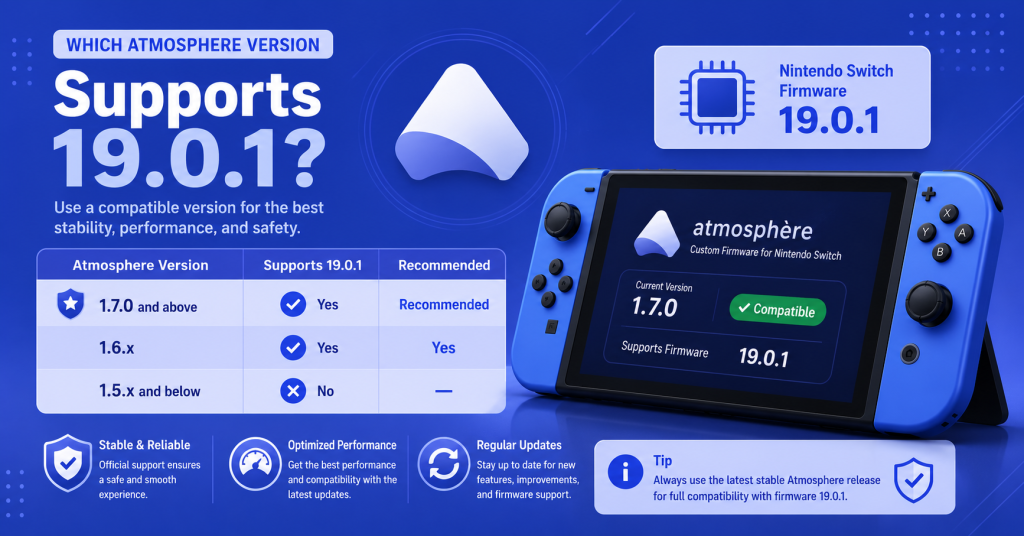
Atmosphère 1.8.0 is the minimum commonly recognized release for firmware 19.0.1.
Version 1.8.0 officially introduced basic support for firmware 19.0.0. Because firmware 19.0.1 was a small maintenance update, the same Atmosphère release remained compatible.
Do not use Atmosphère 1.7.x or an earlier release with firmware 19.0.1. Those versions were created before firmware 19.0.0 support was added.
Recommended Version
Use the newest stable Atmosphère release that remains appropriate for your complete setup.
Although Atmosphère 1.8.0 can run firmware 19.0.1, later versions may provide:
- Bug fixes
- Stability improvements
- Updated Homebrew Loader
- Updated Homebrew Menu
- Improved compatibility
- Newer fusee payloads
- Fixes for specific system modules
Download Atmosphère only from the official Atmosphere-NX release page. The project’s release instructions repeatedly warn users to update fusee.bin when upgrading Atmosphère. The obsolete fusee-primary.bin payload does not work with modern releases.
Compatibility Notes
Atmosphère support does not guarantee that every optional modification will work.
After moving to firmware 19.0.1, check compatibility for:
- Tesla Menu
- nx-ovlloader
- sys-clk
- MissionControl
- Emuiibo
- SaltyNX
- FPS overlays
- Custom themes
- Custom system modules
- Older homebrew applications
A startup failure is often caused by an outdated component inside:
SD:/atmosphere/contents
rather than by Atmosphère itself.
For the first boot after an update, temporarily disable optional system modules and themes. Restore them individually after confirming that the clean Atmosphère installation works.
4. Before Updating to Firmware 19.0.1
Never begin with the Nintendo firmware update.
First inspect the existing setup, download the required files, and create recoverable backups.
Check Current Atmosphere Version
Boot into Atmosphère and open:
System Settings → System
The version may look similar to:
18.1.0 | AMS 1.7.1 | E
The sections identify:
18.1.0— Nintendo firmware versionAMS 1.7.1— Atmosphère versionE— EmuMMCS— SysMMC
For firmware 19.0.1, update Atmosphère to at least version 1.8.0 before installing the firmware update.
Also confirm whether the system is currently running from EmuMMC or SysMMC. Updating the wrong environment may change SysMMC when you intended to update only EmuMMC.
Update Hekate
Update Hekate before moving to firmware 19.0.1.
Hekate version 6.2.2 added support for firmware 19.0.0 and corresponding EmuMMC changes. The official Hekate release information identifies firmware 19.0.1 as supported.
Update both parts of Hekate:
- The
bootloaderfolder on the SD card - The Hekate payload used to launch the console
A common mistake is updating the SD card files while continuing to inject an older Hekate .bin file from a computer, phone, dongle, or hardware configuration.
Back up this file before merging the new Hekate package:
SD:/bootloader/hekate_ipl.ini
It may contain custom boot entries for EmuMMC, SysMMC, stock mode, payloads, and alternative operating systems.
Update Sigpatches
Signature patches are unofficial modifications that are not developed, distributed, or supported by the Atmosphère project.
They are not required for legitimate homebrew applications, Hekate, EmuMMC, system backups, or standard Atmosphère operation. They are commonly associated with bypassing Nintendo’s software-signature and ownership protections.
This guide does not provide instructions or download sources for those patches.
For a lawful homebrew setup, use an official clean Atmosphère installation. When troubleshooting, remove unsupported patches and test Atmosphère without them before assuming the core custom firmware is broken.
Backup EmuMMC
EmuMMC contains a separate copy of the Nintendo Switch operating environment stored on the microSD card.
Before updating:
- Copy the visible
emuMMCfolder to a computer when using file-based EmuMMC. - Back up the EmuMMC configuration.
- Record whether the setup uses SD File or SD Raw Partition.
- Back up important saves with a trusted lawful save-management tool.
- Preserve screenshots and application settings.
- Keep a full SD card backup.
For partition-based EmuMMC, simply copying visible files does not copy the hidden EmuMMC partition. Use an appropriate Hekate backup or migration process when a complete partition backup is required.
Backup NAND
Use Hekate to create or verify essential NAND backups.
A complete backup commonly includes:
- BOOT0
- BOOT1
- RAW GPP
Store the completed backup on a computer or external drive.
Do not keep the only backup on the same SD card used by the console. If the card fails or is accidentally formatted, the backup will be lost with it.
Label the backup clearly:
Switch-NAND-Backup-Before-19.0.1
Do not share NAND backups or other console-specific private data publicly.
5. How to Safely Update Atmosphere for 19.0.1
Use the following order to reduce compatibility problems.
Download Latest Atmosphere
Visit the official Atmosphere-NX release page and download:
- The compiled Atmosphère release ZIP
- The matching
fusee.bin
Do not download:
Source code.zipSource code.tar.gz- Random reuploaded firmware packs
- Unverified all-in-one packages
- Files from unrelated video descriptions
The source-code archives are for developers and are not the standard ready-to-use installation package.
Extract the Atmosphère release on the computer before copying it to the SD card.
Update Hekate
Download the official Hekate release archive.
Extract it and copy the new bootloader folder to the SD card root. Allow folders to merge and replace older Hekate program files.
Preserve the existing:
bootloader/hekate_ipl.ini
unless you intentionally want to replace its launch configuration.
Also replace the Hekate payload used by your boot method:
- Computer payload sender
- Android payload application
- Payload dongle
- Hardware modification
payload.binon the SD card- Hekate chainload folder
Hekate 6.2.2 added firmware 19.0.0 and EmuMMC support, while its release information lists firmware 19.0.1 as supported.
Replace Required Files
Fully power off the Switch and remove the microSD card safely.
Create a complete copy of the card before changing anything.
Then copy the new Atmosphère package to the SD card root. The correct structure should include:
SD:/atmosphere/
SD:/switch/
SD:/hbmenu.nro
Replace the old fusee payload with the version downloaded from the same Atmosphère release:
SD:/bootloader/payloads/fusee.bin
Check every other place where fusee may be stored.
Do not use an old fusee.bin with a newer Atmosphère package. The official release instructions specifically tell users to update fusee when updating Atmosphère.
Temporarily rename:
SD:/atmosphere/contents
to:
SD:/atmosphere/contents-disabled
This prevents incompatible system modules from loading during the first test.
Also remove or disable custom themes before booting firmware 19.0.1.
Boot into EmuMMC
Insert the microSD card and launch Hekate.
Open:
Hekate → emuMMC
Confirm that EmuMMC is enabled and points to the expected partition or file location.
Then select the clearly labelled Atmosphère EmuMMC launch entry.
Do not continue if Hekate reports that EmuMMC is disabled or missing. First check:
emuMMC/emummc.ini- The selected SD partition
- The file-based EmuMMC path
- SD card health
- The Hekate launch configuration
Avoid creating a new EmuMMC until you have confirmed that the existing one is genuinely missing or damaged.
Verify Installation
After Atmosphère boots, open:
System Settings → System
The version should appear in a format similar to:
19.0.1 | AMS 1.8.0 | E
Confirm:
- Firmware is 19.0.1.
- Atmosphère is 1.8.0 or later.
- The environment shows
Efor EmuMMC. - The Home Menu loads.
- Sleep mode works.
- Controllers connect correctly.
- Homebrew Menu opens.
- No fatal error appears.
After the clean setup works, restore compatible custom modules one at a time.
Restart the console after each major module so that any incompatible component can be identified quickly.
6. Common Problems After Updating
Most post-update problems are caused by mismatched payloads, outdated modules, broken themes, or incomplete file replacement.
Black Screen
A black screen after updating may be caused by:
- Old fusee payload
- Old Hekate payload
- Unsupported Atmosphère release
- Missing
package3 - Incompatible theme
- Outdated system module
- Incorrect boot configuration
- SD card corruption
Try the following:
- Hold the Power button for approximately 12 seconds.
- Update Atmosphère.
- Replace
fusee.bin. - Update Hekate and its injected payload.
- Confirm
SD:/atmosphere/package3exists. - Disable
atmosphere/contents. - Remove custom themes.
- Test a clean boot.
Do not immediately recreate EmuMMC. A black screen does not normally mean EmuMMC data has been deleted.
Atmosphere Won’t Boot
Confirm that Atmosphère is version 1.8.0 or later.
Then check:
- Firmware and Atmosphère compatibility
- Hekate version
- fusee version
- Hekate launch configuration
- SD card filesystem
- Custom system modules
- Themes
- File extraction errors
If an Atmosphère fatal-error screen displays a program ID, check whether that ID matches a folder inside:
SD:/atmosphere/contents
Rename the entire contents folder temporarily and try again.
Fusee Error
Fusee errors commonly appear when the payload and Atmosphère files do not match.
Replace all copies of fusee.bin, including those stored in:
bootloader/payloads- A computer
- A phone
- A payload injector
- A dongle
- A boot configuration
- Another chainload folder
Do not use fusee-primary.bin. Modern Atmosphère releases use fusee.bin, and the official release notes state that fusee-primary no longer works.
Sigpatch Issues
Unofficial signature patches are separate from Atmosphère and are not required for lawful homebrew operation.
Problems involving unofficial patches do not necessarily mean Atmosphère is incompatible with firmware 19.0.1.
To troubleshoot the core setup:
- Use clean official Atmosphère files.
- Remove unsupported modifications.
- Update Hekate and fusee.
- Boot without optional modules.
- Test legitimate homebrew applications.
The Atmosphère development team does not officially support third-party patches or unauthorized software-signature bypasses.
Homebrew Not Working
Some older homebrew applications may stop launching after a firmware or Atmosphère update.
Check that:
hbmenu.nrois present at the SD root.- Applications are stored under
SD:/switch. - Homebrew applications are updated.
- The SD card is readable.
- Applet mode is not causing memory limitations.
- The Homebrew Loader is included with the Atmosphère package.
- No outdated system module is interfering.
Test one trusted homebrew application at a time.
For applications needing more memory, launch Homebrew Menu through title override rather than Album applet mode.
Theme Compatibility Problems
Custom themes are a common cause of boot failures after firmware updates.
Firmware updates may change Home Menu components. A theme created for an older firmware may no longer match those files.
Before installing firmware 19.0.1:
- Remove the active theme.
- Delete or disable theme-related contents.
- Boot the default Nintendo interface.
- Update the theme installer.
- Rebuild or reinstall only a compatible theme.
When Atmosphère boots after disabling themes, the theme was likely the cause rather than Atmosphère itself.
7. Atmosphere 19.0.1 Compatibility Checklist
Use this checklist before booting firmware 19.0.1:
- Nintendo Switch firmware target confirmed as 19.0.1
- Atmosphère 1.8.0 or later installed
- Matching
fusee.bininstalled - Hekate 6.2.2 or later installed
- Injected Hekate payload updated
bootloaderfolder updatedhekate_ipl.inibacked up- EmuMMC status confirmed
- Complete SD card backup created
- NAND backup stored outside the SD card
- Important saves backed up
- Custom themes disabled
- Optional system modules disabled
- Homebrew applications checked for updates
- SD card tested for errors
- Correct EmuMMC boot entry selected
- Firmware and Atmosphère versions verified after boot
Do not restore themes or system modules until the clean installation has been tested successfully.
8. Best Practices Before Every Firmware Update
Check Release Notes
Read the official Atmosphère release notes before updating the Nintendo firmware.
Look for:
- Supported firmware version
- Known issues
- fusee update requirements
- Homebrew compatibility warnings
- Required configuration changes
- Pre-release status
Also read the Hekate release notes, especially when using EmuMMC.
Wait for Official Compatibility
Do not install a major Nintendo firmware update immediately after it is released.
Wait until the official Atmosphère project confirms support. Hekate, Homebrew Menu, system modules, and themes may also need updates.
Firmware 19.0.1 was a minor update, but firmware 19.0.0 required dedicated support in Atmosphère and Hekate.
Update Atmosphere First
The safest order is:
- Update Atmosphère.
- Update fusee.
- Update Hekate.
- Update compatible homebrew.
- Disable optional modifications.
- Test the current firmware.
- Update EmuMMC firmware.
- Test again.
Updating firmware first can leave the current custom firmware unable to boot.
Update Hekate
Update both Hekate’s SD card files and its actual payload.
Users often replace the bootloader folder but forget that an older Hekate .bin file is still being sent from their computer or payload device.
Check every payload location before testing.
Update Homebrew
Review important homebrew applications before updating.
Prioritize tools that interact closely with:
- System services
- Controllers
- File systems
- Overlays
- Networking
- Save data
- USB communication
- Clock control
- Themes
Simple standalone applications are less likely to break than background modules that load during startup.
Keep Backups
Maintain dated backups of:
- SD card files
- NAND
- EmuMMC configuration
- Save data
- Hekate configuration
- Atmosphère configuration
- Known working payloads
- Installed module list
A useful backup name is:
Switch-19.0.1-AMS-1.8.0-Working
Keep at least one copy on a separate physical device.
9. Troubleshooting Atmosphere on Firmware 19.0.1
Boot Errors
For a general boot error:
- Record the displayed error code.
- Confirm Atmosphère is 1.8.0 or later.
- Replace Atmosphère with clean official files.
- Replace fusee.
- Update Hekate.
- Disable
atmosphere/contents. - Remove themes.
- Confirm the firmware version.
- Test EmuMMC again.
Do not mix files from several custom firmware packs.
Payload Problems
If Hekate loads but Atmosphère does not, the problem may be the selected boot entry or fusee payload.
Check:
SD:/atmosphere/package3
SD:/bootloader/hekate_ipl.ini
SD:/bootloader/payloads/fusee.bin
Confirm that hekate_ipl.ini points to the current Atmosphère boot file.
When launching fusee directly, use the payload downloaded alongside the installed Atmosphère release.
SD Card Issues
SD card corruption can look like a firmware compatibility problem.
Signs include:
- Missing folders
- Random read errors
- Slow startup
- Files returning after deletion
- Failed extraction
- Hekate reporting SD errors
- Computer requesting a format
- Homebrew applications disappearing
Test the microSD card with an appropriate full-capacity verification tool.
Use FAT32 where practical and always eject the card safely from the computer.
Do not format a card containing important data before attempting a backup.
EmuMMC Detection Errors
If Hekate does not detect EmuMMC:
- Open Hekate’s EmuMMC menu.
- Check whether EmuMMC is enabled.
- Inspect
emuMMC/emummc.ini. - Confirm the partition number or file path.
- Check whether the hidden partition still exists.
- Verify the SD card partition table.
- Restore the EmuMMC configuration from backup.
- Test with the updated Hekate release.
Hekate 6.2.2 included EmuMMC changes for firmware 19.0.0 and identified 19.0.1 as supported.
Do not select Create EmuMMC until you have determined that the existing EmuMMC cannot be reconnected.
10. Frequently Asked Questions
Does Atmosphere fully support 19.0.1?
Yes. Atmosphère supports Nintendo Switch firmware 19.0.1.
Atmosphère 1.8.0 introduced support for firmware 19.0.0, and the smaller firmware 19.0.1 update did not require another dedicated Atmosphère compatibility release.
Optional themes, overlays, and system modules may still require separate updates.
Which Atmosphere version works with 19.0.1?
Atmosphère 1.8.0 is the minimum commonly recognized compatible release.
A newer stable Atmosphère release is generally recommended because it includes later fixes and improvements. Always use the fusee.bin file from the same Atmosphère release.
Do I need to update Hekate?
Yes, particularly when moving from an older firmware setup.
Hekate 6.2.2 added support for firmware 19.0.0 and corresponding EmuMMC changes, while its official release information lists firmware 19.0.1 as supported.
Update both the SD card bootloader folder and the payload used to launch Hekate.
Should I update firmware before Atmosphere?
No.
Update Atmosphère, fusee, Hekate, homebrew applications, and compatible modules first. Test the existing firmware, and then update the firmware inside the intended EmuMMC or SysMMC environment.
Why won’t Atmosphere boot after updating?
The most common causes are:
Atmosphère older than 1.8.0
Outdated fusee payload
Outdated Hekate payload
Broken theme
Incompatible system module
Incorrect boot configuration
Incomplete file replacement
SD card corruption
EmuMMC configuration error
Test with clean official Atmosphère files and optional modules disabled.
Can I stay on an older firmware?
Yes, provided your required legitimate applications and services continue to work.
You do not need to update simply because firmware 19.0.1 exists. However, Nintendo services, games, or applications may eventually require a newer system version.
Remaining on a stable firmware can reduce the risk of unexpected custom firmware compatibility problems.
Do I need new sigpatches after updating?
Signature patches are unofficial and are not required for lawful Atmosphère homebrew, Hekate, EmuMMC, backups, or development use.
Because they are commonly used to bypass Nintendo software-signature and ownership protections, this guide does not provide installation or update instructions for them.
For reliable troubleshooting, test a clean official Atmosphère setup without unofficial patches.
11. Final Thoughts
Atmosphère supports Nintendo Switch firmware 19.0.1. The minimum commonly recognized compatible version is Atmosphère 1.8.0, which added support for the firmware 19.0.x generation. Firmware 19.0.1 was released on October 28, 2024, primarily to fix GameCube Controller Adapter recognition. It did not require a separate major Atmosphère compatibility release.
For the safest update:
Create backups → Update Atmosphère → Replace fusee → Update Hekate → Disable themes and modules → Test EmuMMC → Install firmware 19.0.1 → Verify versions → Restore compatible modifications.
Do not update firmware before checking support, and do not assume every post-update crash is caused by Atmosphère. Old payloads, custom themes, system modules, SD card corruption, and incorrect EmuMMC settings are more common causes.
Using official files, maintaining dated backups, and changing one component at a time will keep the setup easier to troubleshoot and recover.
Latest Post:
- How to Homebrew a Switch: Complete Nintendo Switch Homebrew Guide
- How to Update Nintendo Switch: Complete Step-by-Step Guide
- How to Use Atmosphère on Nintendo Switch: Complete CFW Guide for Homebrew Users
- How to Update Switch Firmware With Atmosphere: Complete Step-by-Step Guide
- How to Install XCI on Switch Atmosphere: What You Need to Know